Electronics / Audio
Walrus Audio Melee Wall of Noise Effects Pedal
Quick guide for the Walrus Audio Melee effects pedal. Learn how to use the joystick, reverb programs, bypass modes, and power requirements.
Table of contents
Manual images
Jump to the sectionQuick guide from the manual
The Walrus Audio Melee is a combined reverb and distortion pedal featuring a joystick for real-time control. It requires a 9V DC, center-negative power supply with a minimum of 200mA. An isolated power supply is highly recommended to prevent noise; daisy-chaining is not recommended.
Controls Overview
The pedal features several knobs and switches to shape your sound:
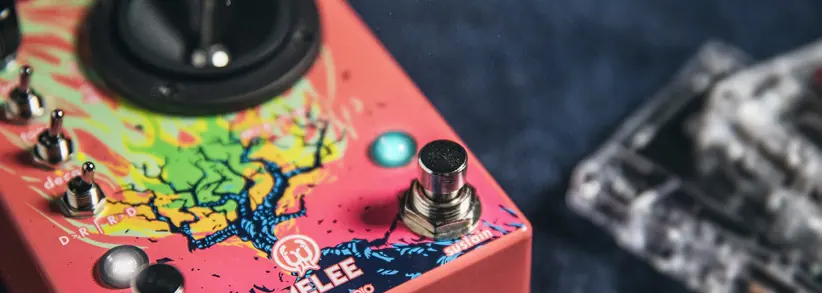
- Vol: Sets the overall output volume of the pedal.
- Tone: Controls the tone of both distortion and reverb simultaneously. Left is normal, middle is dark, and right is the brightest setting.
- Decay: Controls the decay time of the reverb. Left is minimum, middle is medium, and right is maximum.
- Secondary Control: Hold down the bypass stomp switch and move the decay toggle to adjust modulation. Left is no modulation, middle is 33RPM, and right is 45RPM.
Joystick and Signal Order
The joystick allows for custom mixing of distortion and reverb:
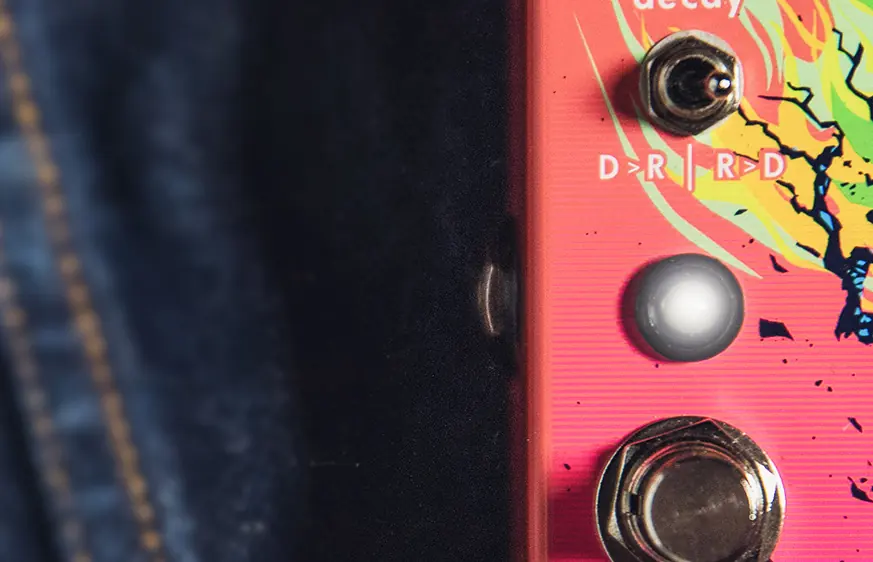
- X-Axis (Left/Right): Sets the amount of reverb mix (Left = fully dry, Right = fully wet).
- Y-Axis (Up/Down): Sets the amount of distortion (Down = fully clean, Up = fully distorted).
- Order Toggle (D>R | R>D): Selects the signal path. D>R sets distortion first (traditional clarity), while R>D sets reverb first (creates a muddied, powerful wall of sound).
Reverb Programs
The Melee includes three reverb programs. Change them by simultaneously pressing the bypass and sustain switches:
- Ambient Reverb (Pink LED): Massive trails for soaring melodic lines.
- Octave Down Reverb (Yellow LED): Adds an eerie lower octave to the reverb trail.
- Reverse Reverb with Feedback (Blue LED): Reversed trails; decay sets feedback amount instead of time.
Momentary Features
- Bypass Switch: When the pedal is off, press and hold to temporarily activate the effect.
- Sustain Switch: Hold to ramp up the reverb trail to maximum. Press and release to latch the current reverb decay.
Bypass Modes
To change the bypass mode, hold the Bypass switch while applying power until the preset LED lights up. Press the Bypass switch to cycle through colors, then press Bypass and Sustain simultaneously to confirm:
- Green (DSP Bypass): Default mode. Reverb has trails after bypassing.
- Blue (DSP+True Bypass): Reverb trails continue until the decay dies out, then the relay bypasses.
- Red (True Bypass): No trails after bypassing.
Practical help
Common problems
No reverb trails after bypassing the pedal
Ensure the pedal is not set to 'True Bypass Mode' (Red LED). Switch to DSP Bypass (Green) or DSP+True Bypass (Blue).
Excessive noise or interference
Ensure you are using an isolated power supply. Daisy-chaining power supplies is not recommended.
Reverb decay is not behaving as expected in Reverse mode
In Reverse Reverb (Blue LED), the Decay knob controls feedback amount rather than decay time.
Before use
- Use a 9V DC, center-negative power supply.
- Ensure the power supply provides at least 200mA.
- Use an isolated power supply to avoid noise.
- Set the order toggle (D>R or R>D) based on desired sound characteristics.
- Check the bypass mode if you require reverb trails after turning the pedal off.
Specs in practice
- Power Requirement
- 9V DC, Center Negative, 200mA minimum.
- Joystick X-Axis
- Controls the reverb dry/wet mix.
- Joystick Y-Axis
- Controls the distortion amount.
Images and diagrams
- The joystick controls the mix of distortion and reverb on an X-Y axis.
- The order toggle determines whether distortion or reverb comes first in the signal chain.
- Bypass modes are indicated by LED colors during the startup configuration procedure.
Model compatibility
- Recommended for use with isolated power supplies.
- Not compatible with daisy-chain power configurations.

Manual page author
Emily Carter
User documentation editor
Prepares concise manual descriptions and highlights the most useful setup, operation, and maintenance information for readers.