Computers / Laptops
User Manual for Dell Inspiron 5590 Laptop
Quick setup guide and technical specifications for the Dell Inspiron 5590 laptop. Learn about port layouts, keyboard shortcuts, battery configurations, and hardware specifications.
Table of contents
Manual images
Click an image to enlargeQuick guide from the manual
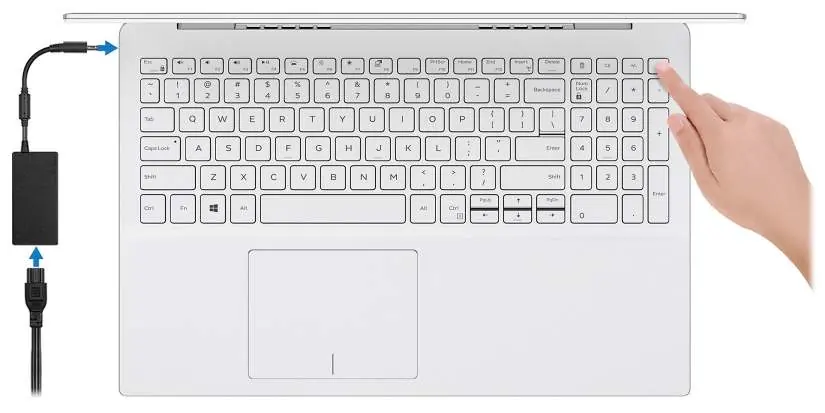
This document provides setup instructions and technical specifications for the Dell Inspiron 5590. To set up your computer, connect the power adapter and press the power button. Follow the on-screen instructions to complete the operating system setup for Windows or Ubuntu. It is recommended to connect to a network during setup to receive updates.
Device overview
Right side
- microSD-card slot: Supports microSecure Digital (SD), SDHC, and SDXC cards.
- Headset port: For headphones or headset.
- USB 2.0 port: For peripherals with speeds up to 480 Mbps.
- Security-cable slot: Wedge-shaped slot for security cables.
Left side
- Power-adapter port: Connects the power adapter.
- HDMI port: For video and audio output.
- USB 3.1 Gen 1 ports: Two ports for peripherals with speeds up to 5 Gbps.
- USB 3.1 Gen 1 (Type-C) port: Supports Power Delivery and DisplayPort.
Base
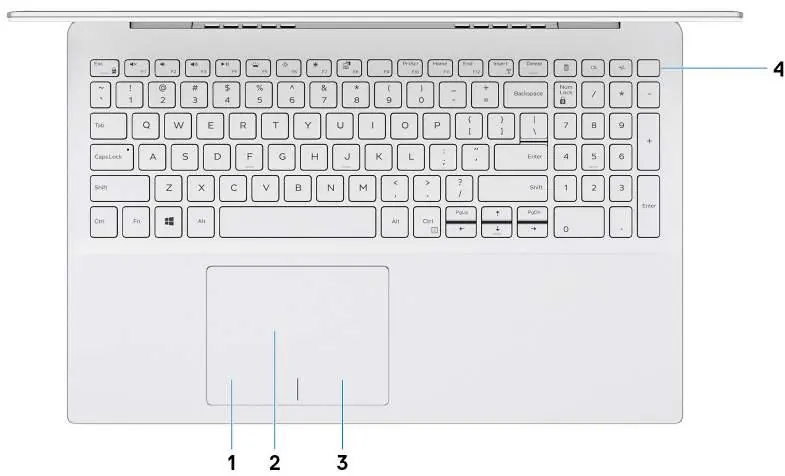
- Touchpad: Supports gestures for navigation.
- Power button: Includes an optional fingerprint reader. Press to turn on, sleep, or hibernate. Hold for 10 seconds to force shutdown.
Display and Bottom
- Display: Includes camera, camera-status light, and dual microphones.
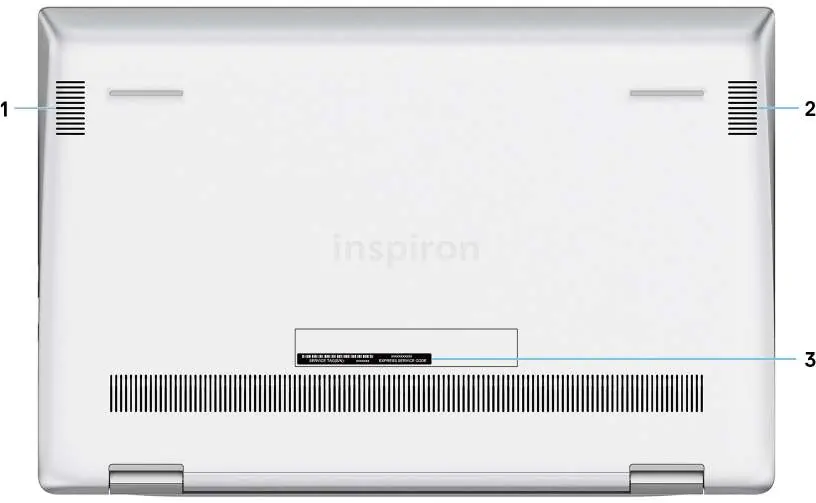
- Bottom: Features speakers and the Service Tag label, which is essential for identifying hardware and warranty information.
Technical specifications
Memory and Storage
The laptop features one SODIMM slot supporting DDR4 2666 MHz memory. Storage configurations vary, supporting 2.5-inch hard drives, M.2 SSDs, and Intel Optane memory.
Power and Battery
The system uses a 45W or 65W power adapter. Battery options include 3-cell smart lithium-ion batteries (42 WHr or 51 WHr). Charging time is approximately 3 to 4 hours when the computer is off.
Display
The display is a Full High Definition (FHD) panel with Wide Viewing Angle (WVA) technology, 1920 x 1080 resolution, and anti-glare finish.
Keyboard shortcuts
The F1-F12 keys serve as function keys for multimedia control. You can toggle between multimedia and function key behavior by pressing Fn + Esc. Specific shortcuts include:
- Fn + F1: Mute audio
- Fn + F2: Decrease volume
- Fn + F3: Increase volume
- Fn + F4: Play/Pause
- Fn + F5: Toggle keyboard backlight
- Fn + F6: Decrease brightness
- Fn + F7: Increase brightness
- Fn + F8: Switch to external display
Getting help
For further assistance, visit www.dell.com/support. You can access the My Dell app or Dell Help & Support app on your computer for troubleshooting, driver updates, and warranty information. Always have your Service Tag ready when contacting support.
Official resources from the manual
Manufacturer information
Dell Inc.
Practical help
Common problems
Computer does not turn on
Ensure the power adapter is securely connected and press the power button. If the battery is in power-saving mode, connecting the power adapter will wake it.
Forced shutdown required
Press and hold the power button for 10 seconds to force the computer to shut down.
Battery reset
To reset the battery, press and hold the power button for 25 seconds.
Before use
- Connect the power adapter to the laptop.
- Press the power button to turn on the computer.
- Follow on-screen instructions to complete the OS setup.
- Connect to a network for Windows updates.
- Sign in with or create a Microsoft account.
Specs in practice
- Power Adapter
- Available in 45W or 65W versions with a 4.5mm x 2.9mm connector.
- Intel Optane Memory
- Functions as a non-volatile storage cache to enhance read/write speeds; requires 7th Gen or higher Intel Core processors.
Images and diagrams
- The right side contains the microSD slot, headset port, USB 2.0, and security slot.
- The left side contains the power port, HDMI, and two USB 3.1 Gen 1 ports.
- The base features the touchpad, click areas, and the power button.
- The bottom panel houses the speakers and the Service Tag label.
Model compatibility
- Intel Optane memory requires Windows 10 64-bit (Anniversary Update) or higher.
- USB Type-C to DisplayPort adapter is sold separately.
- Keyboard backlight is optional; non-backlit keyboards do not support the F5 toggle function.

Manual page author
Michael Turner
Technical manual editor
Reviews PDF manuals for structure, safety notes, and practical product details so readers can find the right information quickly.