Electronics / Cameras
FUJIFILM GFX 100SII Firmware Version 1.20 Update Guide
Essential update information for the Fujifilm GFX 100SII camera, covering firmware version 1.20 changes, including updated smartphone pairing procedures and removed features.
Table of contents
Firmware Update Overview
This guide details the changes and feature updates introduced in firmware version 1.20 for the Fujifilm GFX 100SII digital camera. Users should be aware that firmware updates may alter the functionality of the device, meaning some descriptions in the original printed documentation may no longer be accurate. It is recommended to visit the official Fujifilm support website for the most current manuals and firmware information.
Important System Changes
Updating the camera firmware to version 1.20 will automatically reset the SELECT CONNECTION SETTING in the network/USB menu to UNIVERSAL SETTING. Users must manually reconfigure these settings to match their specific external devices after the update process is complete.
Removed Features and Compatibility
Several features have been removed or modified in this version. Specifically, the WIRELESS COMMUNICATION option has been removed from the SHOOTING SETTING, MOVIE SETTING, and PLAY BACK MENU. Additionally, the instax PRINTER PRINT option has been removed from the PLAY BACK MENU, and the instax PRINTER CONNECTION SETTING has been removed from the network/USB settings. Furthermore, the camera no longer supports the Fujifilm instax SHARE Printers SP-1, SP-2, and SP-3 accessories. WIRELESS COMMUNICATION has also been removed from assignable functions in the BUTTON/DIAL SETTING menu.
Connecting to a Smartphone
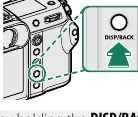
The procedure for pairing the camera with a smartphone via Bluetooth has been updated. To pair the devices, ensure the shooting information is displayed on the camera screen and press the DISP/BACK button. Navigate to the Bluetooth menu and select PAIRING. Launch the corresponding app on your smartphone and follow the on-screen instructions to confirm that the codes displayed on both the camera and the smartphone match. Once successfully paired, a smartphone icon and a white Bluetooth icon will appear on the camera display. For optimal battery performance, it is recommended to disable Bluetooth when the camera is not actively connected to a smartphone.
Manufacturer information
Fujifilm Corporation
Practical help
Common problems
Connection settings reset after firmware update
Manually reconfigure the SELECT CONNECTION SETTING in the network/USB menu to match your external device.
Battery draining quickly
Disable Bluetooth in the camera settings when not actively connected to a smartphone.
Before use
- Verify current firmware version is 1.20
- Ensure camera battery is sufficiently charged
- Check that the smartphone app is updated to the latest version
- Confirm Bluetooth is enabled on the smartphone
Images and diagrams
- Press DISP/BACK button while shooting information is visible to initiate pairing.
- Navigate to Bluetooth menu to select the PAIRING option.
- Confirm matching codes on both camera and smartphone screens to finalize the connection.
Model compatibility
- Fujifilm instax SHARE Printers SP-1, SP-2, and SP-3 are no longer supported.
- Firmware 1.20 resets network/USB connection settings to default.

Manual page author
Emily Carter
User documentation editor
Prepares concise manual descriptions and highlights the most useful setup, operation, and maintenance information for readers.