Electronics / AV Switchers
User Manual for Gofanco 1080p HDMI 8x8 Matrix
Quick guide for the Gofanco 1080p HDMI 8x8 Matrix. Learn how to install, configure, and control your AV switcher using front panel buttons, IR remote, GUI, or RS232 commands.
Table of contents
Manual images
Click an image to enlargeQuick Guide
The Gofanco 1080p HDMI 8x8 Matrix allows you to route any of 8 HDMI source devices to any of 8 display devices. This guide covers installation, device switching, and advanced control methods including GUI and RS232.
Product Overview
The device features a sturdy metal housing with a front panel for manual control and a rear panel for connections.
Front Panel
- Power LED: Green when powered on, Red in standby mode.
- IR Sensor: Receives signals from the included remote control.
- Signal Switching: Includes LEDs for source input status and buttons to cycle through inputs.
- Micro USB: Used for firmware updates.
Rear Panel
- HDMI In (1-8): Connects to your HDMI source devices.
- HDMI Out (1-8): Connects to your HDMI display devices.
- RJ45: Connects to your control PC using a CAT cable for GUI control.
- RS232: Connects to your control PC using the included RS232 cable.
- Power Jack: Connects to the included DC24V power adapter.
Hardware Installation
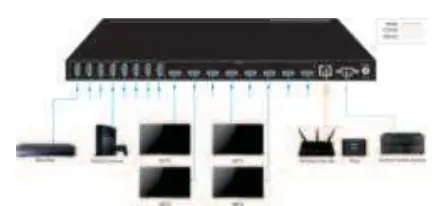
- Power off all devices, including HDMI sources and displays.
- Connect your HDMI source devices to the HDMI IN (1-8) ports.
- Connect your HDMI displays to the HDMI OUT (1-8) ports.
- Optional: Connect the RS232 cable to your computer if you require serial control.
- Plug the included power adapter into the power jack and a reliable power source.
- Power on all connected devices.
Device Switching
You can switch inputs using three methods:
- Front Panel: Repeatedly press the Input Select Button to cycle through inputs.
- IR Remote: Use the remote to select inputs, outputs, and execute switches. Press the Switch button to execute commands or Clear to cancel.
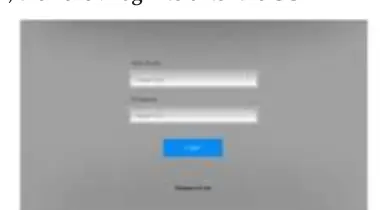
- GUI Control: Access the built-in GUI via a web browser by typing 192.168.0.178. Log in with username admin and password admin.
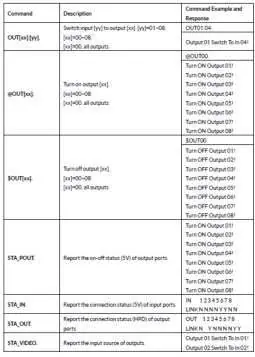
RS232 Control
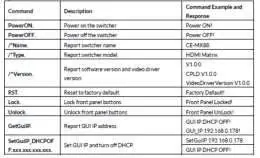
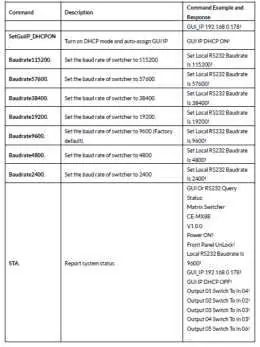
The matrix can be controlled via RS232 using third-party software like CommWatch.
Settings
- Baud rate: 9600
- Data bit: 8
- Stop bit: 1
- Parity: None
EDID Management
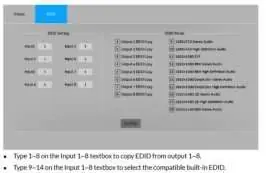
The device features smart EDID management to match connected displays. You can copy EDID data from an output to an input or select built-in EDID profiles using the GUI or RS232 commands.
HDCP Management
The matrix supports HDCP 1.4. You can turn HDCP on or off for specific outputs or set the device to Bypass mode (factory default), where the input source automatically follows the HDCP of the output.
Specifications
- Video Resolution: Up to 1080p@60Hz 4:4:4 8bit.
- HDMI Version: 1.3a.
- HDCP Version: 1.4.
- Control Options: Front Panel, IR Remote, GUI, RS232.
- Power Supply: Input 100V-240V AC; Output 24V DC 1.25A.
- Operating Temperature: -5 to +55 degrees Celsius.
Practical help
Common problems
No signal on display
Ensure all HDMI cables are securely connected and source devices are powered on.
Remote control not responding
Ensure the remote is pointed directly at the IR sensor on the front panel and the battery is functional.
GUI not loading
Verify the PC is on the same network and the IP address 192.168.0.178 is entered correctly in the browser.
RS232 control failing
Verify the serial settings: Baud rate 9600, Data bit 8, Stop bit 1, Parity None.
Before use
- Power off all devices before installation.
- Use the included DC24V power adapter.
- Ensure proper ventilation for the unit to avoid overheating.
- Verify HDMI cables are connected to the correct ports.
- Do not plug/unplug HDMI cables while the device is in use.
Specs in practice
- HDMI Resolution
- Supports up to 1080p@60Hz.
- Control Options
- Supports Front Panel, IR Remote, GUI, and RS232.
- Power Consumption
- 13.5 watts (Max).
- Operating Temperature
- -5 to +55 degrees Celsius.
Images and diagrams
- Front Panel: Shows Power LED, IR sensor, and input/output switching buttons.
- Rear Panel: Shows HDMI In/Out ports, RJ45, RS232, and Power Jack.
- Connection Diagram: Illustrates how to connect source devices and displays to the matrix.
Model compatibility
- Compatible with HDMI 1.3a and HDCP 1.4.
- Supports firmware updates via Micro USB.

Manual page author
David Miller
Documentation analyst
Organizes user manual content into clear summaries, with attention to model details, product context, and everyday usability.