Home Appliances / Fans
Goldair 117cm Tower Fan with WiFi GPTF390 User Manual
Quick guide for the Goldair 117cm Tower Fan with WiFi (GPTF390). Learn how to set up the app, pair your device, configure smart scenes, and use voice control with Alexa and Google Home.
Table of contents
Manual images
Click an image to enlargeQuick Guide: App Setup and Pairing
To control your Goldair 117cm Tower Fan with WiFi, you must use the Goldair mobile app. The device requires a 2.4GHz WiFi connection. If your router uses dual-band (2.4GHz and 5GHz), you may need to separate them or contact your internet provider for assistance.
- Download: Search for 'Goldair' in the App Store or Google Play and install the app.
- Register: Open the app, tap 'Register', agree to the Privacy Policy, enter your email, and verify using the code sent to your inbox.
- Pairing: On the app home screen, tap 'Add Device' or the '+' icon. Select your device from the list.
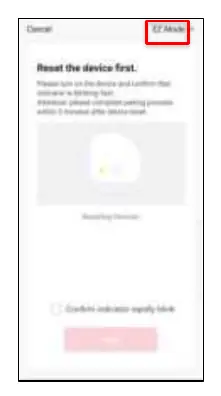
- EZ Mode: The app defaults to EZ Mode. Ensure the device's WiFi LED is flashing rapidly. If not, hold the 'OSCILLATION' button for 5 seconds. Confirm in the app and follow prompts.
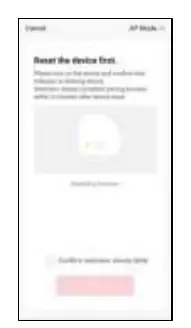
- AP Mode: If EZ Mode fails, switch to AP Mode in the top right corner. Ensure the WiFi LED is flashing slowly. Connect your phone to the device's hotspot (e.g., 'SmartLife-XXXX') and return to the app.
Operating the Fan via App
Once paired, you can control the fan directly from the app interface:
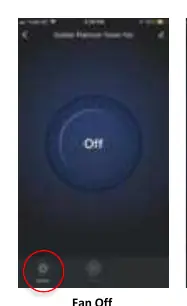
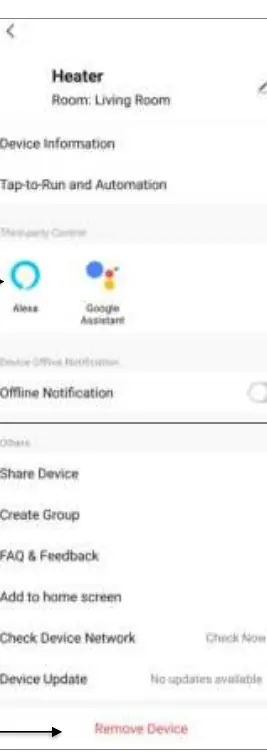
- Power: Tap the Power/Switch icon to turn the fan on or off.
- Modes: Select from 4 modes: Normal (standard, 3 speeds), Natural (mimics outdoor wind), Sleep (variable wind speed), and Child (3-hour cycle, oscillation active).
- Oscillation: Hold the oscillation icon for 2-3 seconds to toggle.
- Speed: Adjust the bar at the bottom to select speeds 1 (quiet/low) to 3 (high).
- Timer: Access via the settings button to set a countdown timer (1-12 hours) for the fan to turn off.
Smart Scenes and Automation
You can automate your fan using the 'Smart' tab in the app:
- Tap-To-Run: Create shortcuts for specific settings (e.g., Power ON/OFF, mode, timer) that launch with a single tap.
- Weather: Trigger actions based on local weather changes (temperature, humidity, wind speed).
- Schedule: Set the fan to operate at specific times or days of the week.
- Status Change: Create conditions based on device status changes (e.g., turning off when another function is changed).
Voice Control
The fan is compatible with Amazon Alexa and Google Home.
- Setup: Ensure the device is paired in the Goldair app and renamed to an identifiable name (e.g., 'Bedroom Fan').
- Alexa: Enable the 'Goldair' skill in the Alexa app, link your account, and authorize.
- Google Home: Use 'Works with Google' in the Google Home app to link your Goldair account.
- Commands: You can use voice commands like 'Alexa, turn Bedroom Fan ON' or 'Ok Google, turn Bedroom Fan to High'.
Manufacturer information
Goldair
Practical help
Common problems
Device not pairing
Ensure your phone is connected to a 2.4GHz WiFi network. 5GHz networks are not supported.
WiFi LED not flashing
Hold down the 'OSCILLATION' button on the fan for 5 seconds until the WiFi icon flashes.
Internet not available notification during AP mode
Press 'Dismiss' when prompted while connecting to the device's hotspot.
Before use
- Download the Goldair App from the App Store or Google Play.
- Ensure your smartphone is connected to a 2.4GHz WiFi network.
- Keep your phone, modem, and fan in close proximity during the pairing process.
- Rename your device in the app to an easily recognizable name like 'Bedroom Fan'.
Specs in practice
- Natural Mode
- Mimics outdoor wind by constantly changing wind speed.
Model compatibility
- Requires 2.4GHz WiFi network.
- Compatible with Amazon Alexa voice control.
- Compatible with Google Home voice control.

Manual page author
Michael Turner
Technical manual editor
Reviews PDF manuals for structure, safety notes, and practical product details so readers can find the right information quickly.