Tools / Drills
User Manual for Hitachi 22HYC06U 22" Colour TV
Quick guide and user manual for the Hitachi 22HYC06U 22-inch LED TV. Includes setup instructions, remote control functions, connection guide, troubleshooting, and technical specifications.
Quick answers from the manual
Quick answer
- The Hitachi 22HYC06U is a 22-inch LED TV. Setup involves connecting the power and antenna, performing the First Time Installation, and using the remote control to navigate menus. p. 1, 12
Key actions
- First Time Installation p. 12
- Switching On/Off p. 12
- Media Playback p. 12
First start
- Connect power and antenna, turn on, follow language and channel scan prompts. p. 12
Show 4 more answers Show less
Problems and fixes
TV will not turn on
Check power cord, replace remote batteries, use TV side button.
p. 16
Poor picture
Check antenna, check input source, disconnect other devices.
p. 16Maintenance and reset
- First Time Installation resets TV to factory settings. p. 15
Technical specifications
| Parameter | Value | Meaning | Pages |
|---|---|---|---|
| Power Consumption | 45W | Maximum power consumption. | p. 10 |
| Resolution | 1920x1080 | Display resolution in pixels. | p. 10 |
| Weight | 3 kg | Weight of the TV. | p. 10 |
| Vesa | M4 75x75 | Wall mount standard. | p. 10 |
Where to find it in the PDF
- Safety Information p. 2, 3, 4, 5
- Getting Started p. 6, 7, 8, 9
- Remote Control p. 10
- Connections p. 11
- Specifications p. 9
Table of contents
Manual images
Click an image to enlargeQuick Guide from the Manual
This guide provides essential information for setting up and using your Hitachi 22HYC06U television. For any setup or usage issues, please contact the Customer Helpline at 0345 604 0105 (Lines open: 9am - 8pm Monday to Saturday, 10am - 4pm Sunday).
Safety Information
- Ventilation: Leave at least 10 cm of free space around the TV to prevent overheating.
- Power: Operate only from a 220-240V AC, 50 Hz outlet. Do not leave the TV in standby or operating mode when leaving the house.
- Environment: Use in moderate climates. Avoid humid or damp places.
- Batteries: Do not mix old and new batteries. If the TV will not be used for a long time, remove the batteries from the remote.
Getting Started
The TV features a remote-controlled colour LCD display, DVB-T digital tuner, HDMI inputs, USB input for media playback, and PC input. Accessories included are the remote control, 2x AAA batteries, instruction book, quick start guide, and stand assembly.
Control Buttons on the TV
The TV features a control switch that allows you to manage volume, programme selection, source, and standby functions:
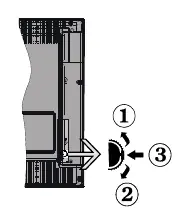
- Up/Down: Adjust volume or scroll through channels/sources.
- Middle Press: Access channel information, source list, or switch to standby (hold down).
Remote Control
The remote control provides full access to TV functions, including:
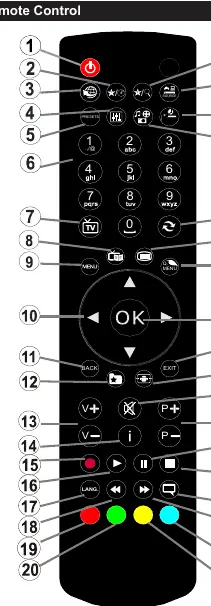
- Standby/On: Power control.
- Media Browser: Access USB media files.
- EPG: Electronic Programme Guide.
- Quick Menu: Access settings like Power Save Mode, Picture Mode, and Sleep Timer.
- My Buttons: Programmable buttons for quick access to sources or channels.
Installation and Connections
Before mounting or connecting, ensure the TV is at room temperature. Connect the antenna to the AERIAL INPUT (ANT) socket. Use the supplied cables for YPbPr or Side AV inputs. When using a wall mount, connect all cables before mounting.
First Time Installation
Upon first power-on, the language selection screen appears. Follow the on-screen prompts to set preferences and scan for channels. Ensure you select 'Aerial' for the tuning mode.
Media Playback via USB
You can play photo, music, and movie files from a USB drive. Connect the drive to the side USB port, press the MENU button, and select Media Browser. Ensure files are in supported formats (e.g., MPEG, MP4, MP3, JPEG).
Troubleshooting
- TV will not turn on: Check power cord connection, replace remote batteries, or use the TV's side control button.
- Poor picture: Check antenna connection, ensure the correct TV system is selected, or disconnect other devices if interference occurs.
- No sound: Check if Mute is active or if the volume is too low.
Specifications
- Power Consumption: 45W (On mode average 22W).
- Resolution: 1920x1080 (Full HD).
- Weight: 3 kg.
- Vesa Mount: M4 75x75.
- Operating Temperature: 0ºC to 40ºC.
Manufacturer information
Hitachi, Ltd.
Practical help
Common problems
TV will not turn on
Check if the power cord is securely plugged into the wall outlet. Replace remote control batteries. Try using the Power button on the TV itself.
Poor picture quality
Check antenna connection. Ensure the correct TV system is selected. If multiple devices are connected, try disconnecting one to check for interference.
No sound
Check if the TV is set to Mute. Increase the volume level. Check the balance settings in the Sound Menu.
Remote control does not operate
The batteries may be exhausted. Replace them with new AAA batteries.
Before use
- Check power supply (220-240V AC, 50Hz)
- Ensure 10cm ventilation space around the TV
- Install 2x AAA batteries in the remote control
- Connect antenna to the AERIAL INPUT (ANT) socket
- Allow the TV to reach ambient room temperature after unpacking
Show more Show less
Specs in practice
- Power Consumption
- 45W maximum, 22W average on-mode consumption.
- Display Resolution
- 1920x1080 pixels (Full HD).
Images and diagrams
- TV Control Switch: 1. Up, 2. Down, 3. Programme/Volume/Source/Standby selection switch.
- Remote Control: 38 buttons including power, menu, navigation, volume, channel, and media playback controls.
Model compatibility
- Supports DVB-T digital broadcasting.
- HDMI inputs for external devices (DVD, games consoles, etc.).
- USB input for media playback (HDD/memory stick).
- Scart socket for older external devices.

Manual page author
David Miller
Documentation analyst