Computers / Laptops
HP 12c Financial Calculator Quick Start Guide
Quick start guide for the HP 12c financial calculator. Learn how to use RPN mode, perform financial calculations, manage memory, and replace batteries.
Table of contents
Quick Start Guide
This guide provides the essential steps for operating the HP 12c financial calculator. For detailed information on advanced functions, please refer to the full HP 12c User Manual.
Understanding the Keys
The HP 12c uses color-coded keys to perform multiple functions:
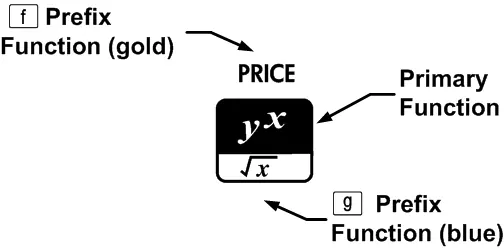
- Primary Function: Printed in white on the key. Press the key alone to activate.
- Gold Function: Printed above the key. Press the gold f prefix key, then the function key.
- Blue Function: Printed at the bottom of the key. Press the blue g prefix key, then the function key.
Status indicators (f, g, BEGIN, D.MY, etc.) appear at the bottom of the display to show the current calculator state.
Basic Settings
- Turning On/Off: Press the ON key to turn the calculator on. Press the ON key again to turn it off. The calculator turns off automatically after 8-17 minutes of inactivity.
- Decimal Format: Press f followed by a digit (0-9) to set the number of decimal places.
- Decimal Separator: To switch between comma and point, turn the calculator off, hold the . key, and press ON.
- Date Format: Use g then 5 (M.DY) or g then 4 (D.MY) to set the date format.
- Payment Mode: Use g then 7 for "Begin" mode (payments at the start of the period) or g then 8 for "End" mode (default).
RPN Mode
The HP 12c uses Reverse Polish Notation (RPN). Enter numbers first, press ENTER to separate them, then press the operation key. The result is calculated and displayed immediately.
Memory and Continuous Memory
The calculator features Continuous Memory, which retains data even when the device is turned off. Data is stored in registers (R0-R9, R.0-R.9). To reset the memory and clear all registers, turn the calculator off, hold the - key, and press ON.
Example: Loan Payment
To calculate a monthly payment for a loan of 125,000 over 30 years at 6.9% annual interest:
- Press f then FIN to clear financial registers.
- Press g then 8 to set payment mode to "End".
- Enter 6.9, press g then 12/x to set the monthly interest rate.
- Enter 360 (30 years * 12 months), press n.
- Enter 125000, press PV.
- Press PMT to calculate the monthly payment.
Battery Replacement
The calculator requires two CR2032 3V lithium batteries. A battery symbol (*) on the display indicates low power.
- Turn the calculator off and remove the back cover.
- Remove old batteries one by one.
- Insert new batteries with the positive (+) side facing outward.
- Replace the back cover.
Warning: Risk of explosion if batteries are replaced incorrectly. Use only the specified battery type.
Support
For technical support, visit www.hp.com/support. Have your proof of purchase and serial number ready when contacting support.
Official resources from the manual
Manufacturer information
HP Inc.
Practical help
Common problems
Calculator does not turn on
Check that both CR2032 batteries are installed correctly with the positive side facing out.
Display shows 'Pr Error'
This indicates a memory error. Press any key to return to the standard display.
Battery symbol (*) appears
The batteries are low. Replace both CR2032 batteries immediately.
Before use
- Ensure two CR2032 3V lithium batteries are installed.
- Understand the RPN (Reverse Polish Notation) entry method.
- Set the desired decimal separator (comma or point).
- Set the date format (M.DY or D.MY) if required.
- Verify the payment mode (Begin or End) for financial calculations.
Specs in practice
- Continuous Memory
- The calculator retains data in registers even when turned off.
- Financial Registers
- Specific memory locations (PV, PMT, FV, n, i) used for financial calculations.
Images and diagrams
- Key functions are color-coded: white for primary functions, gold for prefix f, and blue for prefix g.
Model compatibility
- Requires two CR2032 3V lithium batteries.

Manual page author
David Miller
Documentation analyst
Organizes user manual content into clear summaries, with attention to model details, product context, and everyday usability.