Computers / Laptops
HP 15-FD1016NF Laptop User Manual
Comprehensive user guide for the HP 15-FD1016NF laptop. Learn about hardware components, network setup, power management, system maintenance, and troubleshooting.
Table of contents
Manual images
Click an image to enlargeQuick Start Guide
This guide provides essential information for setting up and using your HP 15-FD1016NF laptop. After initial setup, it is recommended to back up your hard drive, connect to a network, familiarize yourself with the hardware and software, and ensure your antivirus software is up to date.
Hardware Overview
The laptop features various ports and components for connectivity and interaction:
- Right Side: Includes a USB port, power adapter light, and power connector.
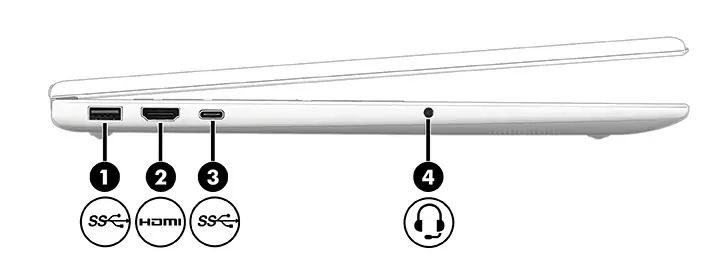
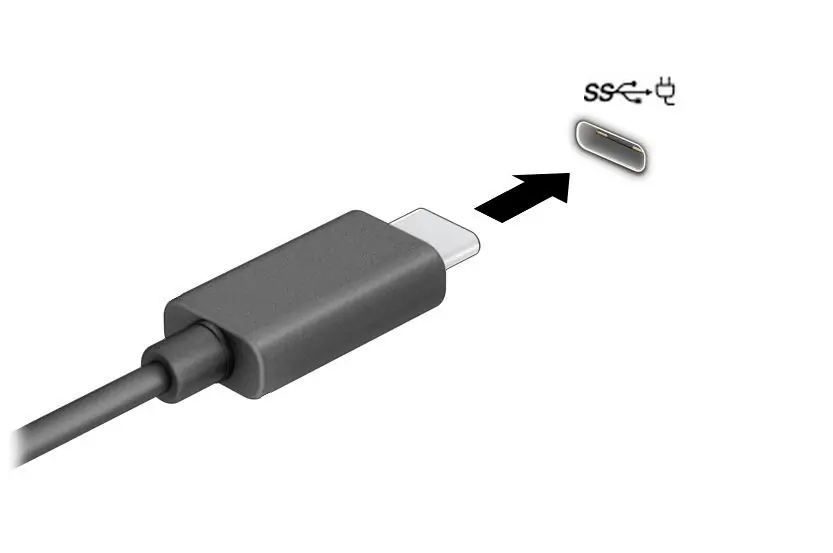
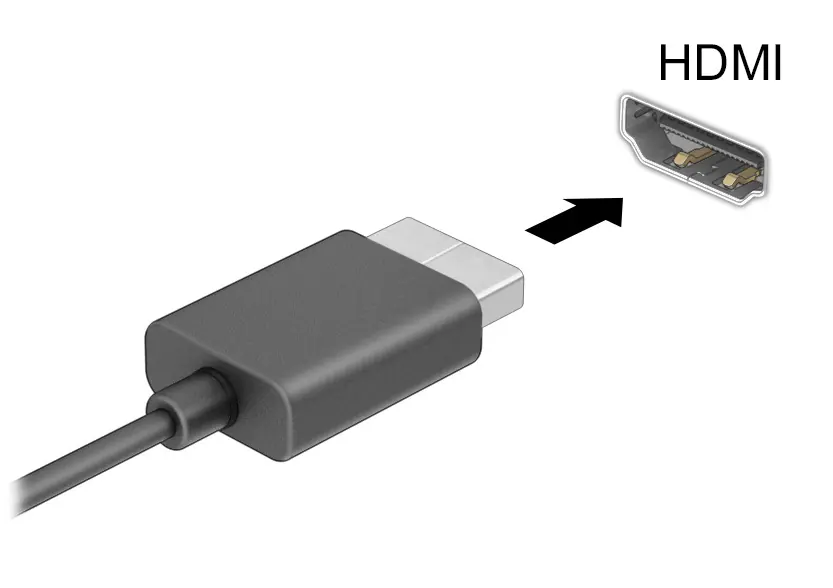
- Left Side: Includes a USB port, HDMI port, USB Type-C port with DisplayPort, and a combo audio jack.
- Display: Features integrated WLAN antennas, internal microphones, and a camera with a privacy shutter.
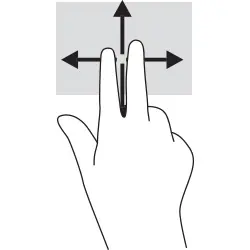
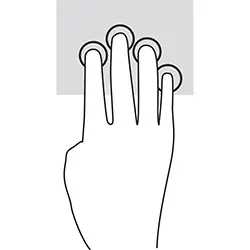
- Keyboard and Touchpad: Includes special action keys (f1-f12) and a precision touchpad supporting multi-finger gestures.
Connectivity
You can connect to the internet using:
- WLAN (Wi-Fi): Connect via the network icon in the taskbar.
- Bluetooth: Pair devices through the Bluetooth settings menu.
- LAN: Use a network cable for a wired connection if a port is available or via an optional dock.
Power Management
Manage your battery life and power states:
- Sleep and Hibernate: Use these modes to save power when the laptop is not in use.
- Battery Care: Avoid leaving the laptop on soft surfaces that obstruct ventilation. Use HP Fast Charge for quicker charging when the laptop is off.
- Battery Status: Monitor charge levels via the battery icon in the taskbar.
Maintenance and Cleaning
Regular maintenance ensures optimal performance:
- Performance: Use Disk Defragmenter and Disk Cleanup tools periodically.
- Cleaning: Use a microfiber cloth dampened with water or a 70% isopropyl alcohol solution. Avoid abrasive materials and harsh chemicals.
- Updates: Keep your software and drivers updated using HP Support Assistant or Windows Update.
Security and BIOS
Protect your data using:
- Passwords: Set up Windows and BIOS passwords to prevent unauthorized access.
- Windows Hello: Use fingerprint or facial recognition for secure login.
- Antivirus and Firewall: Ensure security software is active and updated.
- BIOS: Access the Setup Utility (BIOS) by pressing the esc key and then f10 during startup.
Troubleshooting and Diagnostics
If you encounter issues, use the following tools:
- HP PC Hardware Diagnostics: Run diagnostic tests from within Windows or via the UEFI environment (accessed by pressing f2 during startup).
- Recovery: Use Windows recovery tools or the HP Cloud Recovery Download Tool to restore your system if necessary.
Manufacturer information
HP Inc.
Practical help
Common problems
Laptop does not turn on
Ensure the power adapter is connected to a reliable power source and the battery is charged.
Touchpad not responding
Check touchpad settings in Windows or ensure it is enabled via the keyboard function keys.
Wi-Fi connection issues
Ensure the WLAN device is active and you are within range of the router.
Before use
- Charge the battery fully
- Connect to a Wi-Fi network
- Run Windows Update
- Register the product
- Set up security passwords
Images and diagrams
- Right side ports: USB, power indicator, power connector.
- Left side ports: USB, HDMI, USB Type-C, audio jack.
- Touchpad gestures: Pinch to zoom, multi-finger swipes for navigation.
Model compatibility
- Some features may vary depending on the specific product configuration.
- Windows in S mode may limit software installation.

Manual page author
David Miller
Documentation analyst
Organizes user manual content into clear summaries, with attention to model details, product context, and everyday usability.