Electronics / Headphones Earbuds
Jabra Evolve 20SE Setup Guide for Microsoft Teams
A comprehensive setup guide for configuring the Jabra Evolve 20SE headset with Microsoft Teams, including audio device selection and troubleshooting remote call control features.
PDF source: Deutsch · summary: English
Quick answers from the manual
Quick answer
- To set up your Jabra Evolve 20SE for Microsoft Teams, go to Settings > Devices in the Teams app and select your Jabra device under Audio Settings. p. 1
Key actions
- Select Jabra device in Audio Settings p. 1
Problems and fixes
Remote Call Control not working
Ensure you are using a Teams version from July 1, 2018 or later and sign out of other softphone clients.
p. 2Show 1 more answers Show less
Where to find it in the PDF
- Setup instructions p. 1
- Troubleshooting and Notes p. 2
Table of contents
Manual images
Click an image to enlargeQuick guide from the manual
This document provides instructions on how to configure the Jabra Evolve 20SE headset for optimal use with Microsoft Teams. It covers the necessary software settings and troubleshooting steps for remote call control.
Configuring Microsoft Teams
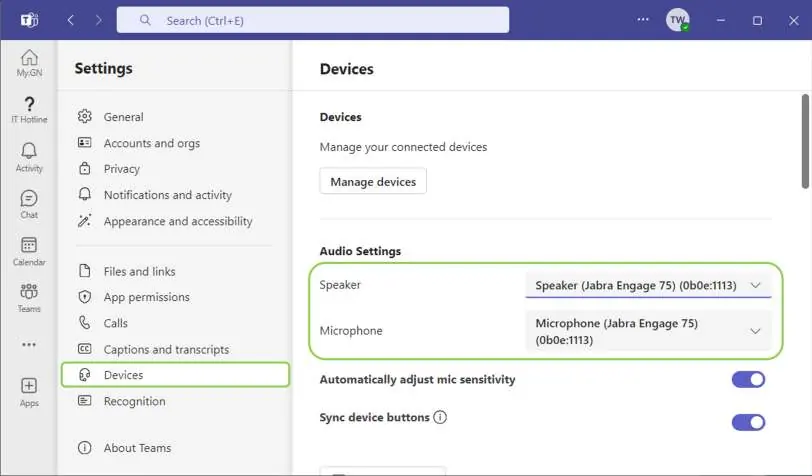
To use your Jabra device with Microsoft Teams, follow these steps to ensure the correct audio input and output are selected:
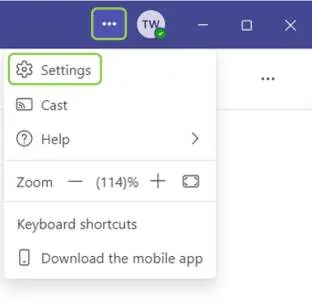
- Open the Microsoft Teams application.
- Click on the three dots icon located at the top of the Teams window.
- Select Settings from the menu.
- Navigate to the Devices section.
- Under Audio Settings, select your Jabra device from the dropdown menus for Speaker and Microphone.
- If you are using a Link-Adapter with your Jabra device, ensure you select the Link-Adapter in the settings instead.
Remote Call Control and Troubleshooting
Microsoft Teams supports Remote Call Control (answering/ending calls directly from the headset) for Teams versions released from July 1, 2018, onwards.
Important requirements for Remote Call Control:
- Ensure you are using a compatible version of Microsoft Teams (July 1, 2018 or later).
- You must sign out of any other active softphone clients for the feature to function correctly.
If your organization uses Skype for Business simultaneously, please refer to official Microsoft support pages for configuration tips. If you are an end-user experiencing issues, contact your IT administrator for further assistance.
Practical help
Common problems
Remote call control (answer/end call) is not working
Ensure you are using a Teams version from July 1, 2018 or later and sign out of all other softphone applications.
Audio is not routing to the headset
Verify that the Jabra device (or Link-Adapter) is manually selected in Teams Settings > Devices > Audio Settings.
Before use
- Ensure the Jabra Evolve 20SE is connected to your computer
- Launch Microsoft Teams
- Check for any pending Microsoft Teams updates
- Close other softphone applications to avoid conflicts
Show more Show less
Images and diagrams
- The provided diagrams illustrate the navigation path within the Microsoft Teams interface to access the device settings menu and select the correct audio hardware.
Model compatibility
- Compatible with Microsoft Teams
- Remote call control requires Teams versions from July 1, 2018 or later

Manual page author
Emily Carter
User documentation editor