Computers / Laptops
User Manual for LG 16U70Q UltraPC Laptop
Quick guide for the LG 16U70Q UltraPC laptop. Learn about safety precautions, system shutdown, troubleshooting wireless connections, touchpad issues, and screen brightness settings.
Quick answers from the manual
Quick answer
- To shut down the LG 16U70Q, press the Windows key or [Ctrl] + [ESC], select the Start button, then the Power button, and choose [Shut down]. p. 4
Key actions
- Shut down the system p. 4
- Fix wireless connection p. 7
Problems and fixes
Wireless network not connected
Press [Fn] + [F6] to toggle wireless/airplane mode, or reinstall the wireless LAN driver.
p. 7
Screen brightness changes automatically
Disable Vari-Bright in AMD Radeon Software > Display tab.
p. 6Maintenance and reset
- Cleaning the product p. 2
Where to find it in the PDF
- Precautions before Product Use p. 2
- Product Tour p. 3
- System Shutdown p. 4
- Troubleshooting p. 6, 7
Table of contents
Manual images
Click an image to enlargeQuick guide from the manual
This guide provides essential information for operating your LG 16U70Q UltraPC laptop. Key procedures include proper system shutdown, troubleshooting common connectivity and display issues, and important safety guidelines to prevent damage to the device.
Safety Precautions
To ensure the longevity of your laptop and prevent safety hazards, observe the following:
- Do not use the product on soft surfaces such as carpets, blankets, or beds, as this can cause overheating and fire hazards.
- Do not place the power adapter under blankets or other insulating materials.
- Always back up critical user data to an external storage device (USB HDD, memory card, etc.) to prevent data loss in case of SSD malfunction.
- When cleaning the product, use only cleaning agents dedicated to PCs. Do not use thinner, benzene, alcohol, or similar agents, as they may damage or deform the casing.
System Operation
To shut down the system properly:
- Press the Windows key or [Ctrl] + [ESC] to display the Start menu.
- Select the Start button icon.
- Select the Power button icon and choose [Shut down].
Note: Always wait for the system to load completely before shutting down to ensure the product shuts down properly.
Troubleshooting
If you encounter issues, try the following solutions:
- Wireless Network Issues: Press [Fn] + [F6] to check if the wireless device is turned off or to toggle airplane mode. Ensure the Wi-Fi icon on the taskbar is active.
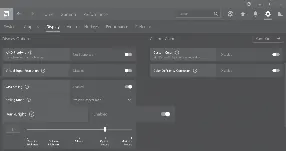
- Screen Brightness: If brightness changes automatically, the Vari-Bright function may be active. You can adjust or disable this in the [AMD Radeon Software] app under the [Display] tab.
- Touchpad Issues: If the touchpad is not functioning, check the Start menu settings or restart the system.
- Driver Reinstallation: To reinstall a driver, go to Settings > [Apps] > [Apps & features] and remove the driver before reinstalling.
Manufacturer information
LG Electronics
Practical help
Common problems
Wireless network not connecting
Press [Fn] + [F6] to toggle the wireless device or airplane mode. Check the Wi-Fi icon on the taskbar.
Screen brightness changes automatically
This is likely the Vari-Bright function. Disable or adjust it in the [AMD Radeon Software] app under the [Display] tab.
Touchpad not functioning
Check system settings via the Start menu or reinstall the driver if necessary.
Before use
- Check all components provided in the package.
- Back up critical data to an external storage device.
- Ensure the laptop is placed on a hard, flat surface (not carpet or bed).
- Do not cover the power adapter.
Images and diagrams
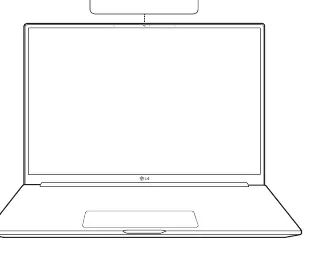
- The manual includes a product tour showing the front view of the laptop.
- The manual provides a screenshot of the AMD Radeon Software interface for adjusting display settings.
Model compatibility
- The [AMD Radeon Software] app is automatically installed when connected to the Internet.

Manual page author
Michael Turner
Technical manual editor
Reviews PDF manuals for structure, safety notes, and practical product details so readers can find the right information quickly.