Computers / Laptops
Owner's Manual for LG 16U75R Series Notebook
Quick guide for the LG 16U75R Series Notebook. Learn about port layout, power connection, battery maintenance, and troubleshooting common issues like screen color, touchpad, and network connectivity.
Quick answers from the manual
Quick answer
- To reset the LG 16U75R notebook if it stops responding or won't turn on, disconnect the power cord and hold the power button for at least 6 seconds. p. 6
Key actions
- Connect to wired LAN p. 4
- Extend battery lifespan p. 5
First start
- Charge the battery pack completely before using it for the first time. p. 5
Problems and fixes
The screen color does not display properly
Turn off Reader Mode in LG Smart Assistant and ensure Night Light is set to Off.
p. 6Maintenance and reset
- System reset procedure p. 6
Where to find it in the PDF
- Product Tour p. 3
- Troubleshooting p. 5, 6
Table of contents
Manual images
Click an image to enlargeQuick guide from the manual
This manual provides essential instructions for the LG 16U75R Series Notebook. Before using the device, ensure you charge the battery fully. Always use the provided AC adapter to prevent damage. If you encounter issues, such as the system not turning on or screen color problems, refer to the troubleshooting section for reset procedures and setting adjustments.
Product Tour
The notebook features various ports and components for connectivity and operation:
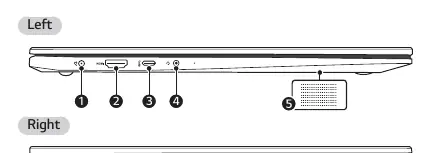
- Front: Built-in microphone, webcam, webcam operation status lamp, keyboard, touchpad, and power button (with fingerprint sensor on supported models).
- Left Side: Power port, HDMI port, USB-C port (supports USB 4.0 Gen 3x2, Thunderbolt, LAN adapter, and power delivery), and a 4-pole ear microphone port.
- Right Side: Built-in speakers, microSD card slot, USB 3.2 Gen 2x1 port, and a security keyhole (Kensington Security Slot).
Power Connection and Battery Usage
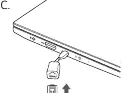
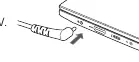
The AC adapter is required to power and charge the PC. Connect the cable to the adapter and then to a power outlet (100 V to 240 V), followed by connecting it to the PC. The power lamp indicates the status: On (connected and charged), Blinking (connected and charging), or Off (not connected).
Battery Tips:
- For long-term storage, keep the battery level at approximately 50%.
- Use the Extend Battery Life function in the LG Smart Assistant to limit charging to 80% to improve lifespan.
- Avoid using the battery while fully charged for extended periods; use it for a while before recharging.
Troubleshooting
If you experience technical issues, try these steps before contacting support:
- System won't turn on: Disconnect the power cord, then hold the power button for at least 6 seconds to reset the system.
- Screen color issues: Check if Reader Mode is enabled in the LG Smart Assistant and turn it off if necessary.
- Touchpad not working: Ensure the touchpad is not disabled (check LG Smart Assistant or system settings).
- Wireless network not connected: Press [Fn] + [F6] to toggle airplane mode and ensure the wireless device is enabled.
Safety Precautions
To ensure safe operation, avoid using the product on soft surfaces like blankets or beds, which can cause overheating. Keep the battery away from heat sources and metallic objects. If you detect a bad odor or leakage from the battery, contact a local service center immediately.
Manufacturer information
LG Electronics
Practical help
Common problems
System does not turn on
Disconnect the power cord, remove the adapter, and hold the power button for at least 6 seconds to reset the system.
Screen color looks distorted
Check if Reader Mode is on in LG Smart Assistant and turn it off. Also, ensure Night Light is set to Off in Windows settings.
Touchpad not functioning
Check if the touchpad is disabled in LG Smart Assistant or if it is in 'Touchpad Auto' mode (disabled when a mouse is connected).
Wireless network not connecting
Press [Fn] + [F6] to check if airplane mode is on. Ensure the wireless network device is enabled.
Before use
- Charge the battery pack completely before using it for the first time.
- Verify all components (PC, AC adapter, power cable) are present.
- Back up all critical user data to an external storage device.
- Ensure the power jack is connected firmly to the product.
Specs in practice
- 4-pole Ear Microphone Port
- Supports US 4-pole standards; does not support European 4-pole or external microphones.
- AC Adapter Input
- Compatible with 100 V to 240 V power outlets.
Images and diagrams
- The front view identifies the webcam, microphone, and power button location.
- The left and right side views detail the specific ports available for peripherals and power.
- The power connection diagram shows the correct sequence for plugging in the AC adapter.
Model compatibility
- Do not use any AC adapter other than the one provided.
- The USB-C port acts as a USB or Thunderbolt port depending on the connected device.
- The internal battery cannot be removed or replaced by the user; doing so may void the warranty.

Manual page author
Emily Carter
User documentation editor
Prepares concise manual descriptions and highlights the most useful setup, operation, and maintenance information for readers.