Computers / Laptops
User Guide for LG 16Z90T Series Notebook
A comprehensive user guide for the LG 16Z90T Series notebook. This manual covers initial setup, Windows 11 navigation, hardware features, battery management, software utilities, and system recovery procedures.
Quick answers from the manual
Quick answer
- This guide covers the LG 16Z90T Series notebook, including Windows 11 navigation, hardware features, battery charging, software utilities like LG Smart Assistant, and system recovery procedures. p. 1, 65, 78, 80
Key actions
- Accessing Manuals p. 2
- Charging the Battery p. 80
- Accessing System Setup (BIOS) p. 159
First start
- Charge the battery fully before first use. p. 80
Problems and fixes
System freezes or won't turn on
Connect the adapter and charge the battery fully.
p. 83Maintenance and reset
- Factory Reset p. 152
Technical specifications
| Parameter | Value | Meaning | Pages |
|---|---|---|---|
| CPU | Intel Core Ultra 7 / 5 | Processor type | p. 62 |
| Display | 40.6 cm IPS LCD or Touch LCD | Screen type | p. 62 |
| Storage | NVMe-type SSD (M.2 2280) | Storage device type | p. 62 |
Where to find it in the PDF
- Product Tour p. 78, 79
- Software p. 117, 144
- System Recovery p. 145, 157
Table of contents
Manual images
Click an image to enlargeQuick guide from the manual
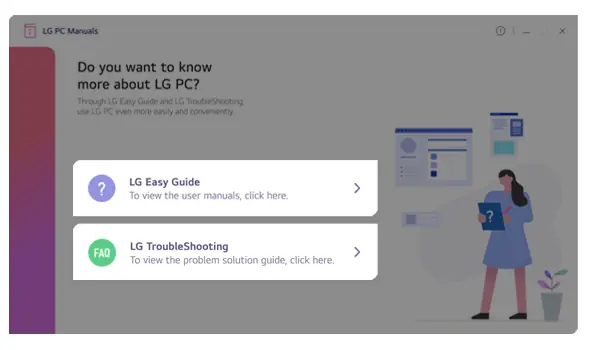
This guide provides essential information for operating your LG 16Z90T Series notebook. To access the full digital manual and troubleshooting guide on your device, select the Start button, go to All apps, and run LG PC Manuals.
Product Tour
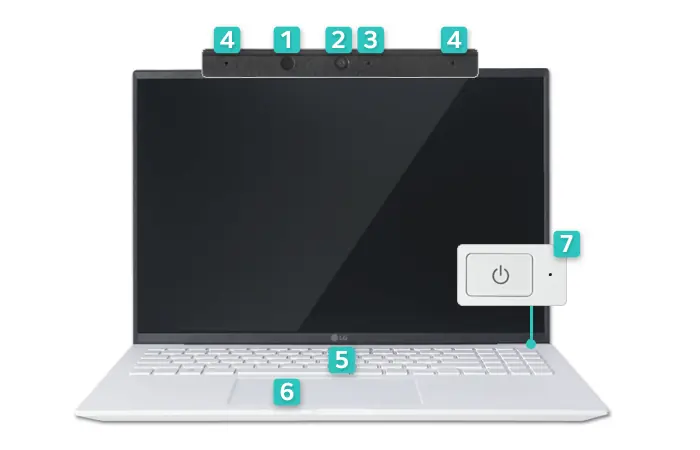
The notebook features a front-facing webcam with an IR LED and built-in microphone. The sides contain various ports, including HDMI, USB-C (Thunderbolt), and a microSD card slot. The power button is located on the keyboard deck.
Windows 11 Basics
The taskbar provides quick access to Widgets, Search, Task View, and Quick Settings. You can manage apps via the Start menu, where you can pin, unpin, or uninstall applications. Use the Start button to access settings and power options like Shut down, Sleep, or Restart.
Battery Management
The notebook includes a built-in battery. Charge it using the provided adapter connected to the USB-C port. The adapter power lamp indicates charging status: On (complete), Blinking (charging), or Off (not connected). To extend battery life, you can limit the maximum charge level to 80% using the LG Smart Assistant software.
Connectivity
The notebook supports wired LAN (via an adapter connected to the USB-C port), wireless LAN, and Bluetooth 5.4. You can connect external displays via HDMI or USB-C (Thunderbolt) using Alternate Mode. Wireless display features are also supported if the display device is compatible.
Software Utilities
- LG Smart Assistant: Manage system settings, cooling modes, keyboard lighting, and AI noise cancellation.
- LG Update & Recovery: Keep drivers updated and perform system backups or factory resets.
- LG Glance by Mirametrix: Uses AI for presence detection, privacy alerts, and productivity features.
- LG Security Guard: Helps prevent theft by monitoring the device when you are away.
- LG gram Link: Facilitates file transfers and screen sharing with mobile devices.
- Dolby Access: Configures sound effects for movies, music, and games.
- Intel Unison: Connects your mobile device to the PC for calls, messages, and file sharing.
System Recovery and Setup
You can back up or recover your Windows environment and disk partitions using the LG Update & Recovery tool. If the system fails to boot, you can use a recovery disk or press F11 during startup to access recovery options. System setup (BIOS) can be accessed by pressing F2 during startup to change boot order or set passwords.
Manufacturer information
LG Electronics
Practical help
Common problems
System freezes or will not turn on
Connect the power adapter and charge the battery fully before attempting to turn it on again.
Wireless LAN connection is slow
Avoid using the connection within a 5-meter radius of a microwave or plasma lamp.
Touchpad is not responding
Ensure the touchpad is not disabled (Fn+F5). Ensure your hands are clean and dry, as moisture or dirt can affect sensitivity.
Before use
- Charge the battery completely before the first use.
- Ensure the notebook is placed in a clean, dust-free environment.
- Keep objects at least 15 cm away from the PC to ensure proper ventilation.
- Back up important data frequently to prevent loss.
- Ensure the memory cover is securely closed before turning on the PC.
Specs in practice
- Cooling Mode
- Adjusts fan speed and performance (Silent, Low, Normal, High) based on usage.
- InstantBooting
- Allows the system to boot automatically when the cover is opened.
Images and diagrams
- Front view: Identifies webcam, microphone, and power button.
- Side view: Identifies HDMI, USB-C, and microSD ports.
- Touchpad: Illustrates gestures for scrolling and zooming.
Model compatibility
- Supports Windows 11.
- Some features like keyboard backlight or touch screen are model-dependent.
- Wired LAN requires a separate adapter.

Manual page author
Emily Carter
User documentation editor
Prepares concise manual descriptions and highlights the most useful setup, operation, and maintenance information for readers.