Computers / Laptops
User Guide for LG Gram Laptop Parental Controls
A comprehensive guide to setting up and managing parental controls on LG Gram laptops. Learn how to create Microsoft accounts, add child profiles, and configure screen time, content filters, and activity monitoring for Windows 10 and 11.
Quick answers from the manual
Quick answer
- Parental controls on LG Gram laptops are managed via the Windows operating system. You must create a Microsoft Account for both parent and child to enable these features. p. 1
Key actions
- Add a child account (Windows 11) p. 1
- Add a child account (Windows 10) p. 1
Problems and fixes
Website filter/activity reporting not working
Ensure the child is using the Microsoft Edge browser.
p. 1Where to find it in the PDF
- Parental Controls Guide p. 1
Table of contents
Manual images
Click an image to enlargeQuick guide from the manual
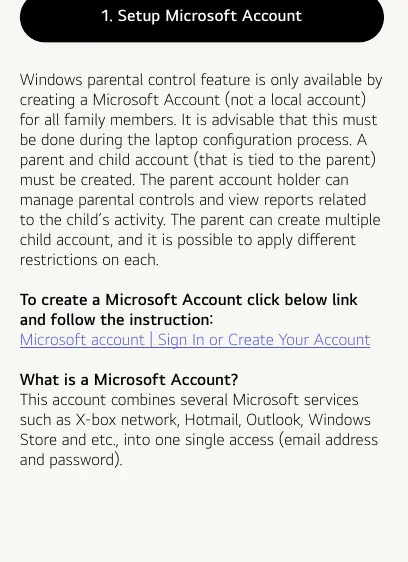
This document provides instructions for managing online safety and parental controls on LG Gram laptops. These features are managed directly through the Windows operating system. To utilize these controls, you must create a Microsoft Account for all family members, as local accounts do not support these features.
Setting up a Microsoft Account
Parental controls require a Microsoft Account (not a local account). It is recommended to set this up during the initial laptop configuration. A parent account must be created, to which child accounts will be linked. This allows the parent to manage restrictions and view activity reports.
Adding a Family Member (Child Account)
To add a child account, log in to the parent account and follow the steps for your specific Windows version:
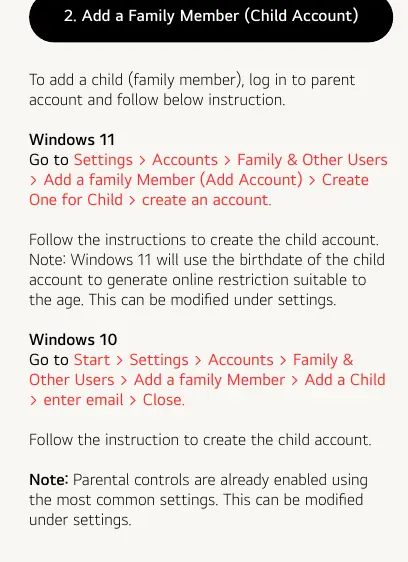
Windows 11
- Go to Settings > Accounts > Family & Other Users.
- Select Add a family Member (Add Account).
- Choose Create One for Child and follow the prompts to create the account.
- Note: Windows 11 uses the child's birthdate to automatically generate age-appropriate restrictions.
Windows 10
- Go to Start > Settings > Accounts > Family & Other Users.
- Select Add a family Member > Add a Child.
- Enter the email address and select Close.
Customizing Parental Controls
Once the child account is created, you can adjust specific settings by navigating to Settings > Accounts > Family & Other Users and selecting Manage family settings online (or Manage family Settings Online in Windows 10). Log in as the parent and select the child's account to modify:
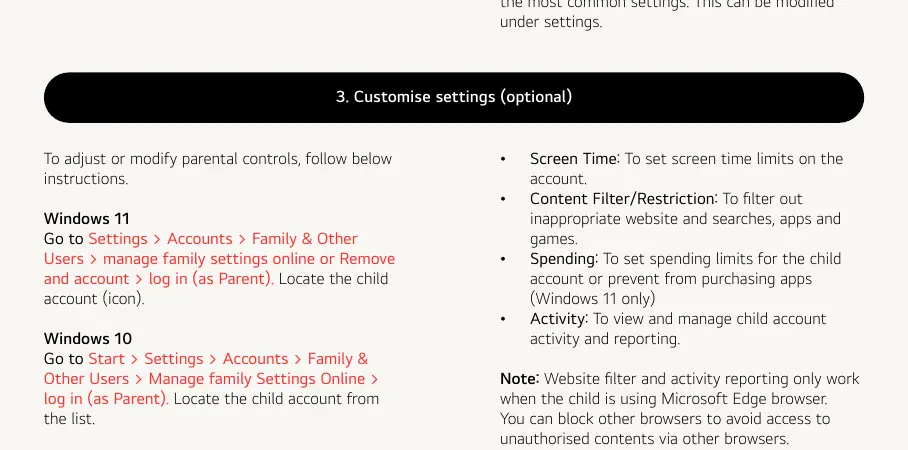
- Screen Time: Set time limits for account usage.
- Content Filter/Restriction: Filter inappropriate websites, searches, apps, and games.
- Spending: Set spending limits or prevent app purchases (Windows 11 only).
- Activity: View and manage activity reports.
Important Note: Website filtering and activity reporting features only function when the child uses the Microsoft Edge browser. It is recommended to block other browsers to ensure these restrictions remain effective.
Manufacturer information
LG Electronics
Practical help
Common problems
Parental controls are not filtering websites or reporting activity.
Ensure the child is using the Microsoft Edge browser. These features do not work with other browsers.
Cannot manage family settings.
Ensure you are logged into the parent account and not a local account. Parental controls require a Microsoft Account.
Before use
- Create a Microsoft Account for all family members.
- Ensure the laptop is configured with a parent account.
- Verify if you are using Windows 10 or Windows 11.
- Ensure the child account is linked to the parent account.
Model compatibility
- Requires Windows 10 or Windows 11.
- Website filtering and activity reporting only work with Microsoft Edge browser.

Manual page author
David Miller
Documentation analyst
Organizes user manual content into clear summaries, with attention to model details, product context, and everyday usability.