Computers / Laptops
Owner's Manual for LG Gram Pro 2-in-1 Laptop 16T90TPKADB7U1
Quick guide for the LG Gram Pro 2-in-1 laptop. Learn about safety precautions, battery usage, connecting the device, using the stylus pen, and troubleshooting common issues.
Quick answers from the manual
Quick answer
- This manual provides instructions for the LG Gram Pro 2-in-1 laptop, covering safety, battery care, stylus pen usage, and basic troubleshooting. p. 1, 2, 3, 4
Key actions
- Reset the system p. 7
- Activate the stylus pen p. 5
First start
- Charge the battery pack completely before using it for the first time. p. 3
Problems and fixes
Power does not turn on
Check power cord, reconnect, or hold power button for 6 seconds to reset.
p. 7Maintenance and reset
- System Reset: Hold the power button for 6 seconds. p. 7
Where to find it in the PDF
- Safety Precautions p. 2, 3
- Stylus Pen Usage p. 5, 6
- Troubleshooting p. 7
Table of contents
Manual images
Click an image to enlargeQuick guide from the manual
This document provides essential instructions for the safe and efficient operation of your LG Gram Pro 2-in-1 laptop. It covers initial setup, battery maintenance, stylus pen usage, and basic troubleshooting steps to resolve common issues.
Important safety precautions
To prevent damage or injury, observe the following safety guidelines:
- Battery Safety: Use only certified LG batteries. Keep the battery away from heat sources. Do not store the device in temperatures above 60°C (140°F) or in high humidity.
- Usage Environment: Do not use the laptop on soft surfaces like carpets, blankets, or beds, as this can cause overheating. Ensure proper ventilation.
- Power Cable: Do not bend the power cable excessively to prevent wire breakage, electric shock, or fire.
Battery usage and maintenance
Proper battery care extends the lifespan of your device:
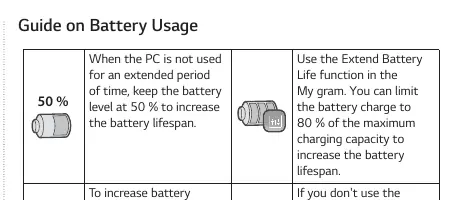
- Storage: If the PC is not used for an extended period, keep the battery level at approximately 50%.
- Charging: Use the 'Extend Battery Life' function in the 'My gram' software to limit charging to 80% of maximum capacity.
- First Use: Charge the battery pack completely before using the PC for the first time.
- Replacement: The internal battery cannot be removed or replaced by the user. Contact an authorized service center for battery replacement.
Connecting and starting the PC
Follow these steps to power on your device:
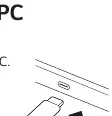
- Connect the provided adapter to the USB-C port on the PC.
- Press the power button to turn on the device.
- To shut down, use the Windows Start menu: Select Start > Power button > Shut down.
Using the stylus pen
The stylus pen is designed for fine touch operations on compatible models (16T90TP/16TB90TP/16TS90TP).
- Activation: Attach the 'gram' logo side of the stylus pen to the magnetic connector on the right side of the keyboard.
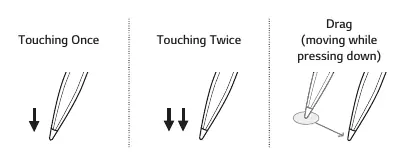
- Gestures: The pen supports touching once, touching twice, and dragging (moving while pressing down).
- Touch Button: You can customize the touch button function via the 'My gram' application under PC Maintenance > Keyboard & Pen > Pen Settings.
- Power Saving: The pen enters power-saving mode after 1 minute of inactivity. Shake the pen to wake it up.
Troubleshooting
If you encounter issues, try these steps before contacting support:
- Power Issues: If the PC does not turn on, check the power cord connection. If it still fails, remove the adapter and hold the power button for at least 6 seconds to reset the system.
- System Freeze: If the system stops or does not shut down, hold the power button for 6 seconds to force a reset.
- Wireless Network: Ensure Airplane Mode is turned off. Check the Wi-Fi icon in the taskbar or reinstall the wireless network driver.
- Driver Reinstallation: Use the 'LG Update & Renew' app in the Windows search bar to reinstall drivers.
Manufacturer information
LG Electronics
Practical help
Common problems
The power does not turn on
Check if the power cord is connected. If it still does not turn on, remove the adapter and hold the power button for at least 6 seconds to reset the system.
The system stops during use or does not shut down
Remove the adapter and hold the power button for approximately 6 seconds to reset the system.
Wireless network is not connected
Check if Airplane Mode is on and turn it off. Verify the Wi-Fi icon in the taskbar or reinstall the wireless network driver.
Before use
- Charge the battery pack completely before first use.
- Back up all critical user data to an external storage device.
- Ensure the laptop is placed on a hard, flat surface for ventilation.
- Connect the adapter to the USB-C port.
Specs in practice
- Battery Storage
- Keep at 50% charge when not in use for an extended period to preserve lifespan.
- Stylus Activation
- Attach the gram logo side of the pen to the magnetic connector on the right side of the keyboard.
- USB-C Power Cable
- Supports power supply and USB 2.0 specifications only.
Images and diagrams
- The stylus pen features a pen tip, touch button, and eraser button.
- The power button is located on the keyboard deck.
- The magnetic connector for the stylus is on the right side of the keyboard.
Model compatibility
- Stylus pen features are specific to 16T90TP, 16TB90TP, and 16TS90TP models.

Manual page author
David Miller
Documentation analyst
Organizes user manual content into clear summaries, with attention to model details, product context, and everyday usability.