Electronics / Monitors
Philips 172B9T/00 B-line Monitor Quick Start Guide
Quick start guide for the Philips 172B9T/00 B-line monitor, covering setup, connectivity, OSD menu navigation, and ergonomic adjustments.
Table of contents
Product Overview
The Philips 172B9T/00 is a professional B-line monitor designed for versatility and ease of use. This guide provides essential instructions for initial setup, connectivity, and basic operation to ensure optimal performance.
Setup and Connectivity
To begin using your monitor, connect the necessary cables based on your computer's output ports. The monitor supports various inputs including VGA, DVI, HDMI, and DisplayPort. Ensure the AC/DC power adapter is securely connected to both the monitor and a power outlet.
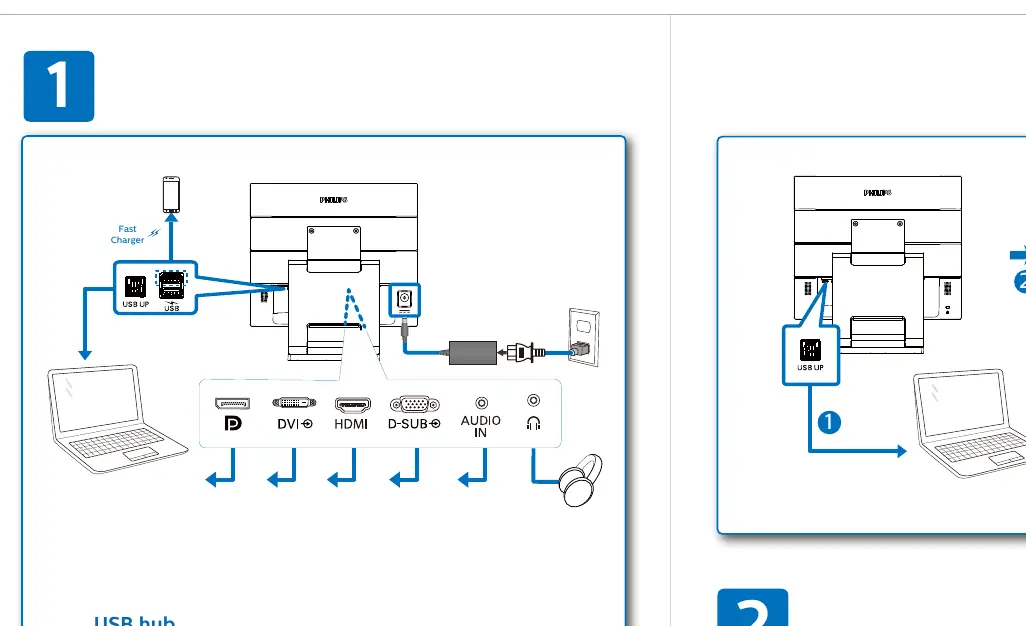
- USB Hub: The monitor features a built-in USB hub for connecting peripherals. Connect the USB A-B cable from the monitor to your computer to enable this functionality.
- Fast Charger: Utilize the designated fast-charging port for compatible devices.
Ergonomic Adjustments
The monitor stand is designed for comfort and flexibility. You can adjust the tilt angle from -5 degrees to 90 degrees, allowing for both standard upright viewing and a flat, touch-friendly orientation (0 to 70 degrees) for interactive tasks.
Operation and OSD Menu
The monitor is controlled via an on-screen display (OSD) menu located on the front panel. Use the touch-sensitive buttons to navigate the settings:
- SmartImage: Quickly switch between preset modes such as Office, Photo, Movie, Game, and Economy to optimize display quality.
- LowBlue Mode: Enable this feature to reduce harmful blue light emissions, which can help reduce eye strain during long working sessions.
- Input Selection: Manually select your active video source (VGA, DVI, HDMI, or DisplayPort).
- Brightness: Adjust the screen brightness to suit your ambient lighting conditions.
Support and Registration
For further assistance, driver downloads, or to register your product, please visit the official Philips support website. Registering your monitor ensures you receive the latest updates and support services. Always keep your user manual and documentation in a safe place for future reference.
Related manuals
Related manuals from the same brand or category.
Electronics / Monitors
PHILIPS B Line 172B9 Monitor User Guide
PhilipsElectronics / Monitors
Philips 170X7 LCD Monitor User Manual
PhilipsElectronics / Monitors
Philips 170X5FB 17-inch LCD Monitor
PhilipsElectronics / Monitors
Philips Brilliance CT 16-slice Configuration
Philips
Manual page author
Emily Carter
User documentation editor
Prepares concise manual descriptions and highlights the most useful setup, operation, and maintenance information for readers.