Electronics / Monitors
Quick Start Guide for Philips 241E1S Monitor
A quick start guide for the Philips 241E1S monitor, including assembly, cable connection, OSD menu navigation, and tilt adjustment instructions.
Quick answers from the manual
Quick answer
- This guide covers the assembly, connection, and basic operation of the Philips 241E1S monitor, including how to use the OSD menu and adjust the tilt. p. 1
Key actions
- Assemble the stand base to the monitor. p. 1
- Connect power and video cables (HDMI/VGA). p. 1
First start
- Connect the AC/DC adapter and video cable, then press the power button to turn on the monitor. p. 1
Show 1 more answers Show less
Where to find it in the PDF
- Quick Start Guide p. 1
Table of contents
Manual images
Click an image to enlargeQuick Start Guide
This guide provides essential setup and operation instructions for the Philips 241E1S monitor series (including 241E1SC and 241E1SCA models).
Package Contents
Ensure the following items are included in your package:
- Monitor display
- Stand base
- AC/DC Adapter
- Audio cable
- VGA cable
- HDMI cable
Note: Display design and included cables may vary by region.
Assembly
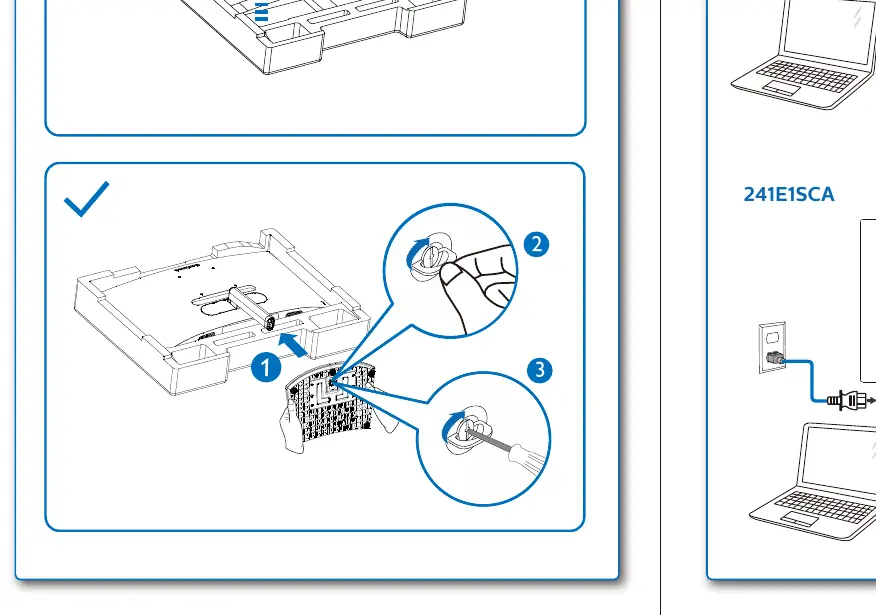
- Place the monitor face down on a flat, protected surface.
- Attach the stand base to the monitor neck until it clicks into place.
- Ensure the stand is securely fastened before standing the monitor upright.
Connections
Connect your devices to the rear ports of the monitor:
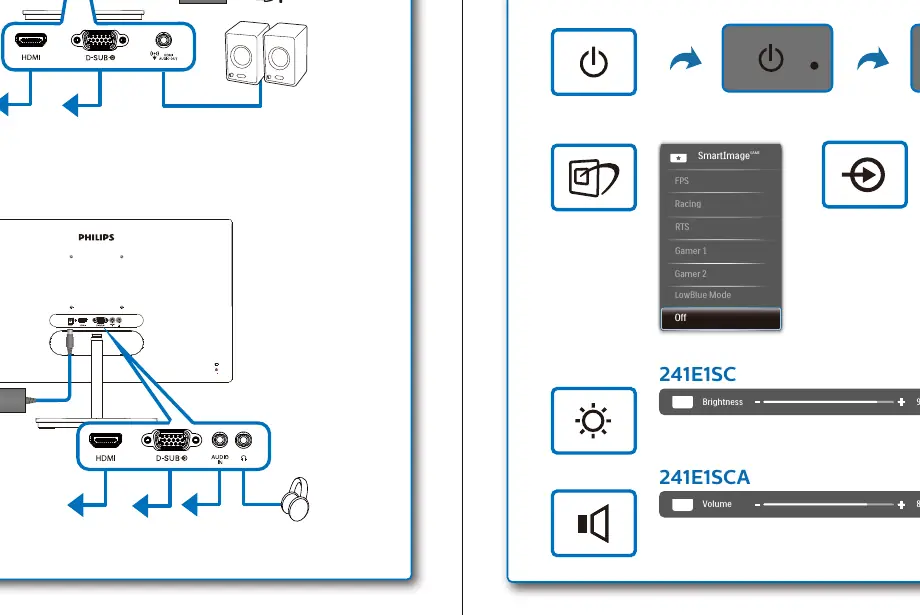
- Power: Connect the AC/DC adapter to the DC input.
- Video: Use the HDMI or VGA port to connect your computer or media device.
- Audio: Connect the audio cable if using external sound output.
Controls and OSD Menu
The monitor features a control panel for adjusting settings:
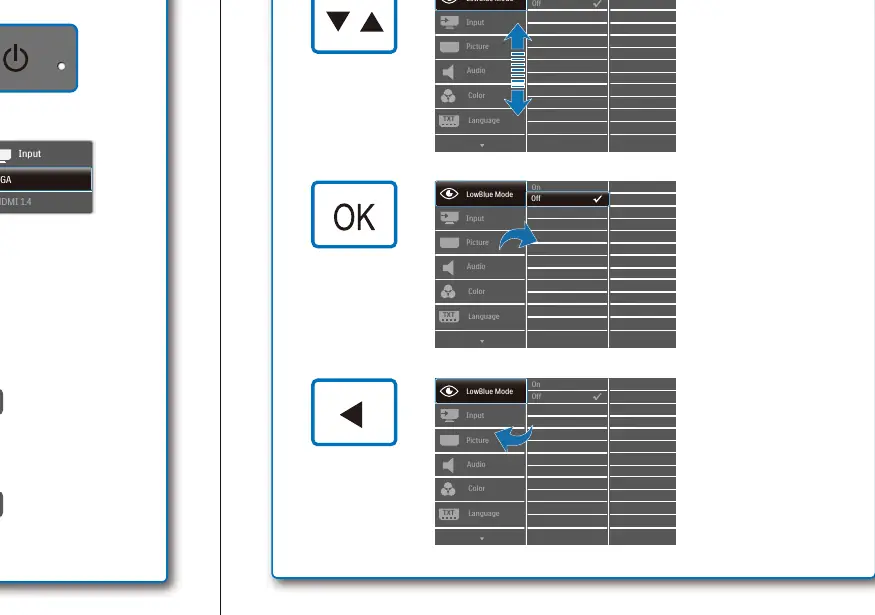
- Power Button: Turns the monitor on or off.
- SmartImage: Access preset display modes (Racing, FPS, RTS, Gamer 1, Gamer 2, LowBlue Mode).
- Input: Select the active video source (HDMI/VGA).
- OSD Menu: Use the arrow buttons and OK button to navigate the menu, which includes settings for Picture, Color, Language, and Audio.
Tilt Adjustment
The monitor stand allows for ergonomic tilt adjustment:
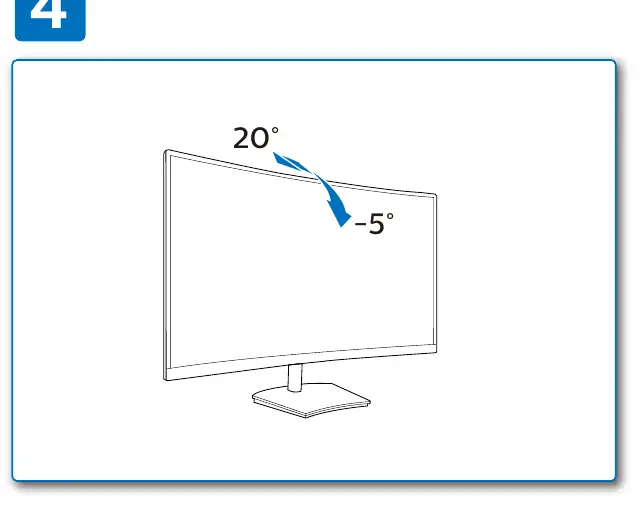
- Tilt Range: -5° to +20°.
Manufacturer information
Philips
Practical help
Common problems
Monitor does not turn on
Ensure the AC/DC adapter is securely connected to both the monitor and a functioning wall outlet.
No image on screen
Verify that the correct input source (HDMI or VGA) is selected using the Input button on the monitor.
Before use
- Verify all package contents are present.
- Place the monitor on a stable, flat surface.
- Ensure the stand is fully assembled and clicked into place.
- Check that the power source matches the adapter requirements.
Show more Show less
Images and diagrams
- The assembly diagram shows the correct orientation for attaching the stand base to the monitor.
- The connection diagram illustrates the location of the power, HDMI, VGA, and audio ports on the back of the unit.
- The control diagram shows the button layout and the OSD menu navigation path.
Model compatibility
- Display design may differ from illustrations depending on the specific region.
- Included cables (VGA/HDMI/Audio) may vary based on the region of purchase.

Manual page author
David Miller
Documentation analyst