Power / Batteries & Chargers
Installation Guide for RELiON InSight 12V120-GC2-LT Lithium Battery
Quick installation guide for the RELiON InSight 12V120-GC2-LT lithium battery. Includes parallel wiring instructions, LED status indicators, battery operation, and safety precautions.
Table of contents
Manual images
Click an image to enlargeQuick guide from the manual
This guide provides essential instructions for the installation and operation of the RELiON InSight 12V120-GC2-LT lithium battery. Key requirements include using parallel connections only, ensuring proper torque on terminals, and following the specific power-on sequence. Always refer to the full manual for detailed safety and maintenance information.
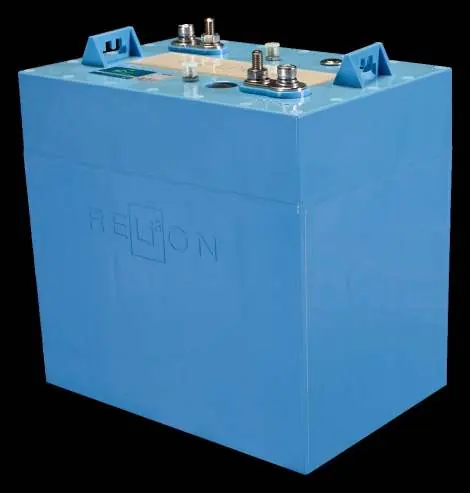
Installation Instructions
Follow these steps to ensure a safe and correct installation:
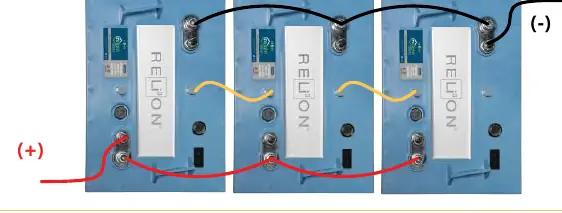
- Parallel Connections Only: The InSight 12V120-GC2-LT is designed for 12V systems and must be connected in parallel. Do not connect in series. You may connect up to ten batteries in parallel.
- Battery Placement: Install batteries close to each other in the battery compartment.
- Battery Spacers: Use RELiON Battery Spacers to fill empty spots and ensure existing hold-downs can be used securely.
- Cable Size: Use cables of equal lengths for all connections.
- Torque: Tighten terminal connections to 79.7 – 88.5 in-lbs (6.6 - 7.4 ft-lbs / 9 – 10 N-m).
- CAN Cables: Use the provided 1 ft CAN cables to connect the Output (positive side) of one battery to the Input (negative side) of the next. The CAN port on the negative side of the first battery and the positive side of the last battery will remain unused.
Battery Interface and Operation
The battery features two tri-colored LEDs (green, yellow, red) to communicate status, SOC, and errors.
Powering On and Off
- Power ON: Press and hold the Power button for 5 seconds until LED1 flashes green. Once one battery is awake, the remaining batteries in the system will automatically wake up.
- Display SOC: With the battery ON, tap the Power button once. The LED will display the state of charge for 6 seconds.
- Power OFF: Tap, release, then press and hold the button for 6 seconds until both LED1 and LED2 are solid red. Then release the button.
Charging
It is recommended to use a Lithium, GEL, or AGM charge profile, in that order of availability.
State of Charge (SOC) Status
Initiate the SOC check by tapping the Power button once. Refer to the following status indicators:
- 95% - 100%: LED1 Solid Green, LED2 Solid Green
- 75% - 95%: LED1 Solid Green, LED2 Flashing Green
- 50% - 75%: LED1 Solid Green, LED2 Solid Yellow
- 30% - 50%: LED1 Solid Green, LED2 Flashing Yellow
- 10% - 30%: LED1 Solid Green, LED2 Solid Red
- 0% - 10%: LED1 Solid Green, LED2 Flashing Red
Precautions
- Wear safety glasses when installing batteries.
- Use a wrench with a rubber-coated handle.
- Do not place any objects on top of the batteries.
- Ensure all cable connections are properly tightened.
- Refer to the RELiON LiFePO4 Safety Document and SDS for additional safety information.
Technical Support
For technical questions, contact RELiON Battery directly at +1 (803) 547-7288 or via email at [email protected]. Visit relionbattery.com/Knowledge for the online help center.
Official resources from the manual
Practical help
Common problems
Battery does not wake up
Ensure CAN cables are connected correctly and try the power-on sequence (press and hold for 5s).
Batteries are at different SOC levels
Batteries will balance automatically upon being used.
Before use
- Verify system voltage is 12V.
- Ensure all cables are of equal length.
- Confirm parallel connection configuration (no series).
- Tighten terminal connections to 9–10 N-m.
- Use RELiON Battery Spacers if replacing existing batteries.
Specs in practice
- Charging Profile
- Use Lithium, GEL, or AGM profiles in that order.
Images and diagrams
- Wiring Diagram: Illustrates the parallel connection of multiple batteries using power cables and CAN cables.
- Battery Interface: Shows the location of M8 terminals, CANbus ports, power button, and LED indicators.
Model compatibility
- System Voltage: 12V only.
- Connection Type: Parallel only.

Manual page author
Michael Turner
Technical manual editor
Reviews PDF manuals for structure, safety notes, and practical product details so readers can find the right information quickly.