Home Appliances / Vacuum Cleaners
Roborock 11TH Programming Mode User Guide
A quick guide to using the Programming Mode on your Roborock 11TH, including how to enter the mode, create custom programs using block coding, and manage robotic arm actions.
Table of contents
Manual images
Jump to the sectionQuick guide from the manual
This document provides instructions for using the Programming Mode on the Roborock 11TH. This feature allows users to create custom automation sequences for the robot, including movement and robotic arm operations, using a block-based coding interface within the app.
Entering Programming Mode
You can access the Programming Mode directly from the map page in the app. Before the mode launches, the robot performs a check to ensure it is ready. If conditions are not met, a prompt will appear.
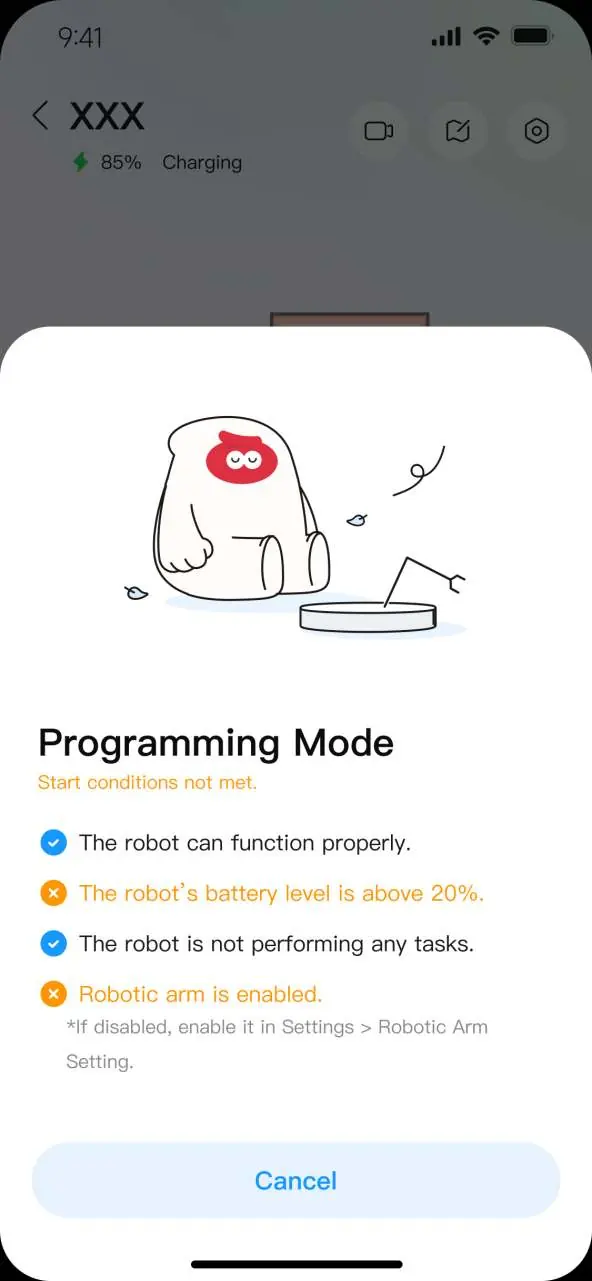
- The robot must be functioning properly.
- Battery level must be above 20%.
- The robot must not be performing any other tasks.
- The robotic arm must be enabled (if disabled, go to Settings > Robotic Arm Setting).
Once conditions are met, place the robot on a flat, clear surface. To exit the mode, press any button on the robot.
Basic Operations
The system includes three pre-installed recommended programs that can be executed directly or copied to the My Program section for editing. To create a new program, tap Build a Program to open the creation interface, where you can drag and drop blocks into the coding area.
Programming Modules
The interface is divided into modules for building your sequence:
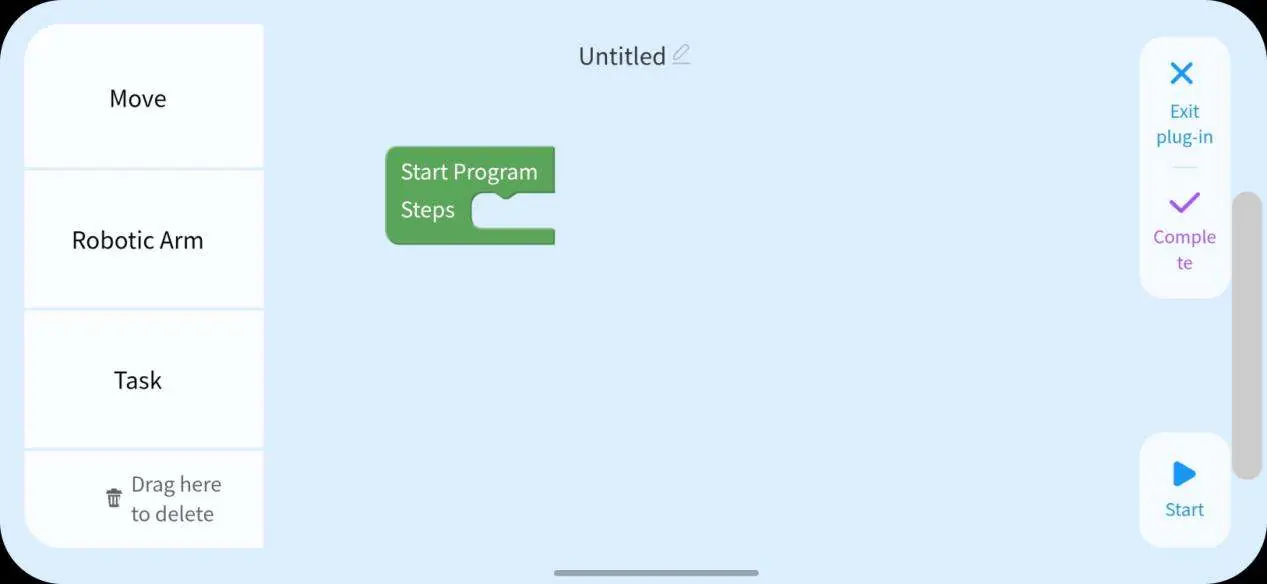
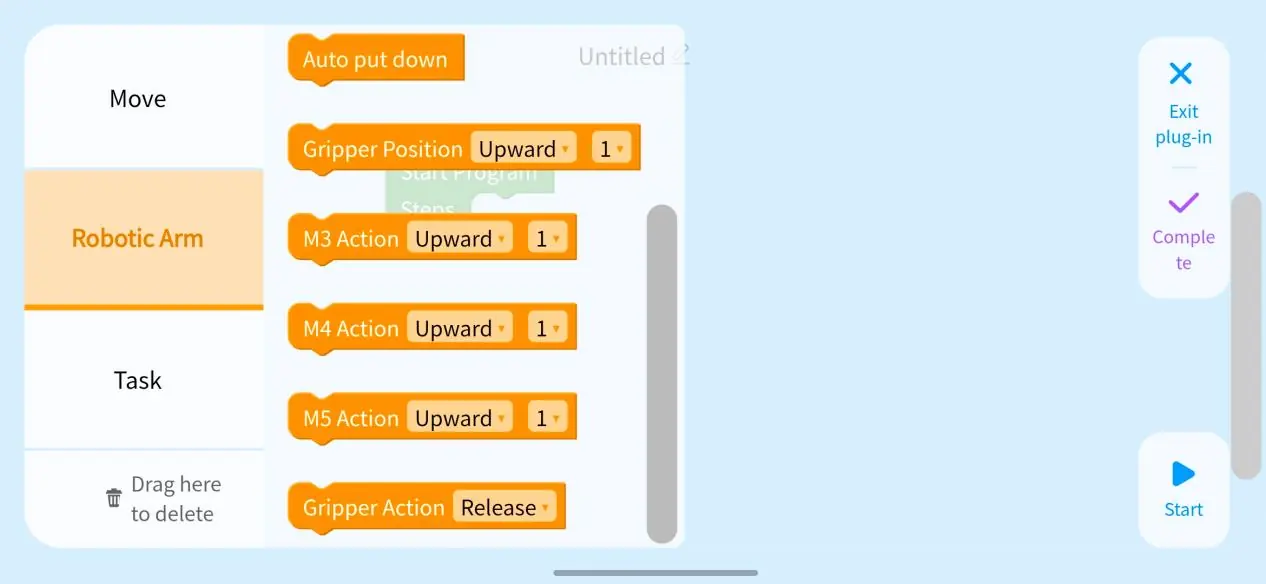
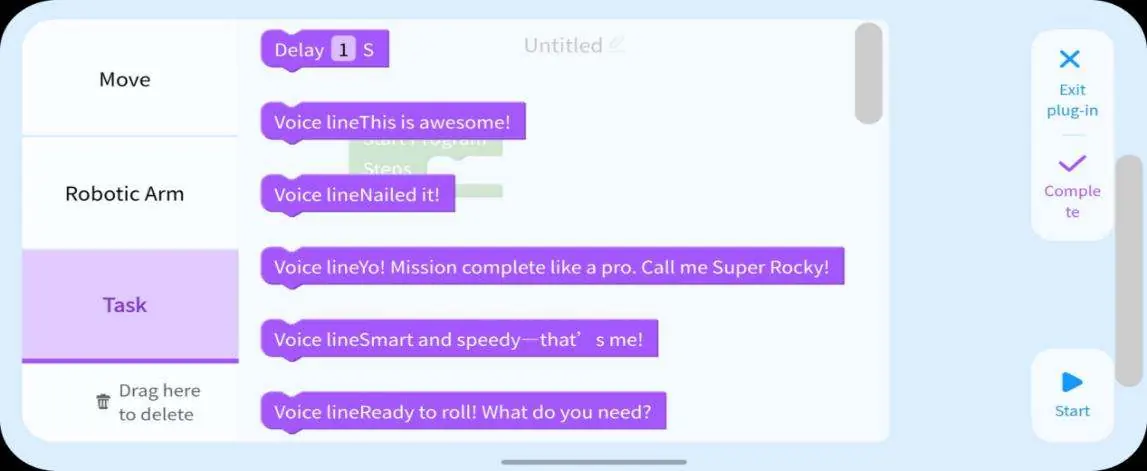
- Move: Add blocks to control forward, backward, and rotational movements.
- Robotic Arm: Control extension, retraction, and specific arm movements. Note: You must add the Extend robotic arm block before other arm actions can be executed.
- Task: Add delay blocks to manage time intervals between actions or include voice lines.
Managing and Executing Programs
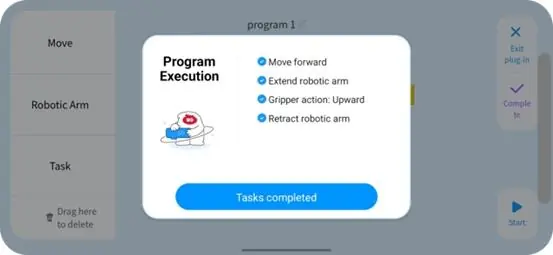
You can rearrange the order of blocks by dragging them or delete a block by dragging it to the trash tab on the left. To save your work, tap Complete. Saved programs appear under My Program on the homepage, where you can rename, copy, or delete them. During execution, the app displays the current status; you can tap Stop to pause the program at any time.
Manufacturer information
Beijing Roborock Technology Co. Ltd.
Practical help
Common problems
Programming Mode will not start
Ensure the robot is on a flat surface, battery is above 20%, no tasks are running, and the robotic arm is enabled in Settings.
Robotic arm actions fail
Ensure you have added the 'Extend robotic arm' block before any other robotic arm action blocks.
Program stops unexpectedly
If an error occurs during execution, the program may stop automatically or exit the mode.
Before use
- Ensure the robot is placed on a flat, clear surface.
- Check that the robot battery level is above 20%.
- Verify the robot is not currently performing any other tasks.
- Enable the robotic arm in Settings > Robotic Arm Setting if it is disabled.
- Ensure your phone and the vacuum cleaner are connected to the same network.
Images and diagrams
- The interface uses drag-and-drop blocks categorized into Move, Robotic Arm, and Task modules.
- The 'Start Program' block initiates the sequence.
- M3, M4, and M5 icons represent specific robotic arm movement points.
Model compatibility
- Voice control is temporarily unavailable while in Programming Mode.
- The app interface is subject to change without notice.

Manual page author
David Miller
Documentation analyst
Organizes user manual content into clear summaries, with attention to model details, product context, and everyday usability.