Electronics / Remote Controls
User Guide for Samsung 01329A Voice Remote Control
Complete user guide for the Samsung 01329A Voice Remote Control. Learn how to pair the remote with your TV, replace batteries, and understand the function of each button.
Table of contents
Manual images
Click an image to enlargeQuick Guide
This guide provides essential information for operating your Samsung 01329A Voice Remote Control. To ensure optimal performance, it is recommended to pair the remote with your TV before use. The remote requires two AA batteries for operation.
Remote Functions
The Smart Remote features several buttons for controlling your TV. Note that images, buttons, and functions may vary by model.
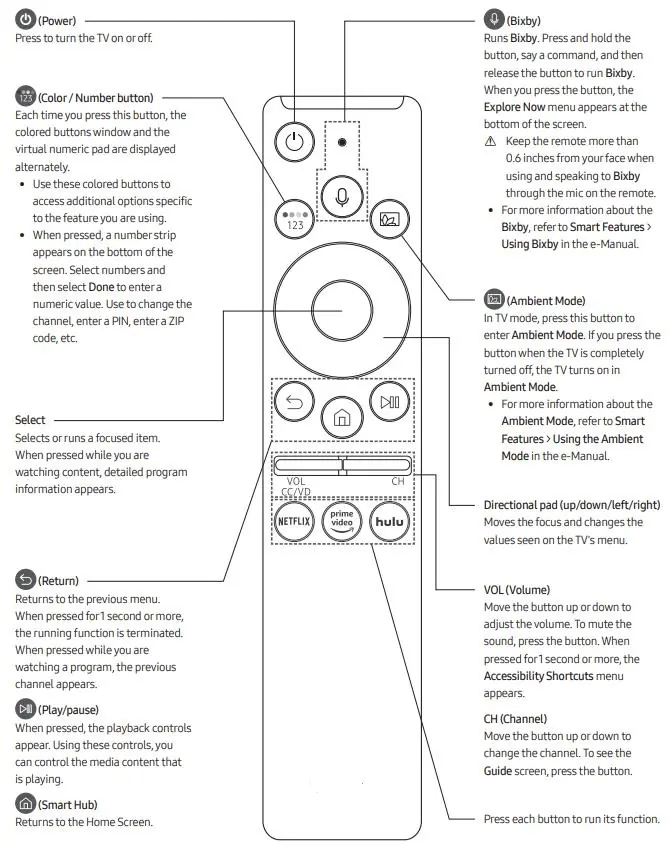
- Power: Turns the TV on or off.
- Bixby: Press and hold to run Bixby. Keep the remote more than 0.6 inches from your face when speaking.
- Color / Number button: Displays the colored buttons window and virtual numeric pad alternately. Use to enter numeric values like PINs or ZIP codes.
- Ambient Mode: Enters Ambient Mode. If pressed while the TV is off, it turns the TV on in Ambient Mode.
- Select: Selects or runs a focused item.
- Return: Returns to the previous menu. Press for 1 second or more to terminate the running function.
- Play/Pause: Controls media playback.
- Smart Hub: Returns to the Home Screen.
- Directional pad: Moves the focus and changes values on the TV menu.
- VOL (Volume): Adjusts volume. Press to mute. Press for 1 second or more to open Accessibility Shortcuts.
- CH (Channel): Changes the channel. Press to see the Guide screen.
Pairing Instructions
To pair your Samsung smart TV with the replacement smart remote, follow these steps:
- Insert batteries and turn on your TV: Open the back cover and insert two new AA batteries.
- Point the remote at your TV: Ensure the remote is directed toward the sensor, typically located on the lower right side or centered at the bottom of the TV.
- Press the Return and Extra buttons simultaneously: Locate both buttons on the remote and hold them together for 4-7 seconds. Pairing information will appear on the lower left portion of the screen.
- Wait for pairing to finish: Allow the procedure to complete. The status will be displayed on the screen.
Note: Without pairing, the remote may work directly, but the response time may be slower.
Replacing the Remote Battery
To replace the batteries, follow these steps:
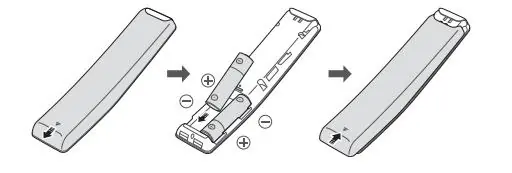
- Push the rear cover open in the direction of the arrow located at the bottom of the remote.
- Insert two new AA batteries, ensuring the positive (+) and negative (-) ends are facing the correct direction as shown in the figure.
- Close the rear cover securely.
Recommendation: Use new AA alkaline batteries for longer battery life.
Safety and Compliance
This device complies with Part 15 of the FCC Rules. Operation is subject to the condition that the device does not cause harmful interference and must accept any interference received. The device has been evaluated to meet general RF exposure requirements and can be used in portable exposure conditions without restriction.
Manufacturer information
Samsung Electronics
Practical help
Common problems
Remote response is slow
Pair the remote with the TV using the pairing instructions provided in this guide.
Pairing is unsuccessful
Ensure the remote is pointed at the TV sensor and try holding the Return and Extra buttons simultaneously for 4-7 seconds again.
Before use
- Purchase two new AA batteries.
- Ensure the TV is powered on.
- Insert batteries into the remote correctly.
- Point the remote at the TV sensor (lower right or bottom center).
Specs in practice
- Bixby Mic Distance
- Keep the remote more than 0.6 inches from your face when using voice commands.
Images and diagrams
- The remote layout diagram identifies all buttons including Power, Bixby, Ambient Mode, and navigation controls.
- The battery replacement diagram illustrates the sliding cover mechanism and correct polarity orientation.
Model compatibility
- Designed for Samsung Smart TVs.
- Functions may vary depending on the specific TV model.

Manual page author
Emily Carter
User documentation editor
Prepares concise manual descriptions and highlights the most useful setup, operation, and maintenance information for readers.