Electronics / Cameras
Sandberg USB Webcam 1080P HD User Guide
Comprehensive setup and usage guide for the Sandberg USB Webcam 1080P HD, covering installation, mounting options, and connection instructions.
Table of contents
Product Overview
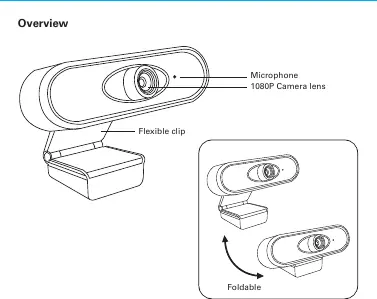
The Sandberg USB Webcam 1080P HD is a high-quality plug-and-play device designed to provide clear video and audio for your computer. The camera features a 1080P lens for sharp image quality and an integrated microphone to capture clear sound during video calls, conferences, or streaming sessions. The unit is built with a flexible clip mechanism that allows for versatile placement options, ensuring it can be securely attached to various surfaces.
Installation and Connection
Setting up the Sandberg USB Webcam is straightforward due to its plug-and-play functionality. To begin, locate an available USB port on your computer or laptop. Insert the USB connector from the webcam directly into the port. The operating system should automatically detect the device and install the necessary drivers without requiring additional software. Once connected, the camera is ready to be used with your preferred video conferencing or recording applications.
Mounting Options
The webcam is designed with a flexible, foldable clip that provides two primary mounting methods to suit your workspace:
- On a Desk: You can fold the clip to create a stable base, allowing the camera to sit securely on a flat surface like your desk or table.
- On a PC Monitor: The clip can be adjusted to hook over the top edge of your laptop screen or desktop monitor. This position is ideal for eye-level video calls, providing a more natural viewing angle for your participants.
The foldable design also makes the camera compact and easy to transport, making it a great choice for users who frequently work from different locations.
Maintenance and Support
To ensure the best performance, keep the camera lens clean by wiping it gently with a soft, dry cloth. Avoid using harsh chemicals or abrasive materials that could scratch the lens surface. If you encounter any issues with the device, ensure that the USB connection is secure and that the camera is selected as the default input device in your software settings. For further assistance, you can visit the Sandberg support portal to access troubleshooting resources and warranty information. The product comes with a five-year warranty, reflecting the manufacturer's commitment to quality and reliability. Always dispose of electronic equipment according to local environmental regulations to minimize impact on the environment.
Manufacturer information
Sandberg A/S
Practical help
Common problems
Camera not detected by computer
Ensure the USB cable is firmly plugged into a working USB port and try a different port if necessary.
No audio or video in application
Check the settings within your video conferencing software to ensure the Sandberg webcam and its microphone are selected as the default input devices.
Before use
- Ensure you have an available USB port on your computer.
- Verify that your computer is powered on and running.
- Check that the camera lens is clean and free of obstructions.
Images and diagrams
- The overview diagram highlights the 1080P camera lens and the integrated microphone.
- The connection diagram illustrates the simple USB plug-and-play interface.
- The mounting diagrams show the flexible clip being used as a stand on a desk or as a mount on a monitor.
Model compatibility
- Compatible with standard USB ports on most computers and laptops.
- Plug-and-play functionality works with major operating systems without manual driver installation.

Manual page author
Michael Turner
Technical manual editor
Reviews PDF manuals for structure, safety notes, and practical product details so readers can find the right information quickly.