Home Appliances / Vacuum Cleaners
User Manual for Shark IQ Robot 1000AE Series
Comprehensive user guide for the Shark IQ Robot 1000AE Series. Includes setup instructions, app connectivity, maintenance procedures, troubleshooting error codes, and cleaning tips.
Table of contents
Manual images
Click an image to enlargeQuick Start Guide
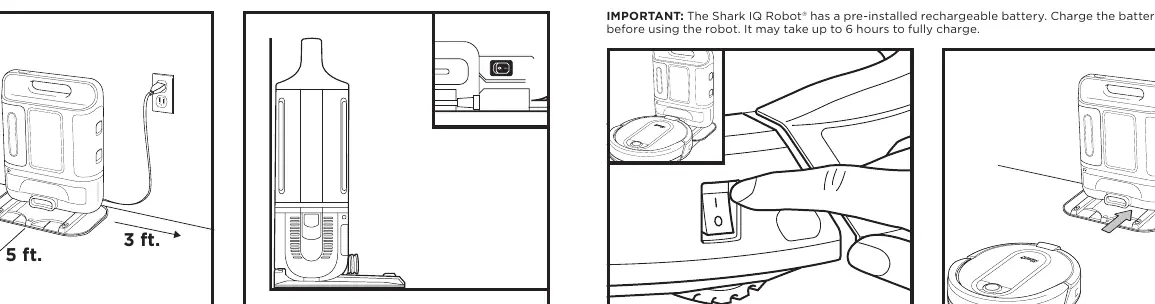
To get started with your Shark IQ Robot, ensure the base is placed on a level surface against a wall with 3 feet of clearance on the sides and 5 feet in front. Remove all protective film, plug in the charging cord, and turn on the power switch on the back of the base. Charge the robot completely (up to 6 hours) before the first use. Install the side brushes by snapping them onto the square pegs on the bottom of the robot.
Getting to Know Your Robot
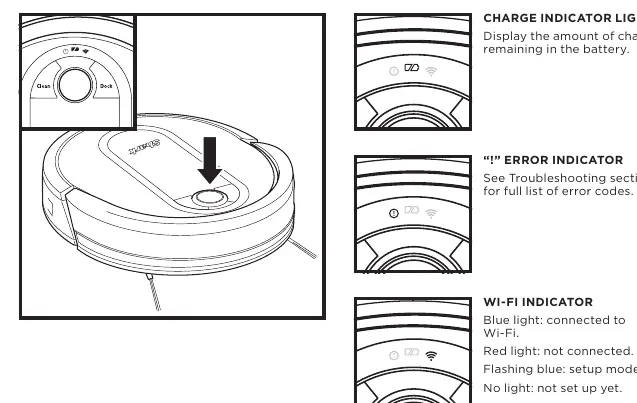
The robot features a Clean button, Dock button, and various indicator lights for battery, error, and Wi-Fi status. The navigation module on top aids in mapping. The base includes a dust bin with a fill window and debris intake.
Base Setup and Charging
The self-empty base charges the robot and holds debris for up to 45 days. Ensure the robot is placed with its back against the base, ensuring the metal charging pads on the robot touch the charging contacts on the base. The robot will beep when charging begins. The blue charging indicator light on the base will pulse while charging and turn solid when complete.
Mapping and Navigation
The robot uses sensors to navigate. It will create an interactive map of your home over several cleaning cycles. Use the SharkClean app to name rooms, select specific rooms to clean, and view cleaning reports. For best results, keep the area well-lit and avoid moving the robot or base during operation.
Maintenance
Regular maintenance is required for optimal performance:
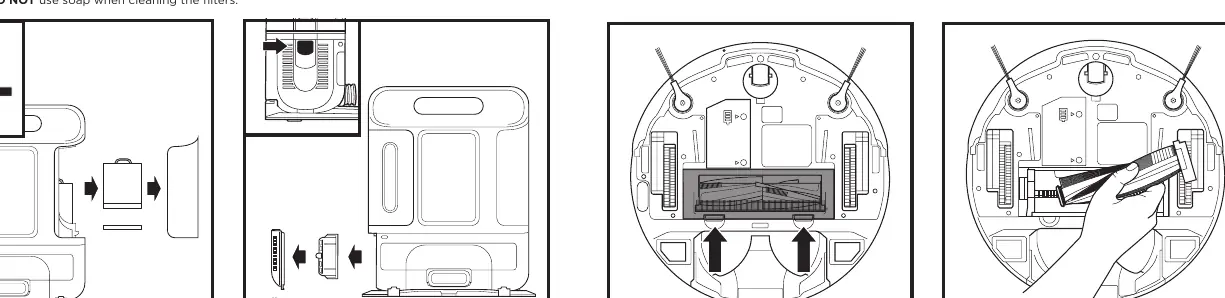
- Robot Dust Bin: Empty regularly. Pinch and lift to open the lid.
- Base Dust Bin: Empty when debris approaches the max fill line.
- Filters: Clean the robot filter by tapping it. Rinse base pre-motor filters with cold water only and air-dry for 24 hours.
- Brushroll: Remove debris wrapped around the brushroll. Replace every 6-12 months.
- Sensors and Wheels: Periodically wipe sensors and charging pads with a dry cloth. Clean the front caster wheel and drive wheels.
Troubleshooting
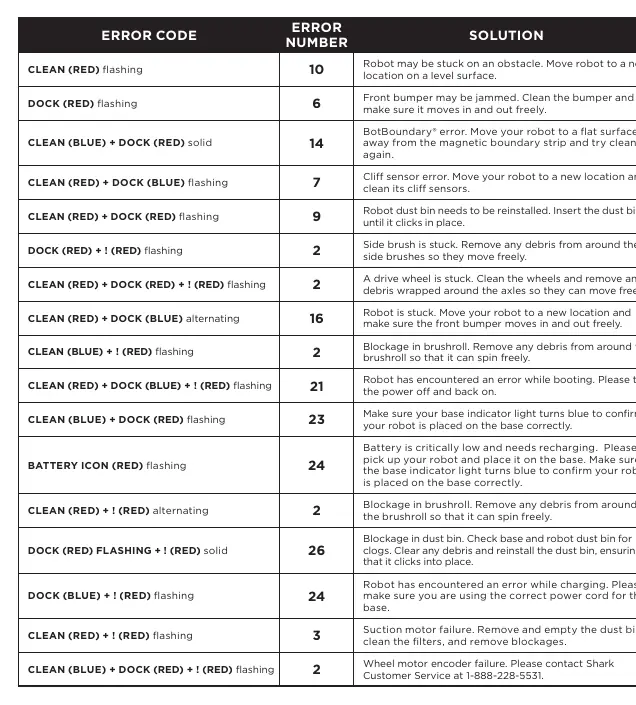
If the robot encounters an issue, check the error lights. Common solutions include moving the robot to a level surface, clearing obstructions, cleaning sensors, or rebooting the robot and router. If the robot fails to connect to Wi-Fi, ensure you are using a 2.4 GHz network and that Wi-Fi isolation is disabled on your router.
Practical help
Common problems
Robot won't connect to Wi-Fi
Ensure your phone is on a 2.4 GHz network, disable VPN/proxy, and ensure Wi-Fi isolation is off on your router. Try rebooting the robot and router.
Robot not charging
Verify the base is powered on, the robot is aligned correctly with the base, and the metal charging contacts are touching.
Robot stuck
Clear obstacles, check if the front bumper is jammed, and ensure the robot is on a level surface.
Error lights flashing
Consult the error code chart in the manual. Common fixes include cleaning sensors, reinstalling the dust bin, or clearing brushroll blockages.
Before use
- Charge the robot completely (up to 6 hours).
- Remove all protective film from the base.
- Place the base on a level surface against a wall.
- Ensure 3 feet of clearance on the sides and 5 feet in front of the base.
- Install the included side brushes.
- Download the SharkClean app.
Specs in practice
- Charging time
- Up to 6 hours for a full charge.
- Base capacity
- Holds up to 45 days of debris.
Images and diagrams
- Base Setup: Shows the required 3ft/5ft clearance around the charging base.
- Indicator Lights: Explains the meaning of various light patterns on the robot and base.
- Maintenance: Illustrates how to remove and clean the dust bin and filters.
Model compatibility
- Requires 2.4 GHz Wi-Fi network.
- Compatible with Amazon Alexa and Google Assistant.

Manual page author
Emily Carter
User documentation editor
Prepares concise manual descriptions and highlights the most useful setup, operation, and maintenance information for readers.