Electronics / Remote Controls
SilverCrest 10,000mAh Power Bank HG05318A/B User Manual
Quick guide for the SilverCrest 10,000mAh Power Bank (HG05318A/B). Learn how to charge the power bank, charge mobile devices, check battery status, and troubleshoot common issues.
Table of contents
Manual images
Click an image to enlargeQuick guide from the manual
This SilverCrest 10,000mAh Power Bank is designed to charge mobile devices via USB. It supports Power Delivery (PD) 3.0 and Quick Charge (QC) 3.0 technologies. To charge the power bank, use a power supply with an output of at least 3A. Do not charge the power bank from a PC or notebook due to high power consumption.
Product description
The power bank features the following components:
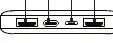
- 1: USB type A output 1 (orange marking)
- 2: USB type C input and output port
- 3: Micro-USB input
- 4: USB type A output 2
- 5: ON / OFF button
- 9: LED indicator for battery capacity
Safety notices
- Do not cover the product during the charging process to prevent overheating.
- Do not operate near heat sources, open flames, or in high humidity/dusty environments.
- Do not use the product if it is damaged or has been dropped.
- Keep packaging materials away from children (suffocation hazard).
- If you smell burning or see smoke, switch off immediately and disconnect.
Operation and use
Charging the power bank
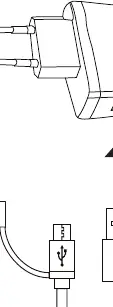
The built-in battery must be fully charged before first use. Connect the USB type C plug of the included cable to the power bank's USB type C input port (2). Connect the other end (USB type A) to a suitable USB power supply (not included). Use a power supply with 5V and at least 3A.
Checking the battery status
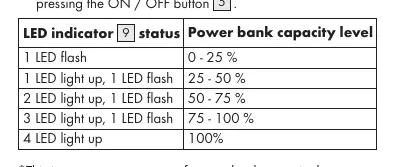
Press the ON / OFF button (5) briefly. The LED indicator (9) will show the approximate charge level for about 30 seconds.
Charging mobile devices
You can charge up to three devices simultaneously. Connect your device's charging cable to one of the three USB outputs (1, 2, or 4). The charging process starts automatically. If it does not, press the ON / OFF button (5) briefly. If all outputs are used simultaneously, the total output current must not exceed 3A.
Troubleshooting
If the power bank is not charging, ensure it is connected properly to a power supply providing at least 3A. If a connected device is not charging, check the connection and ensure the device's current consumption is compatible (minimum output current of the power bank is approx. 60mA). If the power bank does not react, the internal overcurrent protection may have been activated; reduce the number of connected devices and press the ON / OFF button.
Cleaning and care
Clean only with a slightly damp cloth and mild washing-up liquid. Do not use abrasive or solvent-based cleaners. Ensure no moisture enters the product.
Disposal
The product contains a built-in battery that cannot be removed. Dispose of the product at a designated collection site for used electronics in accordance with local regulations.
Manufacturer information
Silvercrest
Practical help
Common problems
Power bank is not being charged
Ensure it is connected properly. Use a power supply with 5V and at least 3A.
Connected device is not being charged
Check the connection. Ensure the device's current consumption is compatible (minimum output current is approx. 60mA). Press the ON/OFF button to start charging.
Power bank does not react when button is pressed
Internal overcurrent protection may be active. Reduce the number of connected devices and press the ON/OFF button.
Before use
- Remove all packaging materials.
- Check the content of delivery for damages.
- Fully charge the built-in battery before first use.
Specs in practice
- Max Output Power
- 18 W
- Max Output Current
- 3 A (total if all outputs used)
- Operating Temperature
- 5 – 35 °C
Images and diagrams
- Port 1: USB Type A output (QC 3.0)
- Port 2: USB Type C input/output (PD 3.0)
- Port 3: Micro-USB input
- Port 4: USB Type A output
- Button 5: Power/Status check
Model compatibility
- Supports Quick Charge 3.0 on USB Type A output 1.
- Supports Power Delivery 3.0 on USB Type C output.
- Do not charge from a PC or notebook.

Manual page author
Michael Turner
Technical manual editor
Reviews PDF manuals for structure, safety notes, and practical product details so readers can find the right information quickly.