Electronics / Audio
User Manual for TC Electronic SUB 'N' UP OCTAVER
Quick guide for the TC Electronic SUB 'N' UP OCTAVER. Learn how to set up, use TonePrint, adjust octave controls, and switch between True and Buffered Bypass modes.
Table of contents
Manual images
Jump to the sectionQuick guide from the manual
The SUB 'N' UP OCTAVER is a polyphonic octave pedal. To get started, connect a 9V DC power supply (center negative, minimum 100mA) to the power input. Connect your instrument to the input jack on the right and your amplifier to the output jack on the left using standard 1/4 inch TS mono cables. Use the footswitch to engage or bypass the effect. The pedal supports TonePrint technology, allowing you to beam custom sounds from your smartphone or edit them via a computer.
Introduction
The SUB 'N' UP OCTAVER features a next-generation octave engine with individual blend controls for dry, octave-up, and two sub-octaves. It offers three modes: Poly (polyphonic octaving), TonePrint (custom configurations), and Classic (monophonic analog-style octaving).
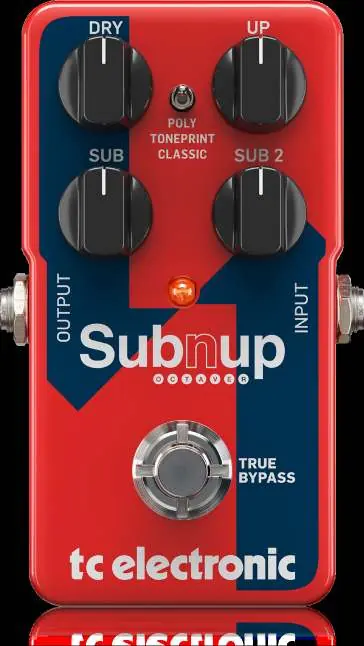
Operation - Inputs, Outputs and Controls
The pedal features several controls to shape your sound:
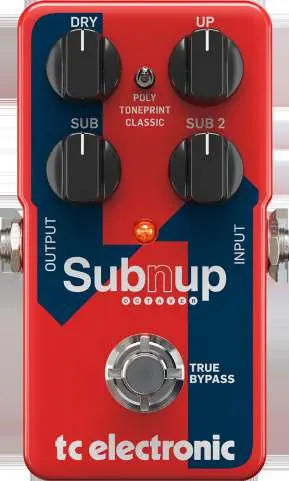
- DRY knob: Sets the level of the dry signal.
- UP knob: Blends in an extra voice one octave above the original signal.
- SUB knob: Adds an extra voice one octave below the original signal.
- SUB 2 knob: Adds an extra voice two octaves below the original signal.
- MODE selector: Switches between Poly, TonePrint, and Classic modes.
- Footswitch: Turns the effect on and off.
Operation - TonePrint
TonePrint allows you to customize the pedal's behavior. You can transfer TonePrints using the TonePrint app on your smartphone by holding the speaker near your guitar pickup while the pedal is active. Alternatively, use the TonePrint Editor on a PC or Mac via the USB port to create your own sounds, customize knob functions, and update firmware.
Operation - Bypass Mode
The pedal defaults to True Bypass, which ensures no signal coloration when the effect is off. If you are using long cables or many pedals, you may prefer Buffered Bypass. To switch modes, disconnect the pedal, unscrew the back plate, and adjust the internal DIP switch located in the upper left corner.
Maintenance
To update the firmware, connect the pedal to a computer via USB, hold the footswitch while plugging in the power, and use the firmware updater software. To change the battery, unscrew the thumb-screw on the back of the pedal, detach the back plate, and replace the battery, ensuring correct polarity.
Technical Specifications
The pedal requires a 9V DC power supply (center negative, >100mA). It features unbalanced 1/4 inch TS mono inputs and outputs with an input impedance of 1 MΩ and output impedance of 100 Ω. It includes a Mini USB port for TonePrint and firmware updates.
Manufacturer information
TC Electronic
Practical help
Common problems
Input clipping in effects loop
While most amps work fine, some high-gain effects loops may cause clipping. The pedal is designed to handle instrument and line levels, but adjust your amp's loop send level if necessary.
TonePrint not beaming
Ensure the pedal is powered on, the guitar volume is turned up, and the pickup selector is set to one pickup. Hold the smartphone speaker close to the pickup.
Before use
- Ensure you have a 9V DC power supply (center negative, >100mA).
- Use high-quality 1/4 inch TS mono instrument cables.
- Install the TonePrint app on your smartphone or TonePrint Editor on your computer.
- Check that the pedal is connected to your signal chain correctly (Input on right, Output on left).
Specs in practice
- Input/Output
- 1/4 inch TS, unbalanced, mono.
Images and diagrams
- The front panel contains four knobs (DRY, UP, SUB, SUB 2) and a MODE selector switch.
- The footswitch is located at the bottom center with an indicator LED above it.
- Input and output jacks are located on the right and left sides respectively.
Model compatibility
- TonePrint Editor is compatible with Windows and OS X.
- TonePrint app is available for iOS and Android.
- Firmware updates require a computer with a standard USB interface.

Manual page author
Emily Carter
User documentation editor
Prepares concise manual descriptions and highlights the most useful setup, operation, and maintenance information for readers.