Electronics / RFID Barcode Scanners
User Manual for Tera 1100C 1D Wireless Barcode Scanner
Quick start guide and configuration manual for the Tera 1100C 1D Wireless Barcode Scanner. Learn how to pair via 2.4G or Bluetooth, change scanning modes, and customize barcode parameters.
Table of contents
Manual images
Click an image to enlargeQuick Guide from the Manual
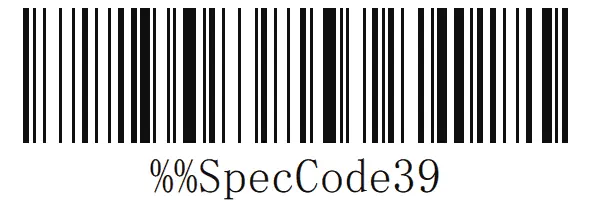
This manual provides configuration instructions for the Tera 1100C 1D Wireless Barcode Scanner. The scanner is factory-programmed for common settings. To change settings, scan the specific configuration barcodes provided in this document. If no command is scanned within 20 seconds, the scanner will automatically exit programming mode.
Wireless Operation Modes
The scanner supports two primary operation modes:
- Normal Mode: Scans and transmits data immediately. If the scanner is disconnected, data is discarded.
- Storage Mode: Stores scanned data internally when the scanner is disconnected. Data is not lost when the scanner is powered off and can be uploaded later.
Pairing Instructions
Wireless 2.4G Pairing (Receiver)
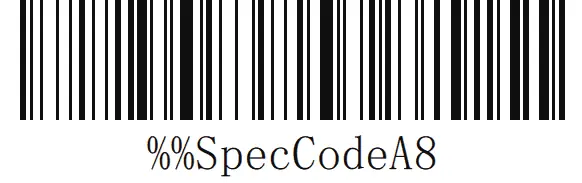
- Scan the Wireless 2.4G mode barcode.
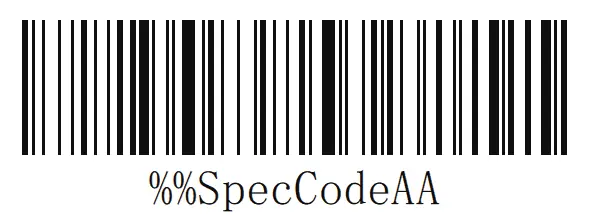
- Scan the Forced pairing barcode to enter pairing mode (the blue light on the left will flash quickly).
- Plug in the USB dongle. A beep indicates successful pairing, and the blue light on the right will remain on.
Bluetooth HID Pairing
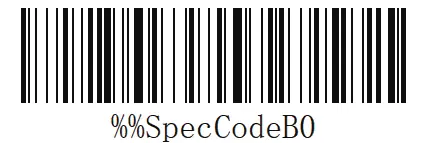
- Scan the Bluetooth HID mode barcode.
- Scan the Forced pairing barcode to enter pairing mode.
- Enable Bluetooth on your host device and search for BarCode Bluetooth HID.
- Select the device to pair. A beep indicates success.
Bluetooth SPP/BLE Pairing
- Scan the Bluetooth SPP mode or Bluetooth BLE mode barcode.
- The scanner will automatically enter the broadcast state.
- Find BarCode Bluetooth SPP/BLE in your software or device settings and connect.
Configuration Settings
The scanner allows for extensive customization via barcode scanning, including:
- Scanning Mode: Switch between Button-press mode and Always on/Continuous mode.
- Sound and Vibration: Adjust prompt tone (Mute, High, Medium, Low) and toggle vibration.
- Sleep Time: Set inactivity timeout (1min, 5min, 30min, Always On, or Sleep Immediately).
- Keyboard Settings: Configure end characters (CR, LF, TAB, None) and keyboard language (default is US).
- Prefix/Suffix: Add, clear, or hide custom prefix/suffix characters.
Support
For technical support, contact the manufacturer via email at [email protected], [email protected], or [email protected]. You can also reach out via WhatsApp at +86 13382526580. Please include your Amazon Order Number and the product model number in your correspondence.
Practical help
Common problems
Scanner unable to read barcodes
Scan the 'Restore the default settings' barcode to reset the device.
Uploaded content is disordered or lost
Adjust the upload speed setting (High, Medium, Low, or Ultra-low) to match your host system.
Pairing fails
Ensure the scanner is in pairing mode (blue light flashing) and that the host device is ready to accept a new connection.
Before use
- Check battery power by scanning the 'Display battery power' barcode.
- Confirm the desired communication mode (2.4G, Bluetooth HID, SPP, or BLE).
- Ensure the host device has Bluetooth enabled if using Bluetooth modes.
- Verify the keyboard layout setting matches your region (default is US).
Specs in practice
- Storage Mode
- Data is saved internally when disconnected; useful for inventory or offline scanning.
Images and diagrams
- The manual is primarily a collection of configuration barcodes. To apply a setting, simply scan the barcode labeled with the desired function.
Model compatibility
- Bluetooth HID name can be customized up to 16 bytes.
- The scanner supports various barcode symbologies including Code 128, Code 39, UPC-A, EAN-13, and more.

Manual page author
David Miller
Documentation analyst
Organizes user manual content into clear summaries, with attention to model details, product context, and everyday usability.