Electronics / RFID Barcode Scanners
User Manual for Koamtac 1.0W UHF Reader
Quick guide for the Koamtac 1.0W UHF Reader. Learn how to install, operate, toggle read modes, and configure settings for your RFID scanner.
Table of contents
Manual images
Click an image to enlargeInstallation and Powering On
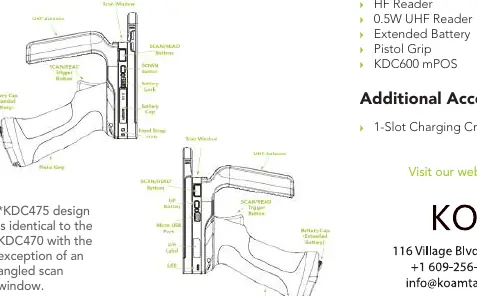
To install the 1.0W UHF Reader, attach it to your KDC470, KDC475, KDC480, or KDC485 device. Once installed, power on the KDC unit. The device will beep once for power on, once again when booted, and finally, 2 quick beeps will sound to signal that the UHF Reader is detected and ready for use. If you do not hear the 2 quick beeps, verify the installation.
Basic Operation
The device must be in UHF mode to read UHF tags. This mode must be changed manually. To enter UHF mode, press the UP button on the KDC for 3 seconds; 1 long and 2 short beeps will sound.
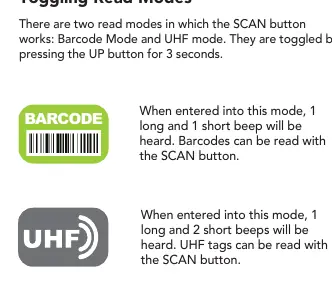
Toggling Read Modes: The SCAN button works in two modes: Barcode Mode and UHF Mode. Toggle between them by pressing the UP button for 3 seconds.
- Barcode Mode: 1 long and 1 short beep. Barcodes can be read with the SCAN button.
- UHF Mode: 1 long and 2 short beeps. UHF tags can be read with the SCAN button.
To read tags, point the reader in the direction of the tag and press the SCAN button or pull the trigger. A successful read will beep once and flash a green light.
Changing UHF Tag Read Modes
You can change the UHF tag read mode by scanning specific barcodes or by pressing the DOWN key on the KDC for 3 seconds while in RFID mode. The modes cycle in the following order: Active (default) -> Single -> Multiple.
- Active Read Mode: Simultaneous reading of multiple tags while pressing the scan button (max 10 minutes). 3 short beeps when changing mode.
- Single Read Mode: Only one tag is read every time the scan button is pressed. 1 short beep when changing mode.
- Multiple Read Mode: Multiple tags are read simultaneously for a set time (default 10 seconds). 2 short beeps when changing mode.
Specifications
RFID Details:
- Standards: EPC Class1 Gen2, EPC Gen2 V2
- Nominal Read Range: 20'+ (6+ m) depending on tag and environment
- Frequency: US, EU, JP, KR
- Max Output Power: 30dBm + 1dBm
- Read Rate: 200 tags per second
- Storage: More than 400,000 RFID tags
User Environment:
- Ingress Protection: IP64
- Operating Temp: -4°F to 122°F (-20°C to 50°C)
- Storage Temp: -4°F to 140°F (-20°C to 60°C)
- Humidity: 5% to 95% (non-condensing)
Software and Apps
KDC UHF App: A program for iOS and Android that communicates with the KDC via Bluetooth. It allows users to read UHF data, measure performance, and configure the KDC. It is intended for demo purposes and developers.
KTSync & SDK: KTSync is compatible with iOS, Android, Windows, and Mac for reading and storing data. The SDK is available for custom application development on Android, iOS, Tizen, Windows, Xamarin, and Cordova. For more information, visit www.koamtac.com/support/downloads/applications or contact [email protected].
Official resources from the manual
Practical help
Common problems
UHF Reader not detected after power on
Verify the installation of the UHF Reader onto the KDC unit. You should hear 2 quick beeps after the boot-up sequence.
Cannot read UHF tags
Ensure the device is in UHF mode. Press the UP button for 3 seconds to switch modes; 1 long and 2 short beeps confirm UHF mode.
Before use
- Install the UHF Reader onto the KDC470/475/480/485.
- Power on the KDC device.
- Listen for the 2 quick beeps indicating successful UHF Reader detection.
- Switch to UHF mode using the UP button if reading RFID tags.
Specs in practice
- Nominal Read Range
- Up to 6+ meters (20'+) depending on the specific tag and operating environment.
Images and diagrams
- The Assembled Diagram illustrates the correct attachment of the UHF Reader to the KDC unit and Pistol Grip.
- Read Mode barcodes are provided to quickly switch between Active, Single, and Multiple read modes.
Model compatibility
- Compatible with KDC470, KDC475, KDC480, and KDC485 models.
- KTSync software is compatible with iOS, Android, Windows, and Mac.

Manual page author
David Miller
Documentation analyst
Organizes user manual content into clear summaries, with attention to model details, product context, and everyday usability.