Electronics / RFID Barcode Scanners
User Guide for Honeywell Hyperion 1300g Barcode Scanner
Quick guide for the Honeywell Hyperion 1300g barcode scanner. Includes setup, connection instructions (USB, RS-232, Keyboard Wedge), programming, maintenance, and troubleshooting.
Table of contents
Manual images
Click an image to enlargeQuick guide from the manual
The Honeywell Hyperion 1300g is a general-purpose handheld linear scanner. To begin, unpack the device and check for shipping damage. Connect the appropriate interface cable to the scanner and your host device. The scanner will beep upon successful connection. For most applications, the scanner is factory-programmed for common settings. If you need to change configurations, you can scan the programming barcodes provided in this manual or use the EZConfig-Scanning software.
Getting started
The scanner supports multiple connection interfaces, including USB, Keyboard Wedge, RS-232, and RS485. Ensure the host system is powered off before connecting the interface cable. Once connected, power on the host system. The scanner will beep to indicate it is ready.
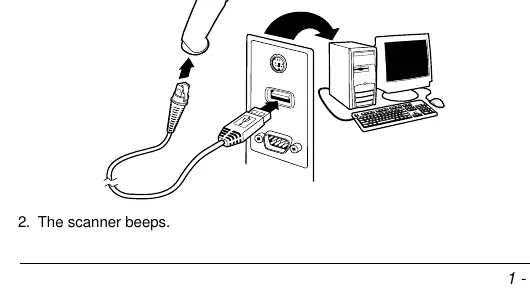
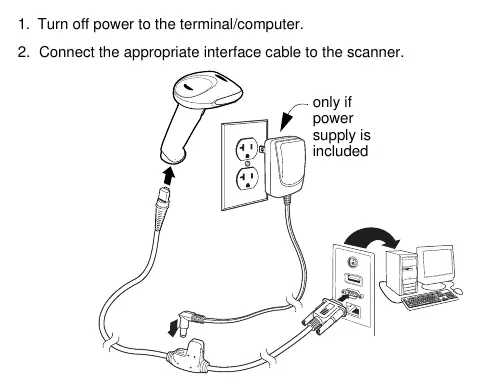
- USB: The scanner emulates a keyboard.
- Keyboard Wedge: Connects between the keyboard and PC.
- RS-232: Requires connection to a serial port; default settings are 38,400 baud, 8 data bits, no parity, 1 stop bit.
Reading techniques
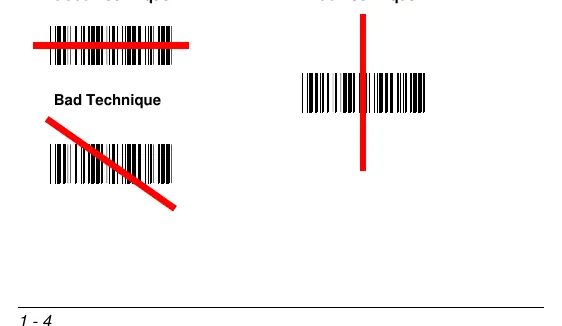
The scanner uses a bright red aiming beam. For optimal performance, center the aiming beam horizontally over the barcode. The best focus point is approximately 5 inches (12.7 cm) from the unit. The scanner will not read if the aiming beam is not properly aligned.
Programming the scanner
You can program the scanner by scanning specific menu barcodes. The manual includes sections for:
- Plug and Play: Instant setup for common interfaces.
- Keyboard Country Layout: Configure the scanner for specific language keyboards.
- Symbologies: Enable or disable specific barcode types and set message lengths.
Data editing and formatting
The scanner allows for advanced data manipulation:
- Prefix/Suffix: Add characters before or after scanned data.
- Data Format Editor: Insert, move, or suppress characters in the output string.
- Output Sequence: Program the scanner to output data in a specific order when scanning multiple symbols.
Maintenance
The scanner requires minimal maintenance. If the window becomes dirty, clean it with a soft cloth or lens tissue dampened with water or a mild soapy water solution. Do not use abrasive wipes or solvents like acetone or benzene, as these can damage the window or housing. Inspect cables and connectors periodically for wear.
Troubleshooting
If the scanner is not functioning correctly, consider the following:
- Scanner not reading: Ensure the symbology is enabled and the barcode is not damaged or obscured.
- Data not displayed correctly: Verify the terminal interface settings.
- Scanner not entering data: You may need to program a suffix (e.g., Carriage Return) to enter data into your application.
- Resetting defaults: If you are unsure of the current settings, you can reset the scanner to factory defaults by scanning the 'Activate Defaults' barcode.
Product specifications
The Hyperion 1300g features an IP41 environmental sealing and is rated for 50 drops from 1.5 meters to concrete. It operates at 4.5-5.5VDC and supports a wide range of 1D and GS1 DataBar symbologies.
Manufacturer information
Honeywell International Inc.
Practical help
Common problems
Scanner not reading symbols
Ensure the barcode is not smeared or damaged, check that the symbology is enabled in the scanner, and ensure the aiming beam is centered on the barcode.
Data is displayed but not entered
Program a suffix (such as a Carriage Return) to automatically enter the data into your application.
Data is not displayed correctly on the host
The scanner may be programmed for the wrong terminal interface. Reprogram using the correct Plug and Play or Terminal selection barcode.
Before use
- Check for damage during shipment.
- Verify items in the carton match your order.
- Save the shipping container for later storage.
- Ensure the correct interface cable is used for your host device.
- Power cycle the host terminal after scanning Plug and Play codes.
Specs in practice
- Operating Temperature
- 0°C to 50°C (32°F to 122°F).
- Drop Specification
- Operational after 50 drops from 1.5 meters to concrete.
- Environmental Sealing
- IP41 rating, providing immunity to foreign particles and dripping water.
Images and diagrams
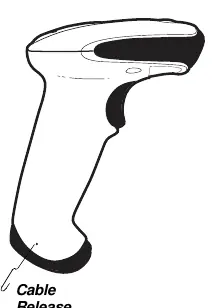
- Cable release: Use a paper clip in the small hole on the side of the handle to depress the retention tab.
- Aiming beam: Must be centered horizontally over the barcode for a successful read.
Model compatibility
- Supports USB, Keyboard Wedge, RS-232, and RS485 interfaces.
- Cables connected to the device must be shielded and less than 3 meters to maintain EMC compliance.

Manual page author
Emily Carter
User documentation editor
Prepares concise manual descriptions and highlights the most useful setup, operation, and maintenance information for readers.