Electronics / RFID Barcode Scanners
User Manual for Tera 1100D Wireless Barcode Scanner
Quick guide for the Tera 1100D wireless barcode scanner. Learn how to pair via 2.4G or Bluetooth, configure working modes, adjust settings, and troubleshoot common issues.
Table of contents
Manual images
Click an image to enlargeQuick Guide from the Manual
The Tera 1100D is a wireless 2D mini barcode scanner. Configuration is performed by scanning specific barcodes provided in this manual. An asterisk (*) next to an option indicates the factory default setting. If no command is scanned within 20 seconds, the scanner will automatically exit programming mode.
Working Modes
The scanner supports two primary data transmission modes:
- Instant Upload Mode: Data is uploaded to the computer immediately upon scanning. Data is lost if the scanner is disconnected.
- Storage Mode: Scanned barcodes are stored in the scanner's memory when disconnected or turned off. Data remains until cleared.
Communication Modes
The scanner supports multiple connection types:
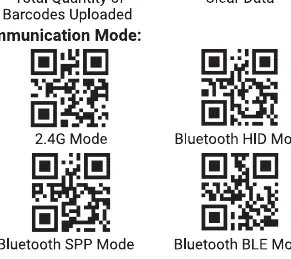
- 2.4G Mode: Uses the included USB receiver.
- Bluetooth HID Mode: Connects as a standard keyboard device.
- Bluetooth SPP/BLE Mode: Requires specific software or development for use.
Pairing Instructions
2.4G Pairing (USB Receiver)
- Scan the "2.4G Mode" barcode.
- Scan "Compulsory Pair with Dongle" to enter pairing mode (left blue light flashes rapidly).
- Plug in the USB dongle. Pairing is successful when the buzzer sounds "dee" and the right blue light turns on.
Bluetooth HID Pairing
- Scan "Bluetooth HID Mode".
- Scan "Compulsory Pair with Bluetooth" to enter pairing mode.
- Search for "Barcode Bluetooth HID" on your device and select it to pair.
- The scanner will sound "dee" upon successful pairing.
Settings and Configuration
You can customize the scanner behavior by scanning the corresponding barcodes:
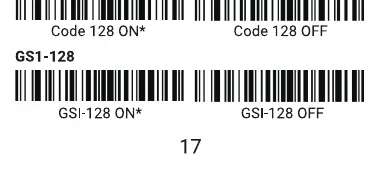
- Volume Setting: Adjust between High, Medium, Low, or Off.
- Vibration Setting: Toggle vibration ON or OFF.
- Sleep Time Setting: Configure auto-sleep timer (5min, 30min, No Sleep, or Sleep Immediately).
- Keyboard Language: Set the scanner to match your keyboard layout (e.g., English, German, French, Spanish).
- Prefix/Suffix Setup: Add custom characters to scanned data.
- Symbology: Enable or disable specific barcode types (1D/2D codes).
Troubleshooting and Maintenance
If the scanner is not functioning correctly or you have forgotten previous settings, scan the "Factory Reset" barcode to restore default settings. If data is missing or incorrect during transmission, try selecting a slower transmission speed in the Bluetooth settings.
Practical help
Common problems
Scanner is not scanning or behaving incorrectly
Scan the 'Factory Reset' barcode to restore default settings.
Data is missing or incorrect during upload
Choose a slower transmission speed in the Bluetooth settings.
Pairing fails
Ensure the device is discoverable. If pairing fails, press the button for 8 seconds to re-enter pairing mode.
Before use
- Charge the scanner fully.
- Determine the required communication mode (2.4G, Bluetooth HID, SPP, or BLE).
- Verify the keyboard layout setting (default is US).
- Have the configuration barcodes ready for setup.
Specs in practice
- Instant Upload Mode
- Real-time data transmission to the host device.
- Storage Mode
- Buffers data in internal memory when disconnected.
- Bluetooth HID
- Emulates a keyboard for broad compatibility.
Images and diagrams
- Asterisk (*) indicates the factory default setting.
- Configuration is achieved by scanning the barcodes provided in the manual.
- The scanner will exit programming mode automatically after 20 seconds of inactivity.
Model compatibility
- Bluetooth SPP and BLE modes require specific software or development.
- Centering Window feature is available on Model HW0010 only.
- The scanner defaults to a US keyboard layout.

Manual page author
David Miller
Documentation analyst
Organizes user manual content into clear summaries, with attention to model details, product context, and everyday usability.