Electronics / RFID Barcode Scanners
User Guide for Honeywell Voyager 1400g Series Scanner
A comprehensive user guide for the Honeywell Voyager 1400g Series area-imaging scanner, covering setup, programming, maintenance, and troubleshooting.
Table of contents
Manual images
Click an image to enlargeQuick Guide
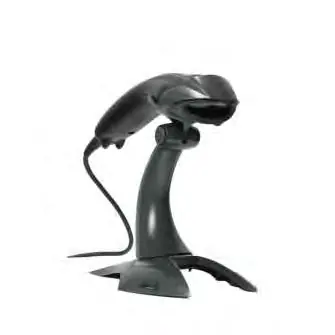
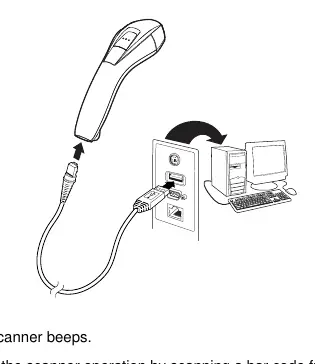
The Honeywell Voyager 1400g is an area-imaging scanner. To get started, unpack the device and check for shipping damage. Connect the appropriate interface cable to the scanner and then to your computer or terminal. After connecting, the scanner will beep. Verify operation by scanning a sample barcode from the back of this manual. If you need to change settings, you can scan the programming barcodes provided in this guide.
Getting Started
The scanner supports various connection types, including USB, Keyboard Wedge, RS232, and RS485. For USB connections, the scanner defaults to a USB PC Keyboard. For other interfaces, refer to the specific connection sections in Chapter 1. Always power cycle the host terminal after scanning a Plug and Play configuration code to ensure the new interface settings take effect.
Reading Techniques
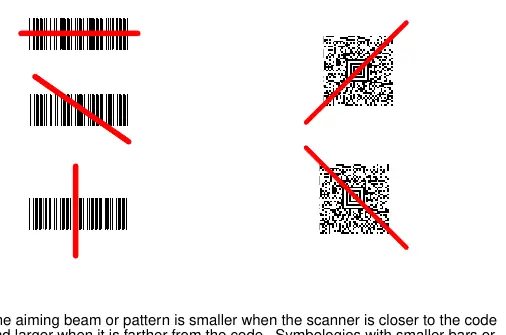
The scanner projects a red aiming beam. Center this beam over the barcode. The beam size changes based on distance: smaller for closer codes, larger for farther ones. If a code is highly reflective (e.g., laminated), tilt the code 15° to 18° to prevent unwanted reflection.
Programming the Interface
You can program the scanner using the provided Plug and Play barcodes for common interfaces. If you need to customize settings, use the programming barcodes in Chapter 2. Note that some settings require power cycling the host terminal.
Input/Output Settings
You can customize the scanner's feedback, including the power-up beeper, good read beeper volume, pitch, and duration. LED indicators for good reads can also be enabled or disabled. Trigger modes, such as Manual Trigger or Presentation Mode, can be configured to suit your workflow.
Data Editing and Formatting
The scanner allows you to add prefixes or suffixes to scanned data. You can also use the Data Format Editor to modify the output, such as inserting characters or reformatting data strings. Multiple data formats can be saved and switched as needed.
Symbologies
The scanner supports a wide range of barcode symbologies, including 1D, 2D, and postal codes. Each symbology can be enabled or disabled, and specific parameters like message length and check digits can be configured.
Maintenance
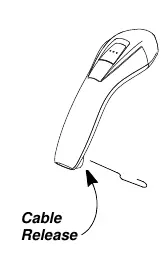
Periodic maintenance ensures reliable operation. Clean the scanner window with a soft cloth or lens tissue dampened with water or a mild detergent solution. Do not use abrasive wipes or solvents like alcohol or acetone, as these can damage the window or housing. The interface cable is field-replaceable; use a paper clip to press the cable release on the back of the handle to remove the cable.
Troubleshooting
If the scanner is not functioning, check the following:
- Ensure the cable is connected properly.
- Verify the host system power is on.
- Check if the scanner window is clean.
- Ensure the barcode symbology is enabled.
- If data is not displayed correctly, ensure the scanner is programmed for the correct terminal interface.
Product Specifications
The Voyager 1400g has an IP42 rating for protection against foreign particles and dripping water. It operates between 0°C and 40°C (32°F to 104°F) and requires an input voltage of 4 to 5.5VDC.
Manufacturer information
Honeywell International Inc.
Practical help
Common problems
Scanner not reading barcodes
Ensure the barcode symbology is enabled, the scanner window is clean, and the barcode is not damaged or obscured.
Data not displayed correctly on host
The scanner may be programmed for the wrong terminal interface. Reprogram using the correct Plug and Play barcode.
Scanner beeps but no data is entered
You may need to program a suffix (like a Carriage Return) to enter the data into your application.
Before use
- Inspect the shipping carton for damage.
- Verify that the items in the carton match your order.
- Connect the appropriate interface cable to the scanner.
- Connect the cable to the host computer or terminal.
- Power cycle the host terminal if required by the interface.
Specs in practice
- Operating Temperature
- The scanner functions within the range of 0°C to 40°C (32°F to 104°F).
- Input Voltage
- The device requires 4 to 5.5VDC to operate.
Images and diagrams
- Cable Release: A small hole on the back of the scanner handle used to release the interface cable.
- Aiming Beam: A red beam used to center the scanner over the barcode.
Model compatibility
- PDF barcodes are only readable by 1400gPDF or 1400g2D models.
- 2D barcodes are only readable by the 1400g2D model.

Manual page author
Michael Turner
Technical manual editor
Reviews PDF manuals for structure, safety notes, and practical product details so readers can find the right information quickly.