Electronics / RFID Barcode Scanners
User Manual for Tera 1100L Laser 1D Barcode Scanner
Quick guide for the Tera 1100L and HW0008L laser 1D barcode scanner. Learn how to configure scan modes, wireless pairing, Bluetooth settings, keyboard layouts, and troubleshoot using LED and beeper signals.
Table of contents
Manual images
Click an image to enlargeQuick guide from the manual
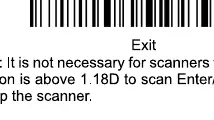
To configure the scanner, you must use the configuration barcodes provided in this manual. The standard procedure for changing settings is: Scan "Enter" symbol, scan the required configuration code, and scan "Exit" symbol to save the settings. Note that for firmware versions above 1.18D, scanning the Enter/Exit symbols is not strictly necessary.
Scan Modes
The scanner supports two primary operation modes:
- Manual Trigger Mode: The scanner waits for the trigger to be pressed to scan.
- Continuous Scan Mode: The scanner remains active to scan codes automatically.
Wireless and Bluetooth Setup
The scanner supports multiple connection types:




- 2.4G Wireless: Scan the "2.4G Wireless" code, then scan the "Pairing" code. Plug in the USB receiver and wait for the beep indicating successful pairing.
- Bluetooth HID: Scan "Bluetooth HID", then "Pairing". Enable Bluetooth on your host device, search for "BarCode Scanner HID", and connect.
- Bluetooth SPP/BLE: These modes require specific applications designed for SPP or BLE purposes.
Configuration and Settings
You can customize the scanner's behavior using the provided barcodes:
- Keyboard Layout: The default is US keyboard. Scan the corresponding country code (e.g., Germany, France, UK) to align the scanner with your host device.
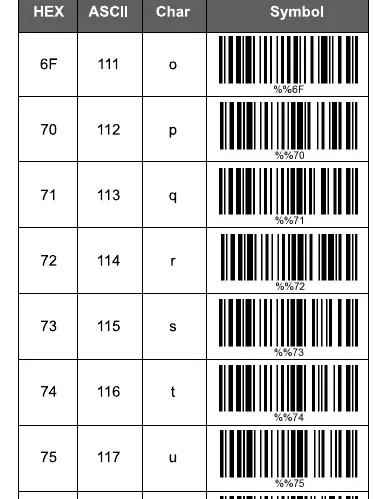
- Prefix and Suffix: You can add custom prefixes or suffixes to scanned data. Scan "Add Prefix" or "Add Suffix", then scan the corresponding values from the ASCII chart.
- Character Hiding: You can drop characters from the beginning or end of the scanned data by scanning "Hide the first/last characters" followed by the number of digits.
- Terminators: Configure the end-of-scan character, such as Carriage Return (CR), Line Feed (LF), or Tab.
Troubleshooting and Indicators
The scanner uses LED lights and beeper sounds to communicate status:
- LED Indicators: Solid blue indicates connected; solid red indicates charging; flashing blue indicates ready to pair.
- Beeper Signals: A long beep (low to high) indicates power up; a short beep (low pitch) indicates successful read; 5 short beeps indicate low battery.
Practical help
Common problems
Data is lost or garbled during transmission
Try reducing the Bluetooth HID transfer rate (Fast, Medium, Slow, or Ultra-slow).
Android on-screen keyboard is disabled when scanner is connected
This is a limitation of Android system settings when an external keyboard is detected. Contact your device manufacturer for assistance.
Scanner fails to pair via Bluetooth
Ensure the scanner is in pairing mode (LED flashing blue). If it does not pair within 1 minute, it will exit pairing mode. Double-press the trigger to restart the process.
Before use
- Charge the scanner fully before first use.
- Identify your preferred connection method (2.4G USB receiver or Bluetooth).
- Verify your host device's keyboard layout and scan the matching layout code in the manual.
- Ensure the scanner is within range of the receiver or host device.
Specs in practice
- Bluetooth HID
- Emulates a standard keyboard; data is input directly into text fields.
- Bluetooth SPP
- Serial Port Profile; requires a specific application to receive data.
- 2.4G Wireless
- Uses the included USB dongle; functions like a standard USB HID keyboard.
Images and diagrams
- The configuration flow is: Enter Programming Mode -> Scan Setting Barcode -> Exit Programming Mode.
- The ASCII chart allows you to program specific characters for prefixes, suffixes, or group separators.
Model compatibility
- Bluetooth SPP mode is not available for iOS devices.
- Bluetooth features are not available for model HW0008L.

Manual page author
Emily Carter
User documentation editor
Prepares concise manual descriptions and highlights the most useful setup, operation, and maintenance information for readers.