Electronics / USB Hubs & Docking
UGREEN 10-in-1 Thunderbolt 5 Docking Station U712 User Manual
Quick guide for the UGREEN 10-in-1 Thunderbolt 5 Docking Station (U712). Includes setup instructions, interface layout, video output modes, troubleshooting, and technical specifications.
Table of contents
Manual images
Click an image to enlargeQuick guide from the manual
The UGREEN 10-in-1 Thunderbolt 5 Docking Station (U712) is designed to expand your laptop's connectivity. Before use, ensure your laptop supports Thunderbolt 5, 4, or USB4. Windows systems with Thunderbolt 3 are not supported. For MacBooks, ensure you are running macOS 15 or later. It is highly recommended to update your laptop's system BIOS, graphics driver, Thunderbolt driver/firmware, and Ethernet driver before connecting the dock.
Interface Layout
The docking station features the following ports and indicators:
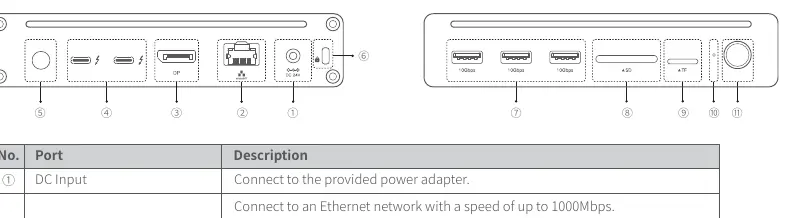
- DC Input: Connect to the provided power adapter.
- Ethernet Port: Supports speeds up to 1000Mbps.
- Display (DP) Port: Supports up to 8K resolution.
- Thunderbolt 5 Downstream Ports (x2): Support external hard drives, monitors (up to 8K), and 15W device charging.
- Thunderbolt 5 Upstream Port: Connects to your laptop; provides up to 110W charging.
- USB-A 3.2 Ports (x3): Data transfer speeds up to 10Gbps.
- SD/TF Card Readers: Supports dual-slot concurrent access.
- Power Button: Press to power on/off.
- Indicator: Shows connection status (Green: powered/not connected; Blue: connected to host; Flashing: abnormal status).
Setup and Connection
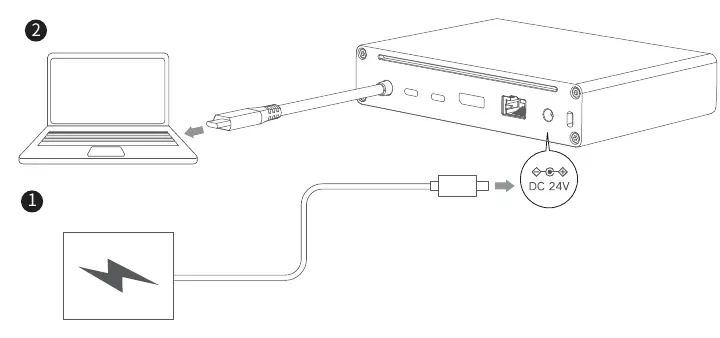
- Connect the DC plug of the power adapter to the docking station's DC port and plug the AC plug into a power outlet. The indicator will turn green.
- Connect your laptop to the Thunderbolt 5 upstream port using the provided Thunderbolt 5 cable. The indicator will turn blue, confirming the connection.
- Connect your peripherals (monitors, USB devices, Ethernet, SD cards) to the respective ports.
Video Output Modes
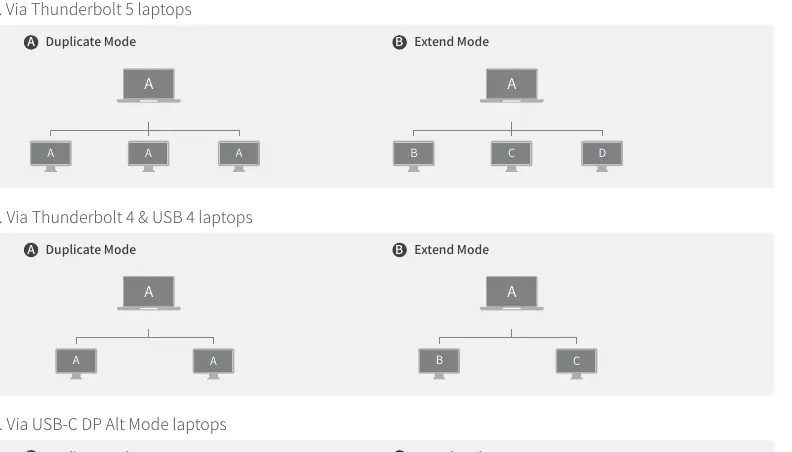
The docking station supports various video output modes depending on your host device (Windows or macOS). You can configure these settings on your laptop to use Duplicate or Extend modes. Note that outputting dual 8K@60Hz or triple 4K@120Hz displays may impose a significant load on the host computer's resources.
Troubleshooting
- Cannot connect to laptop: Ensure compatibility with Thunderbolt 5/4 or USB4. Update all relevant drivers (BIOS, graphics, Thunderbolt). Use the included cable.
- Monitor issues: Check video output capabilities. Try a different cable or monitor. Ensure the monitor supports the required input.
- Low Power Charging: Use a USB-C E-Marker cable (rated for 5A). Ensure your laptop supports PD 3.1.
- Ethernet connection failure: Verify the cable (CAT5e/CAT6). Clean the port contacts. Check the indicator lights.
Specifications
- Working Temperature: 32°F to 104°F (0°C to 40°C).
- Storage Temperature: -4°F to 158°F (-20°C to 70°C).
- Data Transfer Speed: 120Gbps Max.
- Supported Systems: Windows 11, macOS 15 and later.
Safety Warnings
Keep the device away from liquids and moisture. Do not block the heat sink. Do not attempt to repair or open the device yourself, as this voids the warranty. Always safely remove external storage devices from the computer before disconnecting them from the dock.
Manufacturer information
UGREEN
Practical help
Common problems
Cannot connect to laptop or intermittent connection
Ensure laptop supports Thunderbolt 5, 4, or USB4. Update BIOS, graphics, Thunderbolt, and Ethernet drivers. Use the included Thunderbolt 5 cable.
Monitor not connecting or black screen
Check video output capability of the laptop. Try a different display cable or monitor. Ensure the monitor is set to the correct input.
Low Power Charging notification
Use a USB-C E-Marker cable (rated for 5A). Verify laptop supports PD 3.1 protocol. Update chipset drivers and set power plan to 'High Performance'.
Ethernet port not connecting
Replace with a CAT5e/CAT6 cable. Clean gold contacts. Check indicator lights; if no light, ensure power supply is active.
Before use
- Update laptop BIOS, graphics, Thunderbolt, and Ethernet drivers.
- Ensure laptop supports Thunderbolt 5, 4, or USB4.
- Use the provided Thunderbolt 5 cable.
- Connect power adapter to the DC port.
- For MacBooks, ensure macOS 15 or later is installed.
Specs in practice
- Thunderbolt 5 Upstream
- Connects to laptop; provides up to 110W charging.
- Thunderbolt 5 Downstream
- Supports up to 8K resolution and 15W device charging.
- Ethernet Port
- Supports network speeds up to 1000Mbps.
Images and diagrams
- Interface Layout: Identifies all ports (1-11) including DC input, Ethernet, DP, Thunderbolt, USB-A, and card readers.
- Connection Diagram: Shows the correct sequence of connecting the power adapter and the Thunderbolt cable to the laptop.
Model compatibility
- Not compatible with Windows laptops equipped with Thunderbolt 3.
- Linux systems are not supported.
- Apple Silicon Macs do not support eGPUs via this docking station.

Manual page author
David Miller
Documentation analyst
Organizes user manual content into clear summaries, with attention to model details, product context, and everyday usability.