Electronics / USB Hubs & Docking
User Guide for HP Thunderbolt 4 100W G6 Dock
Quick start and user guide for the HP Thunderbolt 4 100W G6 Dock. Learn how to connect your computer, set up external monitors, configure software, and troubleshoot common connection or video issues.
Table of contents
Manual images
Click an image to enlargeQuick guide from the manual
This guide provides instructions for setting up and using the HP Thunderbolt 4 100W G6 Dock. To ensure optimal performance, ensure your computer is running a supported operating system (Windows 11, Linux, macOS, ChromeOS, or ThinPro) and has the latest BIOS and network controller drivers installed.
Identifying components
The docking station features various ports and indicators:
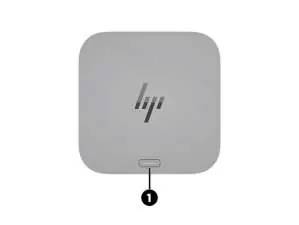
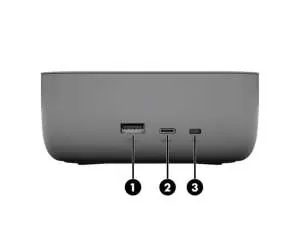
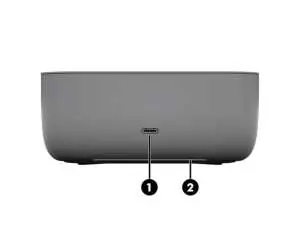
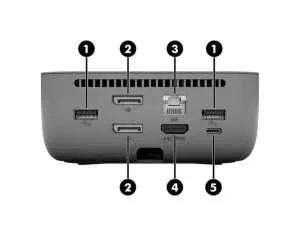
- Top: Power button and status light.
- Front: USB Type-C port with data and power out.
- Right: USB 10 Gbps ports (with HP Sleep and Charge) and a security cable slot.
- Rear: USB 5 Gbps ports, dual-mode DisplayPort connectors, RJ-45 network jack, HDMI port, and a USB Type-C Thunderbolt 4 port.
Setting up the docking station
Follow these steps to prepare your dock:
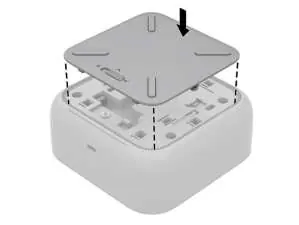
- Connect to AC power: Position the dock upside down, slide the locking switch to unlock, remove the cover, connect the AC adapter, and replace the cover.
- Connect to a computer: Use the included USB Type-C or Thunderbolt 4 cable to connect the dock to your computer.
- Configure monitors: You can connect up to four external monitors. Use Windows display settings (or Windows key + p) to extend or duplicate your screen.
Software and manageability
The dock supports advanced management features:
- Poly Lens: Provides cloud-based inventory, monitoring, and troubleshooting.
- Quick Connect: Pre-emptively wakes your notebook and accessories. Requires specific HP G11/G12 platforms.
- Firmware Updates: Can be performed manually or automatically via Poly Lens, the dock configuration page, or the HP Firmware Installer.
Using the docking station
The dock supports various security levels for Thunderbolt connections, which can be configured in the BIOS (Computer Setup). You can also connect to a network via the RJ-45 jack, which supports PXE Boot, MAC Address Pass Through, and Wake on LAN (WOL).

Troubleshooting
If you encounter issues:
- Power issues: Ensure the dock is connected to AC power using the included power cord.
- Connection issues: If a device is not working, try resetting the port by disconnecting the device, the power cord, and the dock from the computer, then reconnecting them.
- Video issues: Ensure the latest Intel graphics drivers are installed. If the monitor is not detected, configure it via the OS display settings or NVIDIA Control Panel.
Manufacturer information
HP Inc.
Practical help
Common problems
Power light is off
Ensure the docking station is connected to AC power using the included power cord.
Connected devices are not working
Disconnect the docking station cable from the computer, then reconnect it. If a specific USB device fails, reset the port by disconnecting the device, the dock power, and the dock from the computer, then reconnecting.
External monitor not detected
Configure the monitor in Windows display settings. Ensure the latest Intel graphics drivers are installed.
Video is distorted
Change display settings in Windows; under Scale and layout, select 225% or lower.
Before use
- Ensure AC power is connected to the dock.
- Verify your computer supports USB4/Thunderbolt 4 for full functionality.
- Install the latest BIOS and network controller drivers on your computer.
- Check that your computer is running a supported OS (Windows 11, Linux, macOS, ChromeOS, or ThinPro).
Specs in practice
- Operating Temperature
- 0°C to 35°C (32°F to 95°F).
- Relative Humidity
- 10% to 90% (noncondensing).
Images and diagrams
- Top: Power button and status light.
- Front: USB Type-C port with data and power out.
- Right: USB 10 Gbps ports and security cable slot.
- Rear: USB 5 Gbps ports, DisplayPort, RJ-45, HDMI, and Thunderbolt 4 port.
Model compatibility
- Quick Connect is only available on tested HP G11 Intel and HP G12 Intel/AMD platforms.
- Security level 4 is supported only on select fifth-generation HP mobile workstations.

Manual page author
Michael Turner
Technical manual editor
Reviews PDF manuals for structure, safety notes, and practical product details so readers can find the right information quickly.