Industrial / Electrical
Vertiv Avocent DSR1024 KVM Switch Installer/User Guide
Quick guide for the Vertiv Avocent DSR1024 KVM switch, covering hardware installation, network configuration, mouse settings, and terminal operations.
Table of contents
Manual images
Jump to the sectionQuick guide from the manual
The DSR1024 is a KVM switch designed for centralized control of data center servers. It supports both analog (local) and digital (remote) connectivity. The primary method for configuration is via the DSView software, though a console menu is available for appliance-level settings via the SETUP port.
Installation Overview
To install the DSR1024 switch:
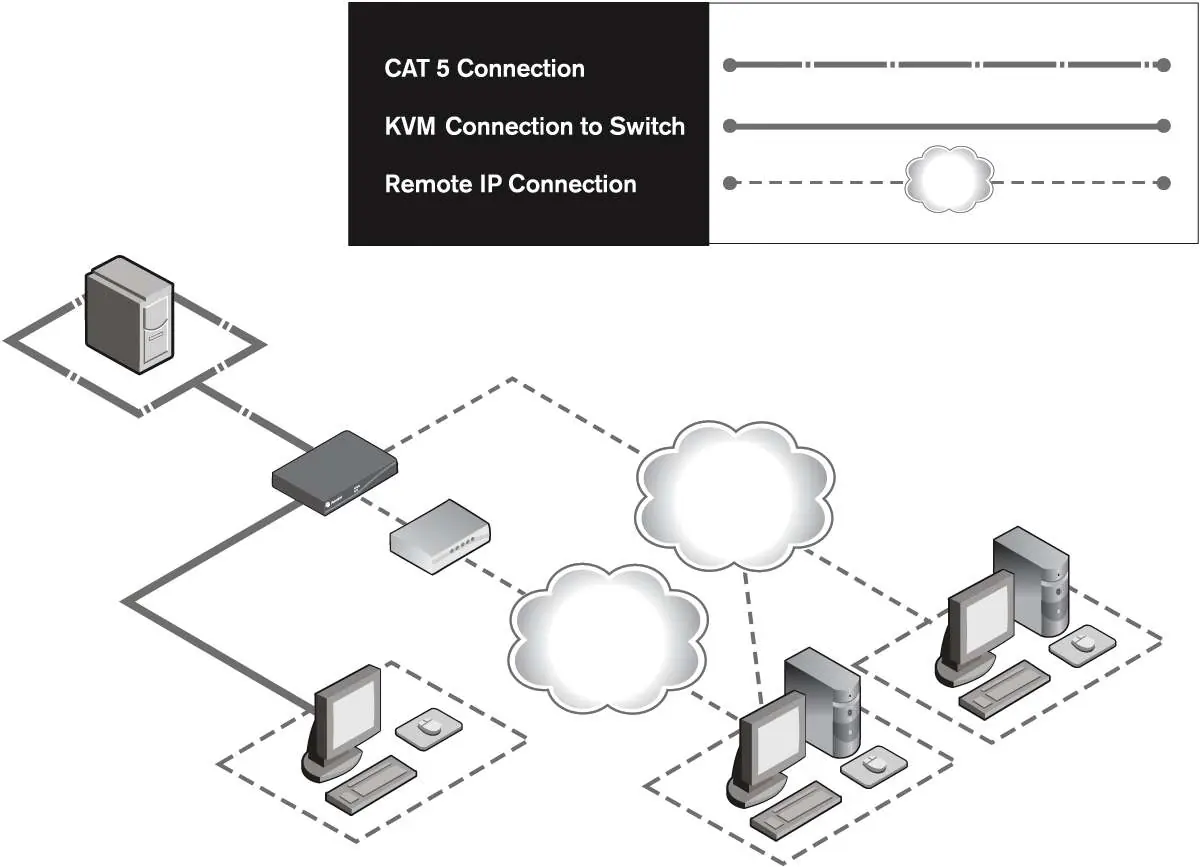
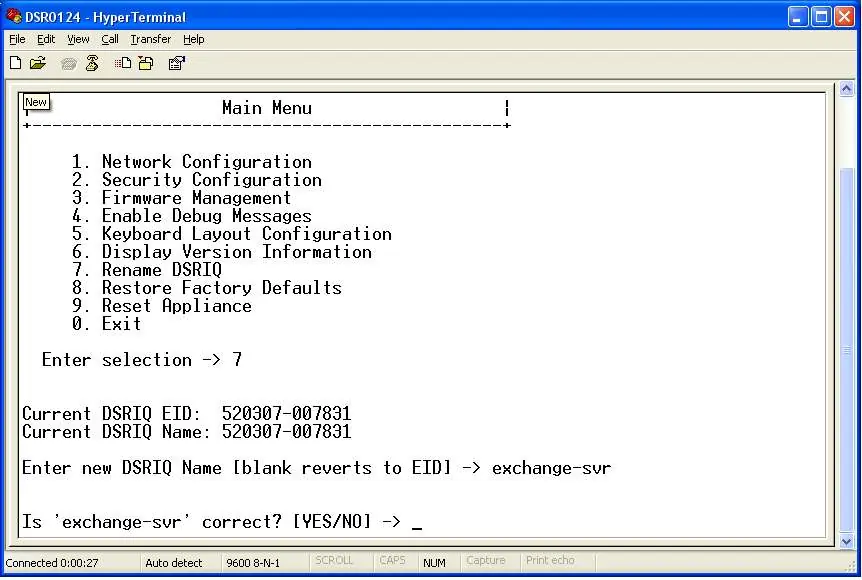
- Unpack and verify all components.
- Connect the power source, DSR switch, target devices, and optional SPC power control device.
- Connect the Ethernet cable to the LAN port.
- Power on the target devices, then the DSR switch.
- Use the DSView software for full configuration.
- Adjust mouse settings on target devices to ensure proper synchronization.
Connecting the DSR Switch Hardware
Follow these steps to connect the hardware:
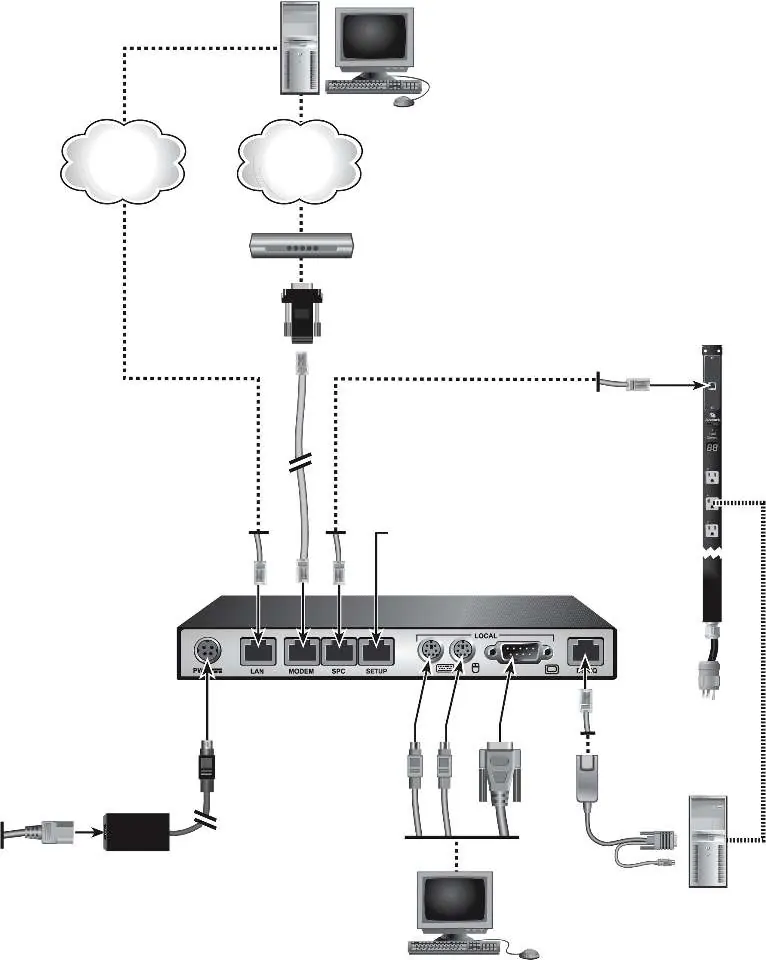
- Power down target devices.
- Connect VGA monitor, PS/2 keyboard, and mouse to the local ports.
- Connect a CAT 5 patch cable from the DSRIQ port to the DSRIQ module.
- Connect the DSRIQ module to the target server.
- Connect the Ethernet cable to the LAN port.
- (Optional) Connect a modem to the MODEM port for remote access.
- (Optional) Connect an SPC power control device to the SPC port.
- (Optional) Connect a terminal to the SETUP port for console configuration (9600 bps, 8 bits, 1 stop bit, no parity, no flow control).
Terminal Operations
The console menu allows for appliance-level configuration. To access it, connect a terminal to the SETUP port and press any key after the switch initializes. Key options include:
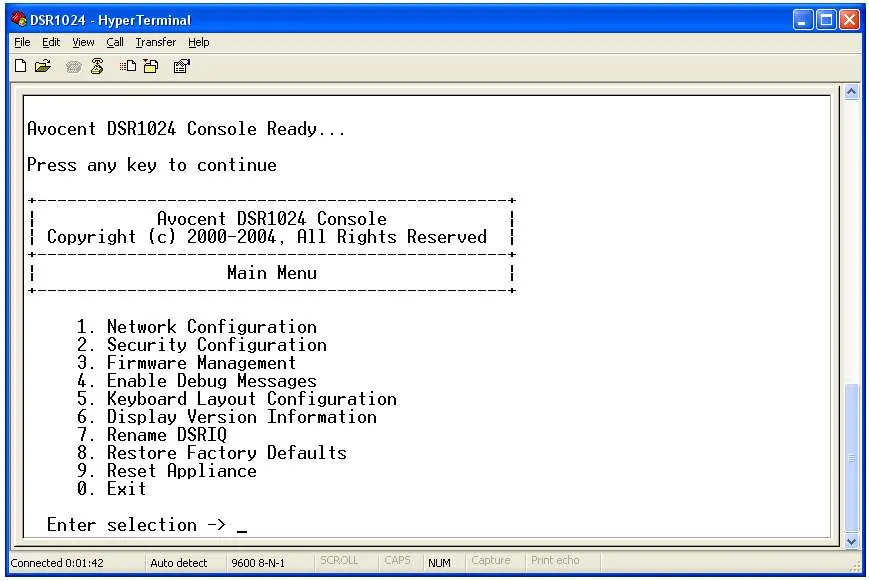
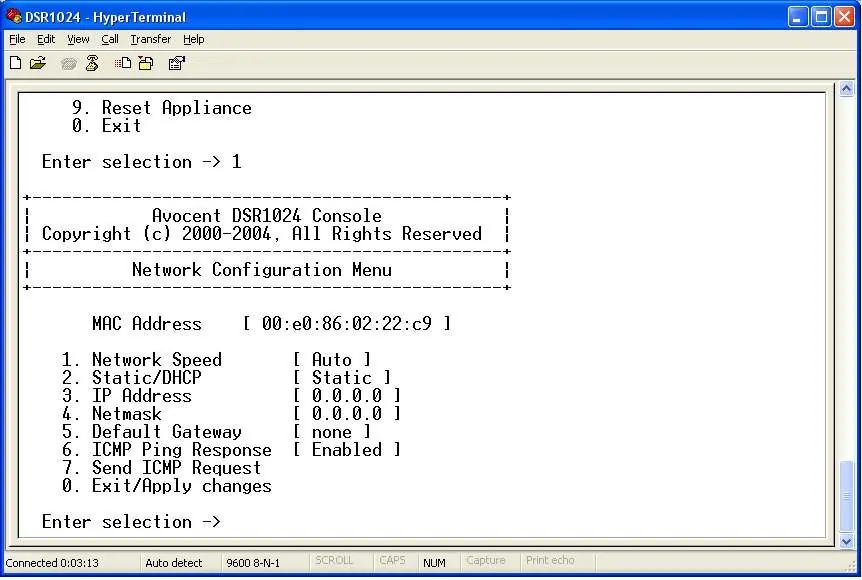
- Network Configuration: Set IP address, netmask, and gateway.
- Security Configuration: Manage local user accounts and console passwords.
- Firmware Management: Perform FLASH upgrades.
- Keyboard Layout Configuration: Set country codes for Sun servers.
- Reset Appliance: Perform a soft reset.
Safety and Maintenance
Ensure reliable earthing of equipment. Do not use 2-wire power cords. If using 3-phase AC power, ensure the computer and monitor are on the same phase. Keep CAT 5 cable runs to a maximum of 10 meters and avoid sharp bends or proximity to EMI sources.
Technical Support
For assistance, visit the Avocent website at www.avocent.com/support or call (888) 793-8763.
Official resources from the manual
Practical help
Common problems
Mouse synchronization issues
Set target mouse speed to 50% (or Slow for NT) and disable pointer acceleration/precision enhancement in the OS mouse settings.
Keyboard not initializing
Ensure both a keyboard and mouse are installed on the local port.
Sun server keyboard mapping issues
Use the Keyboard Layout Configuration menu to set the correct country code for the Sun server.
Before use
- Verify all components are present (power transformer, cables, DSRIQ module).
- Ensure target devices are powered down before connection.
- Use grounded AC outlets for all equipment.
- Ensure CAT 5 cable runs do not exceed 10 meters.
- Configure static IP addresses for the switch for easier management.
Specs in practice
- Video Resolution
- Supports up to 1280 x 1024 @ 75 Hz for remote users; up to 1600 x 1200 for local users.
- Network Type
- Ethernet IEEE 802.3 2002 Edition (10BaseT/100BaseT).
- Operating Temperature
- 32 to 104 degrees Fahrenheit (0 to 40 degrees Celsius).
Images and diagrams
- Figure 1.1: Shows the connection path between the DSR1024 switch, modem, Ethernet, and DSView server.
- Figure 2.1: Illustrates the physical hardware connections including power, KVM, SPC, and network ports.
Model compatibility
- Supports DSRIQ-PS/2, DSRIQ-USB, DSRIQ-VSN, DSRIQ-WSN, and DSRIQ-SRL modules.
- DSRIQ-SRL module is a DCE device and only supports VT100 terminal emulation.
- Modem access requires DSR Remote Operations software.

Manual page author
David Miller
Documentation analyst
Organizes user manual content into clear summaries, with attention to model details, product context, and everyday usability.