Optics / Digital Binoculars
User Manual for Vivitar MagnaCam 1025x1 Digital Camera/Binocular
Quick guide for the Vivitar MagnaCam 1025x1. Learn how to operate the digital camera and binocular, manage image storage, connect to a PC, and install software.
Table of contents
Manual images
Click an image to enlargeQuick guide from the manual
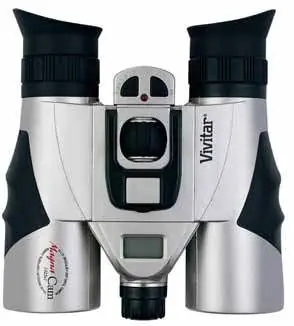
The Vivitar MagnaCam 1025x1 is a hybrid device combining a 10x binocular with a digital camera. It allows for still image capture, movie recording (up to 60 seconds), and PC webcam functionality. The device connects to computers via USB as a mass-storage device. Important: Do not remove batteries while the camera is ON or for more than 30 seconds, as this will erase stored images.
Package Contents
- Digital camera/binocular
- Carrying pouch
- Neck strap
- Two AAA batteries
- Cleaning cloth
- CD ROM with application software
- USB cable
- Lens hood
- Instruction Manual and Warranty card
Specifications
Digital Camera:
- Resolution: High (1280x1024), Low (640x480)
- Storage: 16 MB internal memory (10 MB for images)
- Focus: Fixed focus lens, 30 feet to infinity
- Power: 2 x AAA batteries
Binocular:
- Magnification: 10X
- Objective Lens Diameter: 25 mm
- Nearest Observing Distance: 6 meters (20 feet)
Product Features
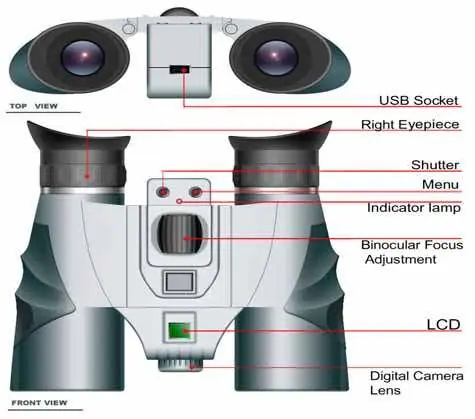
The device features a top-mounted LCD display for mode selection, a shutter button for capturing images, a menu button for navigation, and a focus adjustment knob. The USB socket is located on the top of the unit.
Binocular Operation
Adjusting Pupil Distance: Hold the barrels and pull them together or apart until you see a single circular field.
Focusing:
- Close your right eye and rotate the Center Focus Knob until the object is sharp in your left eye.
- Close your left eye and rotate the Diopter ring until the object is sharp in your right eye.
Eyecups: Fold down the rubber eyecups if you are wearing eyeglasses.
Digital Camera Operation
Press and hold the Menu button for three seconds to power on. Use the Menu button to cycle through modes:
- Still Image: Press Shutter to capture. The counter decrements after storage.
- Self-Timer: Select the timer icon, press Shutter, and wait 10 seconds.
- Movie Capture: Select the movie icon, press and hold Shutter to record (max 60 seconds), and release to stop.
- Clear All Images: Select the delete icon and confirm with the Shutter button.
- Resolution: Toggle between High and Low resolution.
- PC Camera Mode: Select PCC to use as a webcam.
PC Connection and Software
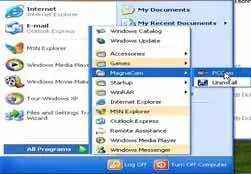
To download images, connect the device to your PC via USB. The computer will recognize it as a mass-storage device. Navigate to the DCIM folder, then 100media, to access your JPG and AVI files. For PC/Webcam mode, install the software from the included CD first, then select PCC mode on the camera.
Maintenance and Safety
- Environment: Operate between 0-100 degrees F and 20-85% humidity.
- Cleaning: Use a mild detergent and soft damp cloth.
- Battery Care: Remove batteries if not using for more than 10 days. Always download images before removing batteries to prevent data loss.
- Safety: Never look directly into the Sun. Do not submerge in liquid.
Practical help
Common problems
Images are erased
Do not remove batteries while the camera is ON or for more than 30 seconds, as the SDRAM memory will lose data.
Images are blurry
Ensure the subject is at least 30 feet away, as the camera has a fixed focus lens.
No LCD display
Replace the batteries.
Before use
- Insert 2x AAA batteries.
- Adjust pupil distance until a single circular field is visible.
- Focus the left eye using the Center Focus Knob.
- Focus the right eye using the Diopter ring.
- Install software from the CD if using PC/Webcam features.
Specs in practice
- Image Resolution
- High (1280x1024) or Low (640x480) for still images.
- Internal Memory
- 16 MB total, with 10 MB available for image storage.
Images and diagrams
- The product features diagram identifies the USB socket, shutter button, menu button, indicator lamp, focus adjustment, LCD screen, and digital camera lens.
Model compatibility
- PC connection requires USB mass storage support.
- Webcam mode requires driver installation from the included CD.

Manual page author
Emily Carter
User documentation editor
Prepares concise manual descriptions and highlights the most useful setup, operation, and maintenance information for readers.