Electronics / Security Cameras
User Manual for Vivitar IPC 117v2 Smart Security Wi-Fi Camera
Quick guide for the Vivitar IPC 117v2 Smart Security Wi-Fi Camera. Learn how to set up your camera, connect to the app, configure Wi-Fi, manage recordings, and troubleshoot common issues.
Table of contents
Manual images
Click an image to enlargeQuick guide from the manual
The Vivitar IPC 117v2 is a 360-degree Wi-Fi security camera designed for indoor monitoring. It features 1080p HD recording, motion and sound detection, two-way audio, and night vision. The camera is managed via the Vivitar Smart Home Security app.
What's included
- IP Camera
- Micro USB cable
- AC Charger
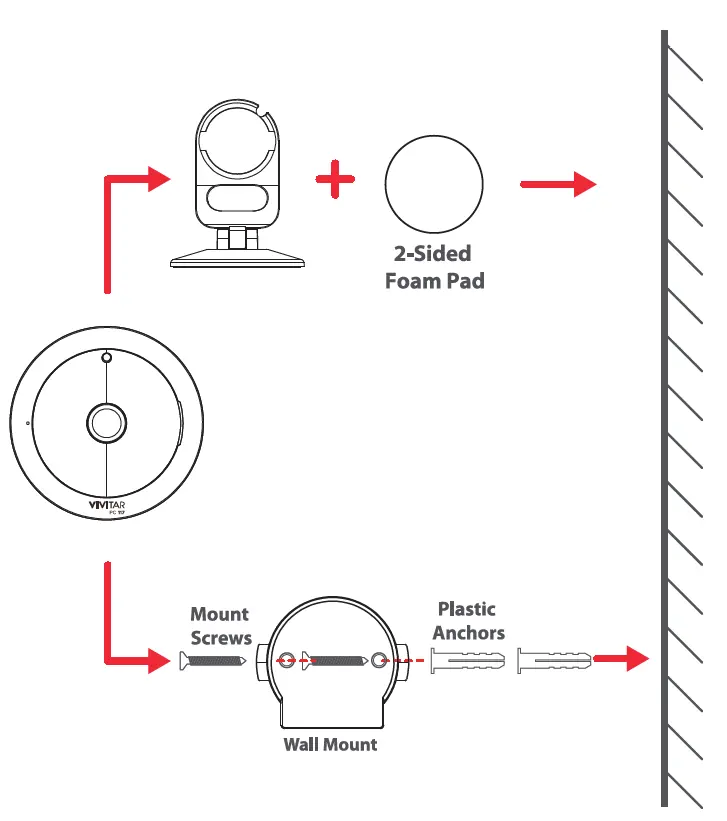
- Screws and Wall Mount
- Setup Tool
- 2-Sided Foam Pad
Note: A Class 4 or higher Micro SDHC memory card (up to 32 GB) is required for local storage but is not included.
Initial camera setup
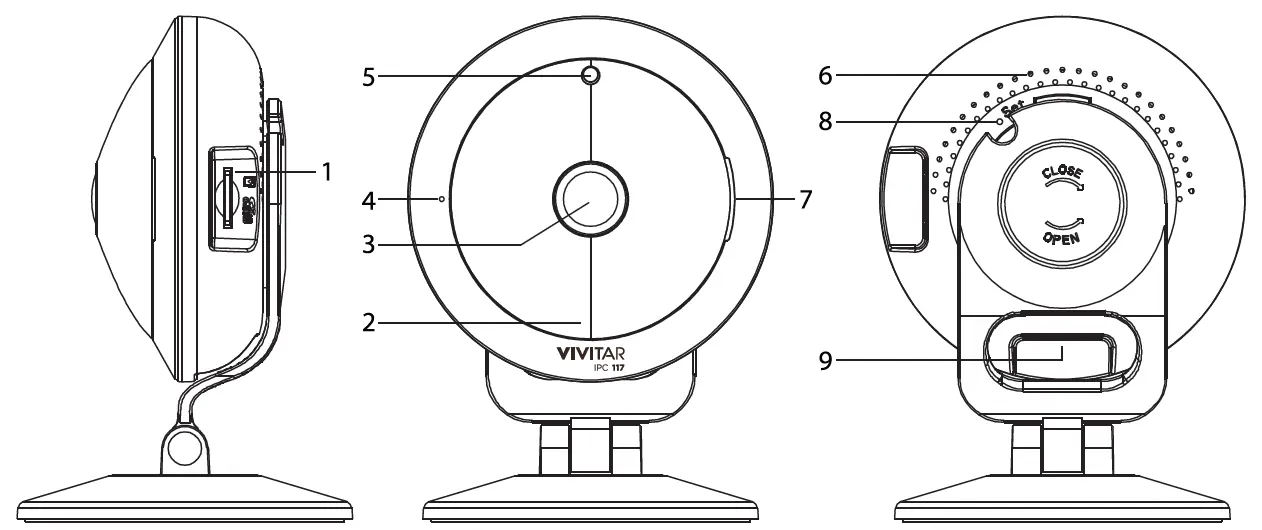
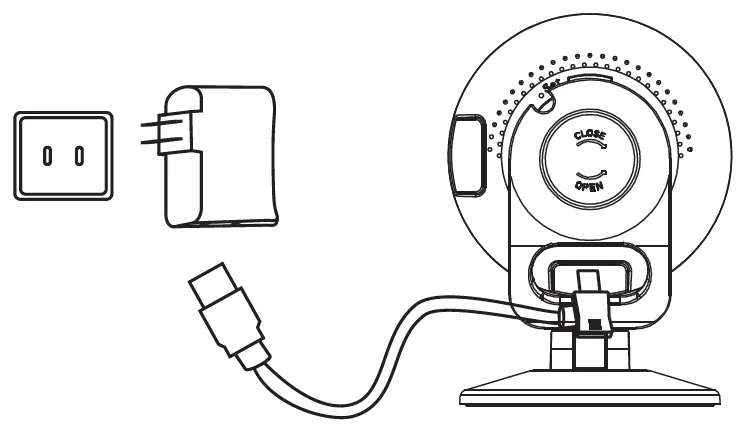
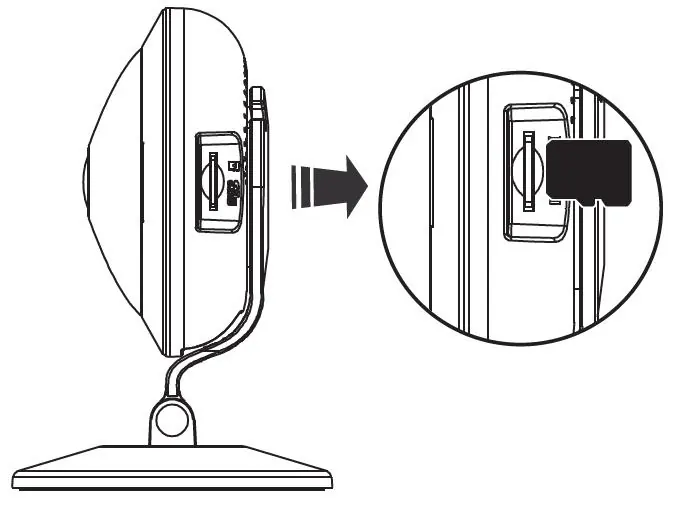
Before plugging in the device, insert a Micro SD card into the slot on the side of the camera until you hear a click. Connect the Micro USB cable to the camera and the AC charger, then plug the charger into a power outlet. The red indicator light will turn on.
Connecting to the app
- Download the Vivitar Smart Home Security app from the Google Play Store or Apple App Store.
- Ensure your mobile device is connected to a 2.4GHz Wi-Fi network.
- Launch the app, create an account, and log in.
- Tap Add New Device, select IP Cameras, and choose your model (IPC-117v2).
- Follow the on-screen instructions to configure the Wi-Fi network.
- Once connected, the camera will emit: 'Wi-Fi Connect Success. Internet Connected. Welcome using Cloud Camera'.
Using the camera
The Live IP Camera view allows you to monitor your home in real-time. You can use the following controls:
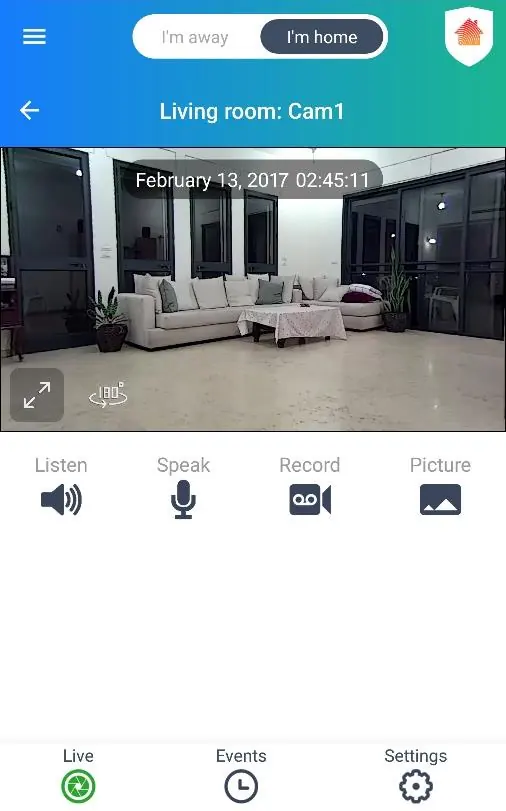
- Listen: Enable/disable incoming audio from the camera.
- Speak: Use the two-way intercom feature.
- Record: Save live video to your mobile device's photo library.
- Picture: Capture a still image from the live stream.
Cloud subscription and events
Events are video recordings triggered by motion or sound. While events are saved to the SD card if inserted, a Cloud Subscription is required to view them via the app. The subscription also provides 14-day cloud storage, alarm notifications, and data security.
Home and away modes
You can toggle between Home and Away modes to automatically adjust security settings. You can customize motion and sound detection sensitivity (Off, Low, Medium, High) for each mode within the camera settings.
Troubleshooting
If you encounter issues, try these steps:
- Camera Offline: Ensure the camera is powered and connected to Wi-Fi. If it remains offline, perform a reset.
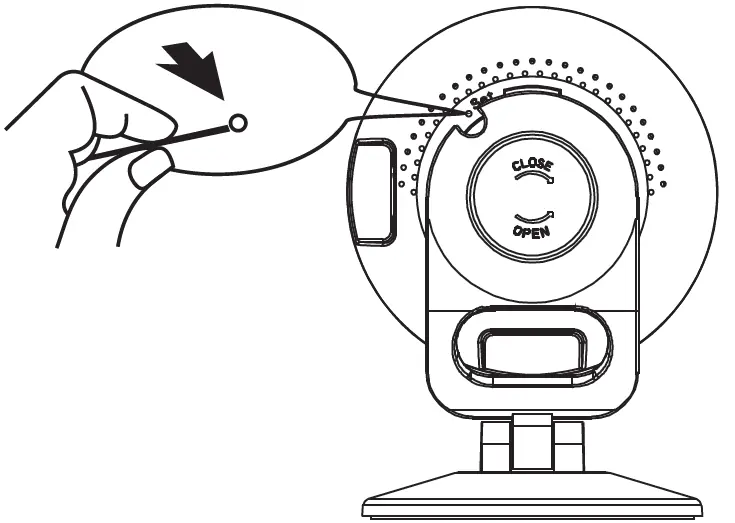
- Short Reset: Press the reset button for 5 seconds until the blue light blinks rapidly.
- Long Reset: Press the reset button for 30 seconds to reset Wi-Fi configuration.
- Password Error: Ensure you are entering the correct Wi-Fi password in the app.
Technical specifications
- Resolution: 1080p (H.264)
- Sensor: 2MP
- Lens: Fixed focus, f=1.45mm
- Storage: Micro SD card up to 32GB
Practical help
Common problems
Camera is offline
Verify power and Wi-Fi connection. If the issue persists, perform a short reset (5 seconds) or long reset (30 seconds) and re-add the device.
Wi-Fi password error
Ensure you are entering the correct password for your 2.4GHz network. Use the 'Show password' option in the app to verify.
Micro SD card not recognized
Ensure the card is inserted before powering on the device and launching the app.
Cannot hear sound from camera
Ensure the 'Listen' option is enabled in the Live IP Camera view and your mobile device is not on silent mode.
Before use
- Micro SD card (Class 4 or higher, up to 32GB) - not included
- 2.4GHz Wi-Fi network
- Smartphone or tablet with Android 4.4+ or iOS 9.0+
- Vivitar Smart Home Security app installed
Specs in practice
- Video Resolution
- 1080p (H.264 format) for high-definition streaming.
- External Memory
- Supports Micro SD cards up to 32GB for local event storage.
Images and diagrams
- Reset button: Located on the back of the camera; use the supplied tool or a pin to press.
- Indicator light: Red flashing = setting mode; Blue steady = connected; Blue flashing = reset needed.
Model compatibility
- Requires a 2.4GHz Wi-Fi network.
- Compatible with Amazon Alexa and Google Assistant for voice control.

Manual page author
Emily Carter
User documentation editor
Prepares concise manual descriptions and highlights the most useful setup, operation, and maintenance information for readers.