Electronics / Monitors
User Manual for Xiaomi Mi 23.8" Desktop Monitor 1C
A comprehensive user guide for the Xiaomi Mi 23.8" Desktop Monitor 1C (RMMNT238NF). This manual covers product assembly, port descriptions, 5-way navigation button usage, menu settings, troubleshooting, and technical specifications.
Quick answers from the manual
Quick answer
- The Xiaomi Mi 23.8" Desktop Monitor 1C (Model RMMNT238NF) is a 1080p display featuring HDMI and VGA inputs. It is controlled via a 5-way navigation button on the back and supports various display modes, including a low blue light mode. p. 1, 4, 8
Key actions
- Turn the monitor on p. 5
- Turn the monitor off p. 5
- Open the menu p. 5
First start
- Assemble the stand and base using the provided screws, then connect the power and video cables. p. 2, 3
Show 4 more answers Show less
Problems and fixes
Unable to turn on
Check power connection and press the 5-way button.
p. 7
No image
Check computer, graphics card, and cable connections.
p. 7Maintenance and reset
- Use the 'Reset' option in the Settings menu to restore factory settings. p. 6
Technical specifications
| Parameter | Value | Meaning | Pages |
|---|---|---|---|
| Model | RMMNT238NF | Product model number | p. 8 |
| Resolution | 1920 x 1080 | Maximum and recommended resolution | p. 8 |
| Power Input | 12V 2A | Required power input | p. 8 |
| Dimensions | 539.2 x 181.2 x 419.5 mm | Physical dimensions | p. 8 |
Where to find it in the PDF
- Product Overview p. 2
- Installation p. 3
- Menu Settings p. 6
- Specifications p. 8
Table of contents
Manual images
Click an image to enlargeQuick Guide from the Manual
The Xiaomi Mi 23.8" Desktop Monitor 1C is designed for desktop use. Before using, ensure the monitor is placed on a stable surface. The monitor features a 5-way navigation button on the back for controlling the OSD menu and power functions. Always use the provided AC adapter and cables.
Product Overview
The monitor includes the following components:
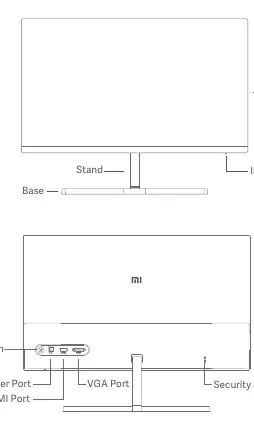
- Monitor
- Stand
- Base
- Ports: Power, HDMI, VGA
- Security Slot: Compatible with 3x7mm cable locks
- 5-way Navigation Button: Located on the back for power and menu control
Installation
- Attach Stand to Monitor: Install the stand onto the back of the monitor and fix it firmly using the provided stand screws.
- Attach Base to Stand: Connect the stand to the base and tighten the base screw securely.
- Angle Adjustment: You can adjust the monitor angle forward (5°) or backward (15°). Note: Hold the base with one hand while adjusting the monitor with the other to prevent it from falling.
How to Use
Turning On/Off
- Turn On: Press the middle of the 5-way navigation button.
- Turn Off: Press and hold the middle of the 5-way navigation button for 2 seconds.
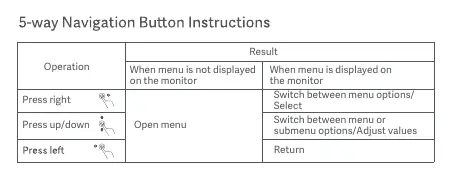
5-way Navigation Button
The button allows you to navigate the menu:
- Press Right: Switch between menu options or select.
- Press Up/Down: Switch between menu/submenu options or adjust values.
- Press Left: Return to the previous menu.
Menu Description
The OSD menu allows you to adjust:
- Brightness/Contrast: Adjust display intensity.
- Color Temp: Standard, Cool, Warm, or Custom settings.
- Smart Modes: Standard, ECO, Game, Movie, or Low Blue Light modes.
- Input: Switch between VGA and HDMI sources.
- Settings: Language, Overdrive, Image/Color Auto-adjust (VGA only), Information, and Reset.
Troubleshooting
- Unable to turn on: Ensure the AC adapter is plugged in properly and press the middle of the 5-way button.
- Image is dark: Adjust brightness and contrast settings.
- No image: Ensure the computer is on, the graphics card is working, and the HDMI/VGA cable is securely connected.
- Image jittery/rippled: Keep the monitor away from electronic devices causing interference.
- Out of range: Use the recommended resolution settings (1920x1080).
Safety and Eye Health
To prevent eye strain, keep the monitor 50–70 cm (20–28 inches) away from your eyes. Take a 20-minute break after two hours of use. Do not use the monitor in damp environments, do not block ventilation vents, and do not disassemble the monitor yourself.
Manufacturer information
Xiaomi Corporation
Practical help
Common problems
Unable to turn on
Check if the AC adapter is plugged in properly and press the middle of the 5-way navigation button.
Image is dark
Adjust the brightness and contrast settings in the OSD menu.
Indicator is lit but no image
Ensure the computer is turned on, the graphics card is functioning, and the HDMI or VGA cable is properly connected.
Image is jittery or rippled
Keep the monitor away from other electronic devices that may cause electrical interference.
Before use
- Place the monitor on a stable, flat surface.
- Ensure the power supply voltage matches the monitor's requirements.
- Assemble the stand and base securely using the provided screws.
- Connect the appropriate video cable (HDMI or VGA) to your computer.
- Do not block the heat dissipation vents on the back.
Show more Show less
Specs in practice
- Refresh Rate
- The maximum refresh rate is 60Hz (1080p/60Hz).
- Operating Temperature
- The monitor should be operated between 0°C and 40°C.
- Operating Humidity
- The monitor should be operated in an environment with 20–90% RH.
Images and diagrams
- The 5-way navigation button is located on the back of the monitor, used for both power and menu navigation.
- The ports are located on the back: DC power input, HDMI port, and VGA port.
- The security slot is located on the back, compatible with 3x7mm cable locks.
Model compatibility
- HDMI 1.4 supported.
- VGA input supported.
- Security slot compatible with 3x7mm cable locks (sold separately).

Manual page author
Emily Carter
User documentation editor