Mobile / Smartphones
User Manual for Xiaomi Pad 6 Keyboard
Quick start guide for the Xiaomi Pad 6 Keyboard. Learn how to connect, power, and safely use your keyboard with the Xiaomi Pad 6.
Quick answers from the manual
Quick answer
- The Xiaomi Pad 6 Keyboard connects magnetically to the Xiaomi Pad 6 and is powered directly by the tablet once attached. It requires no separate charging. p. 3
Key actions
- Connect the keyboard to the Pad p. 3
First start
- Attach the tablet to the keyboard magnetically to begin operation. p. 3
Show 3 more answers Show less
Problems and fixes
Keyboard does not respond
Ensure the Pad and keyboard are linked correctly as shown in the diagrams.
p. 3Technical specifications
| Parameter | Value | Meaning | Pages |
|---|---|---|---|
| Input | 3.4~4.5V 30mA | Power input requirements | p. 4 |
| Operating Temperature | 0°C to 40°C | Safe operating range | p. 4 |
| Storage Temperature | -20°C to 45°C | Safe storage range | p. 4 |
Where to find it in the PDF
- Installation p. 3
- Safety Information p. 4
Table of contents
Quick guide from the manual
This guide provides essential information for setting up and using your Xiaomi Pad 6 Keyboard. Please read all safety information before use.
Compatibility
This product is designed exclusively for use with the Xiaomi Pad 6. It will not function with other devices.
Installation
The keyboard connects magnetically to the tablet. Follow these steps to ensure a proper connection:
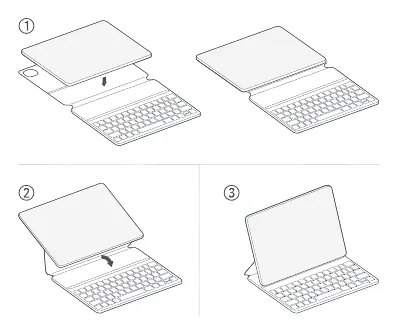
- Align the Xiaomi Pad 6 with the keyboard connector.
- Attach the tablet to the keyboard magnetically.
- Ensure the tablet is securely fitted to the keyboard to enable operating mode.
Note: The keyboard will only enter operating mode once the Pad and keyboard have been linked together correctly.
Power Supply
The keyboard does not require a separate battery or charging cable. It is powered directly by the Xiaomi Pad 6 once the two devices are correctly fitted together.
Safety Information
To ensure safe operation and longevity of your device, observe the following precautions:
- Operating Temperature: Use the device within the range of 0°C to 40°C.
- Storage Temperature: Store the equipment between -20°C and 45°C.
- Moisture: Keep the device dry. Do not use it in high-humidity environments such as bathrooms, as this may cause electric shock, injury, fire, or charger damage.
- Repairs: Do not attempt to repair the device yourself. Contact Mi customer support or an authorized repair center if the device malfunctions.
- Medical Devices: Maintain a minimum distance of 15 cm from pacemakers. Do not use the device near hearing aids, cochlear implants, or other similar medical equipment.
- Accessories: Use only authorized accessories compatible with your device.
Disposal
Special precautions must be taken to safely dispose of this product. It should not be discarded with household waste in the EU. Please use return and collection systems or contact the retailer where the device was originally purchased to promote sustainable reuse of material resources.
Manufacturer information
Xiaomi Corporation
Practical help
Common problems
Keyboard not working
Ensure the Pad and keyboard are linked correctly as shown in the installation diagrams. The keyboard only enters operating mode when properly connected.
Device damage
Do not use the device outside the operating temperature range of 0°C to 40°C or the storage range of -20°C to 45°C.
Before use
- Ensure you have a compatible Xiaomi Pad 6.
- Verify the operating environment is between 0°C and 40°C.
- Keep the device dry.
- Do not attempt to repair the device yourself.
- Keep the device at least 15 cm away from pacemakers.
Show more Show less
Specs in practice
- Operating Temperature
- 0°C to 40°C is the safe range for active use.
- Storage Temperature
- -20°C to 45°C is the safe range for storage.
Images and diagrams
- The diagrams illustrate the magnetic attachment process between the Xiaomi Pad 6 and the keyboard.
- Step 1 shows alignment.
- Step 2 shows the attachment motion.
- Step 3 shows the final connected state.
Model compatibility
- This product is only compatible with Xiaomi Pad 6.

Manual page author
Emily Carter
User documentation editor