Power / Power Banks
User Manual for Xiaomi Mi Router 4A Gigabit Edition
A comprehensive user guide for the Xiaomi Mi Router 4A Gigabit Edition. This manual covers hardware installation, network configuration, app management, LED indicator status, and troubleshooting steps.
Quick answers from the manual
Quick answer
- To set up the router, connect the power and WAN cable, connect to the default Wi-Fi, and visit router.miwifi.com to configure your network. p. 5, 6
Key actions
- Connect cables p. 5
- Set up network p. 6
First start
- Power on the router and connect the WAN port to your modem. p. 5
Problems and fixes
Cannot connect to the Internet
Check power, ensure WAN connection, and visit router.miwifi.com for diagnostics.
p. 8
Forgotten admin password
Try using the Wi-Fi password or perform a factory reset.
p. 8Maintenance and reset
- Hold the Reset button at the base for more than 5 seconds until the system status light turns orange. p. 8
Technical specifications
| Parameter | Value | Meaning | Pages |
|---|---|---|---|
| Input | 12V, 1A | Power supply requirements | p. 9 |
| Operating Temperature | 0~40°C | Safe operating temperature range | p. 9 |
Where to find it in the PDF
- Hardware Installation p. 5
- Network Setup p. 6
- FAQ and Troubleshooting p. 8
Table of contents
Quick guide from the manual
To set up your Xiaomi Mi Router 4A Gigabit Edition, connect the power and the Internet (WAN) cable from your modem to the router. Once powered on, connect to the default Wi-Fi network using a phone or computer, then follow the on-screen instructions at router.miwifi.com to configure your network settings.
Hardware connection
1. Connect the power adapter to the router.
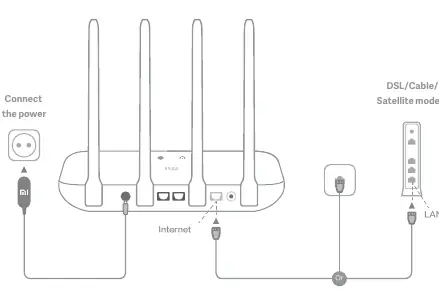
2. Connect the Internet (WAN) port on the router to your DSL, Cable, or satellite modem using an Ethernet cable.
3. If your internet connection comes directly from a wall Ethernet port, connect that cable directly to the Internet (WAN) port on the router.
Network configuration
1. Connect to the Wi-Fi network (no password required) using a phone or computer. The Wi-Fi name is located on the base of the router.
2. Wait for the system indicator light to turn blue.
3. Open a web browser and navigate to router.miwifi.com or 192.168.31.1. If you are not automatically redirected, enter the address manually.
4. Follow the on-screen prompts to enter your broadband account name and password provided by your service provider.
5. Set a new Wi-Fi name and administrator password. You may choose to use the Wi-Fi password as the administrator password.
Managing the router
You can manage your router anytime using the Mi WiFi app. Scan the QR code provided in the manual to download the app. The web management interface at router.miwifi.com also supports basic internet functions, QoS, unauthorized access prevention, and Wi-Fi optimization.
Indicator lights
The router features two indicator lights on the front panel:
- Network status light (Blue): Off means nothing is plugged into the WAN port or there is a connection issue. On means the connection is normal. Flashing means data is being sent or received.
- System status light (Blue, Orange, Purple): Off means the device is off. Orange means the system is updating or booting. Blue means functioning normally. Purple means safe mode or system failure.
Troubleshooting
If you cannot connect to the internet, ensure the router is powered on and fully booted. Connect to the router's Wi-Fi and visit router.miwifi.com to run network diagnostics. If you have forgotten your administrator password, try using your Wi-Fi password. If that fails, perform a factory reset.
Factory reset
To restore factory settings, ensure the router is booted, then hold down the Reset button at the base for more than 5 seconds. Release the button when the system status light turns orange. The router will reboot with factory settings.
Specifications
Operating Temperature: 0-40°C. Input: 12V, 1A. Operating Frequency: 2400MHz-2483.5MHz (≤20dBm) and 5150MHz-5250MHz (≤23dBm).
Official resources from the manual
Manufacturer information
Xiaomi Corporation
Practical help
Common problems
Cannot connect to the Internet
Ensure the router is powered on and connected to the modem. Connect to the router's Wi-Fi and visit router.miwifi.com to check network diagnostics.
Forgotten administrator password
Try using your Wi-Fi password as the administrator password. If this does not work, perform a factory reset.
Before use
- Ensure the router is connected to a power source.
- Connect the Internet (WAN) port to your modem or wall Ethernet port.
- Have your broadband account name and password ready.
- Wait for the system indicator light to turn blue before configuring.
Specs in practice
- Operating Temperature
- The device should be used in environments between 0°C and 40°C.
- Operating Frequency
- Supports 2.4GHz and 5GHz bands.
Images and diagrams
- The WAN port is clearly marked on the back of the router for modem connection.
- The Reset button is located at the base of the router.
Model compatibility
- The device is restricted to indoor use only when operating in the 5150-5250MHz frequency range.

Manual page author
Emily Carter
User documentation editor
Prepares concise manual descriptions and highlights the most useful setup, operation, and maintenance information for readers.