Smart Home / Smart Locks
User Manual for Yale Approach Lock ASL-08
Quick start guide and setup instructions for the Yale Approach Lock ASL-08. Learn how to install the Yale Access app, configure your smart lock, and set up the Yale Connect Wi-Fi Bridge.
Quick answers from the manual
Quick answer
- To set up your Yale Approach Lock ASL-08, download the Yale Access app, create an account, select 'Set Up Device' from the menu, and scan the QR code on the lock. Follow the in-app prompts to also set up your Yale Connect Wi-Fi Bridge. p. 2, 3
Key actions
- Download Yale Access app and create account p. 2
- Scan lock QR code p. 2
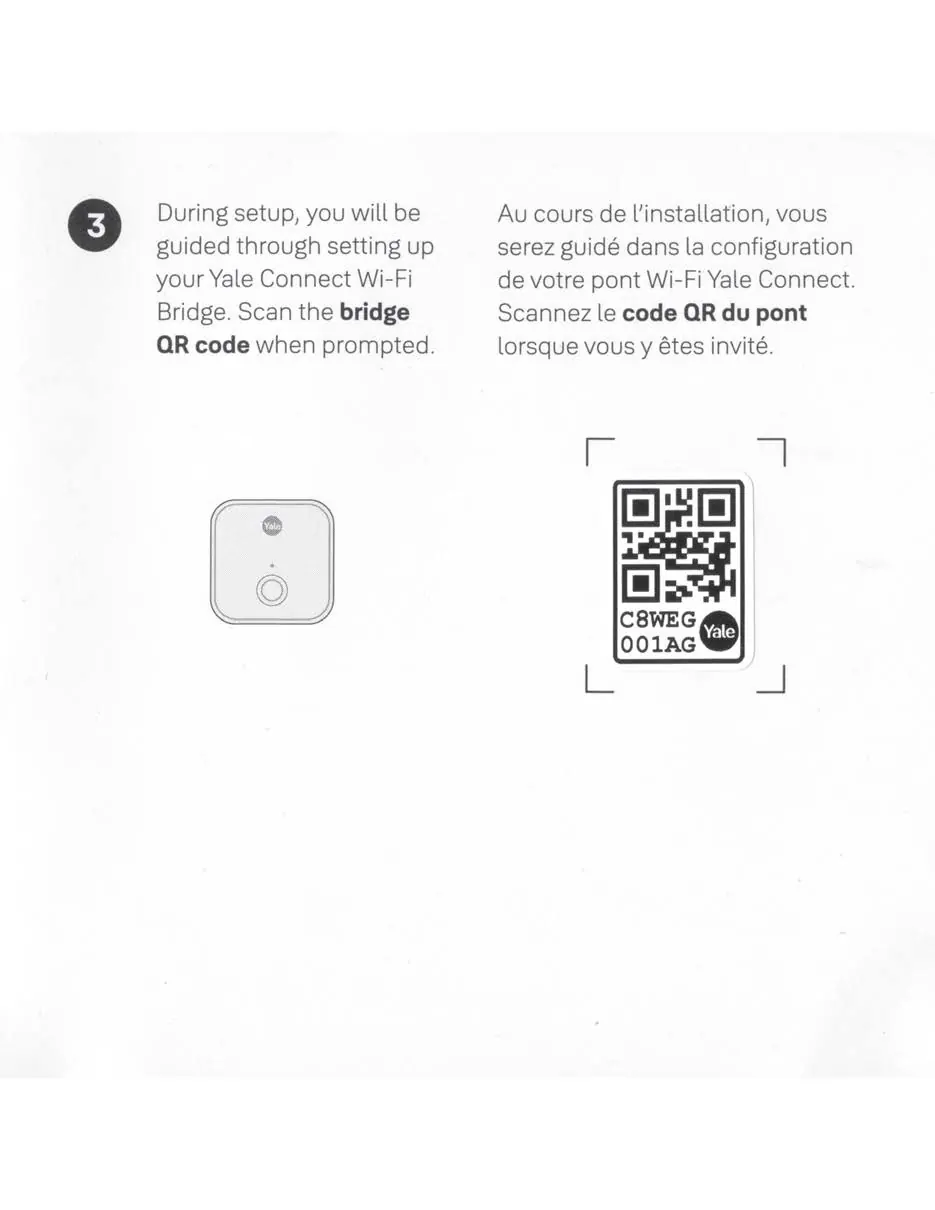
- Scan bridge QR code p. 3
First start
- Download the Yale Access app and follow the in-app setup instructions. p. 2, 3
Technical specifications
| Parameter | Value | Meaning | Pages |
|---|---|---|---|
| Model | ASL-08 | Product model identifier | p. 5 |
Where to find it in the PDF
- Setup Instructions p. 2, 3
- Regulatory and Safety p. 5, 6, 7, 8
Table of contents
Manual images
Click an image to enlargeQuick guide from the manual
This guide provides the essential steps to set up your Yale Approach Lock ASL-08. Follow the instructions below to configure your device using the Yale Access app.
Setup and Configuration
To begin using your smart lock, follow these steps:
- Download the App: Download the Yale Access app from the App Store or Google Play.
- Create an Account: Create a new account or sign in to your existing Yale Access account.
- Configure Device: Select "Set Up Device" from the app menu.
- Scan Lock QR Code: When prompted by the app, scan the QR code located on your lock.
- Set Up Wi-Fi Bridge: During the setup process, you will be guided to set up your Yale Connect Wi-Fi Bridge. Scan the bridge QR code when prompted.
Additional Resources
If you need further assistance or have questions regarding your device, you can access additional resources:
- Support Website: support.shopyalehome.com
- Customer Support: 1-855-213-5841
- Email: [email protected]
Safety and Regulatory Information
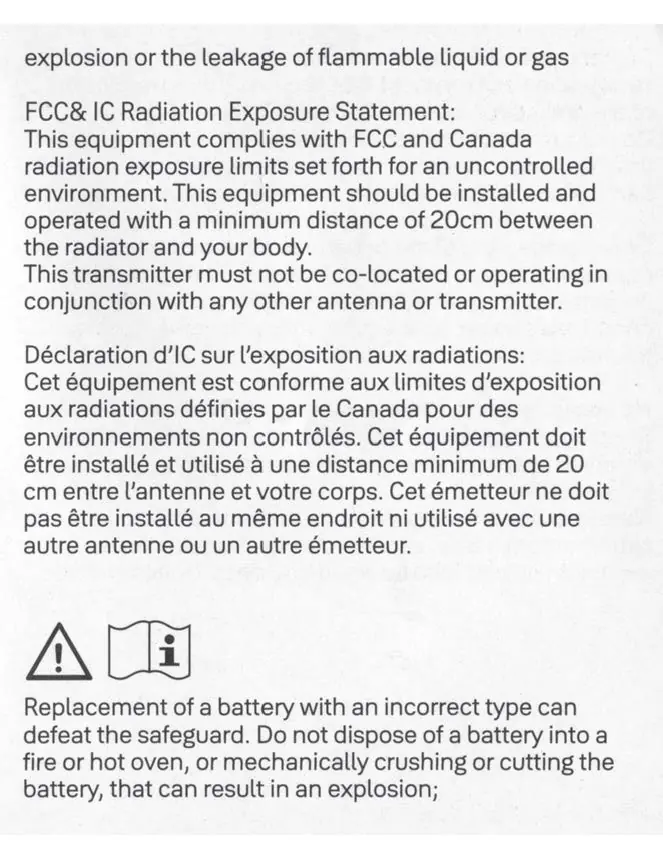
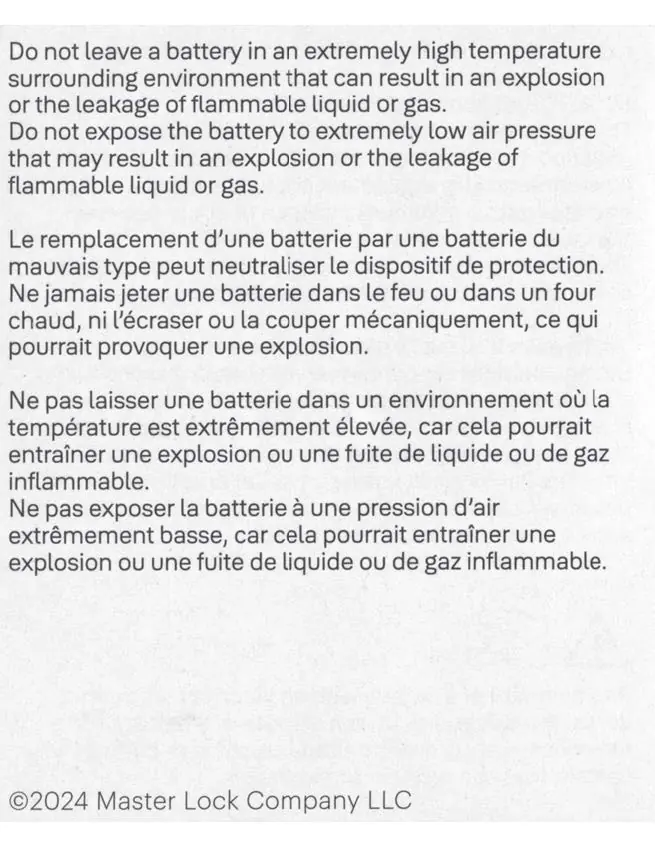
Battery Safety:
- Do not dispose of batteries in fire or a hot oven.
- Do not mechanically crush or cut batteries, as this may result in an explosion.
- Do not leave batteries in extremely high-temperature environments, which can cause explosions or leakage of flammable liquid or gas.
- Do not expose batteries to extremely low air pressure.
Regulatory Compliance:
This device complies with Part 15 of the FCC Rules and Industry Canada licence-exempt RSS standard(s). Operation is subject to the condition that the device does not cause harmful interference and must accept any interference received.
Official resources from the manual
Practical help
Common problems
Setup failure
Ensure you are using the Yale Access app and have scanned the correct QR code for the device being configured.
Battery safety concerns
Do not crush, cut, or expose batteries to extreme heat or low air pressure to prevent explosion or leakage.
Before use
- Download the Yale Access app
- Create or sign in to your Yale Access account
- Locate the QR code on the lock
- Locate the QR code on the Yale Connect Wi-Fi Bridge
Images and diagrams
- The manual provides QR code scanning instructions for both the lock and the Wi-Fi bridge.
Model compatibility
- Requires Yale Access app for setup.
- Requires Yale Connect Wi-Fi Bridge for remote connectivity.

Manual page author
Michael Turner
Technical manual editor
Reviews PDF manuals for structure, safety notes, and practical product details so readers can find the right information quickly.