Smart Home / Smart Locks
User Manual for Yale 1153MHK Smart Lock
Quick guide for the Yale 1153MHK Smart Lock. Learn how to set up administrators, manage users, configure remote access, and troubleshoot common issues.
Table of contents
Manual images
Click an image to enlargeQuick guide from the manual
The Yale 1153MHK is an advanced smart door lock featuring multiple unlocking methods, including facial recognition, palm vein, fingerprint, key card, password, and app remote access. Before using the device, ensure the door is not deformed, as this can cause friction with the latch. At least one administrator must be registered before adding regular users. The lock requires a 2.4G Wi-Fi network for app integration.
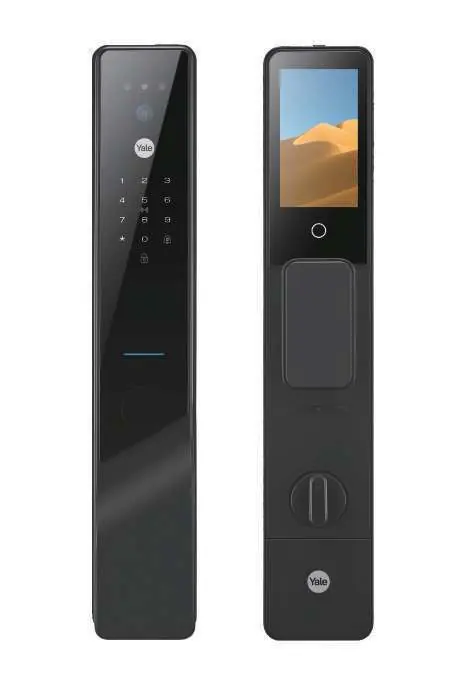
Smart Lock Diagram
The front panel features the facial recognition area, anti-theft eye camera, button/card reading area, and fingerprint scanner. The emergency power supply port is located on the front panel. The interior side includes the battery cover, quick release handle, open/close button, and deadlock knob.
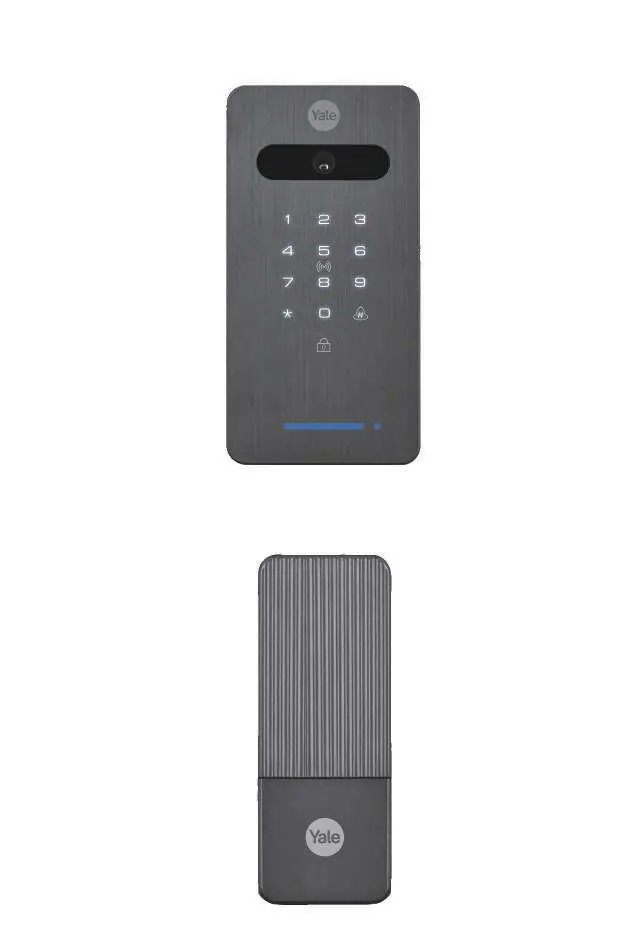
Initialization and Basic Operation
Initialization: In the initial state, any face, palm vein, password (123456), or key card can unlock the device. To restore factory settings, press and hold the panel switch key 6 or select 'Restore factory settings' in the menu.
Unlocking Methods:
- Password: Wake the device, enter the password, and press the confirm key.
- Fingerprint: Press the fingerprint sensor in standby mode.
- Key Card: Bring the card close to the reading area.
- Anti-Peeping: You can add random characters before or after your valid password (total length up to 16 characters).
Administrator and User Management
There are 9 administrator slots (001-009) and regular user slots (010-200). To enter the settings menu, press * + #. You must verify as an administrator to access the main interface.
Adding Users: Select the 'Add management user' or 'Add regular user' option. Follow the voice prompts to input the desired authentication method (fingerprint, face, palm vein, or card). For facial recognition, maintain a distance of 40-70 cm. For palm vein, maintain a distance of 10-30 cm.
Deleting Users: Access the user management interface, select 'Delete user', and choose either 'Delete by number' or 'Delete all'.
System Settings
Access the system settings menu to configure:
- Language: Switch between available languages.
- Volume: Adjust volume levels or enable mute mode.
- Locking Time: Set the relock time (2-9 seconds).
- Delay Lock: Set delay time (Off/5/10/15/20/25/30 seconds).
- Human Body Sensing: Configure stay capture and stay alarm features.
Remote Management and App Integration
The lock supports remote management via the Tuya App. Ensure your router is set to 2.4G. In the app, select 'Add Device', choose 'Camera/Lock', and follow the on-screen instructions to connect the lock to your Wi-Fi network. You can also generate temporary passwords via the WeChat 'Fingerprint Lock Password' mini-program.
Maintenance and Troubleshooting
Maintenance: Clean the surface with a soft, dry cloth. Avoid water, alcohol, or acidic chemicals. Regularly apply lubricant to moving parts.
Emergency Power: If the battery is too low to unlock, use an external DC5V (Type-C) power supply to provide emergency power.
Troubleshooting: If the door latch does not extend fully, check for door deformation and adjust the strike plate position. If the system encounters errors three times, it triggers an alarm; five errors will lock the device for 90 seconds.
Practical help
Common problems
Lock does not unlock due to low battery
Use an external DC5V (Type-C) power supply to provide emergency power to the lock.
Latch does not extend or pops out
Check if the door is deformed causing excessive friction; adjust the position of the door strike plate.
System locked for 90 seconds
This occurs after 5 consecutive failed attempts. Wait for the lockout period to end.
Facial/Palm recognition failure
Ensure the user is at the correct distance (40-70cm for face, 10-30cm for palm) and follow voice prompts.
Before use
- Ensure the door is not deformed to prevent latch friction.
- Set up at least one administrator before adding regular users.
- Ensure the door lock time is consistent with your mobile phone for WeChat/App features.
- Keep a Type-C power bank accessible for emergency power.
- Verify your router network is 2.4G before attempting Tuya App connection.
Specs in practice
- Power supply
- DC7.4V Lithium Battery.
- Emergency power
- DC5V (Type-C) input.
- Operating temperature
- -10°C to 60°C.
- Face capacity
- Up to 100 faces.
- Fingerprint capacity
- 50 fingerprints (plus 9 administrators).
Images and diagrams
- The front panel contains the facial recognition area, anti-theft camera, and fingerprint scanner.
- The emergency power port is located on the front panel.
- The interior side features the deadlock knob and open/close button.
Model compatibility
- Some 3D models may not support the anti-theft eye snapshot feature.
- WeChat unlocking requires the administrator password to be set first.
- Tuya App requires a 2.4G Wi-Fi network.

Manual page author
David Miller
Documentation analyst
Organizes user manual content into clear summaries, with attention to model details, product context, and everyday usability.