Smart Home / Smart Locks
User Manual for Yale YF 1063MHK Smart Lock
Quick guide for the Yale YF 1063MHK smart lock. Learn how to set up user management, configure network settings with the Tuya app, use temporary passwords, and perform maintenance.
Table of contents
Manual images
Click an image to enlargeQuick guide from the manual
The Yale YF 1063MHK is a fully automatic smart door lock supporting fingerprint, password, key card, and WeChat temporary password access. This guide covers essential setup, user management, and network configuration. Always change the default administrator password (123456) immediately upon installation.
Product Overview
The lock features a semiconductor biometric fingerprint collector, C-level lock cylinder, anti-pry alarm, and voice navigation. It is powered by a 7.4V Lithium battery and includes a USB emergency power port for low-battery situations.
Smart Lock Diagram
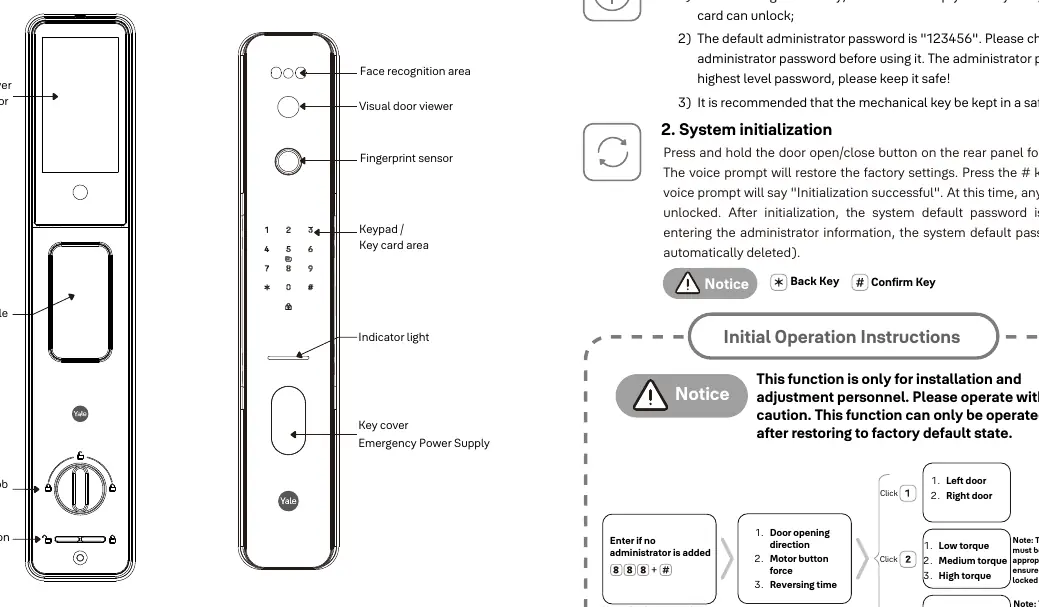
The device consists of an outdoor panel and an indoor panel. The outdoor panel includes the face recognition area, visual door viewer, fingerprint sensor, keypad, and emergency power supply. The indoor panel features the battery cover, indoor handle, lock knob, and un/lock button.
Initial Operation Instructions
This section is for installation and adjustment personnel only and must be performed after restoring factory defaults:
- Door opening direction: Select Left or Right door.
- Motor button force: Adjust between Low, Medium, or High torque.
- Reversing time: Set between 100-900 milliseconds.
Note: Ensure button force and reversal time are designed appropriately to ensure the lock functions correctly.
User Management
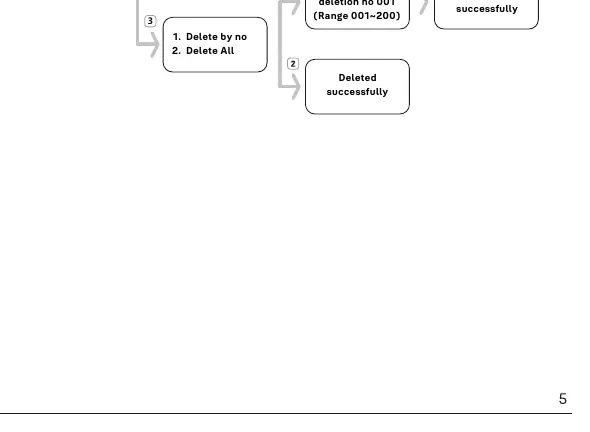
To manage users, press * + # to enter the menu or short press the Settings switch. You must verify the administrator identity first. You can add admin users, add normal users, or delete users by number (001-200).
Network Settings
The lock connects to the Tuya APP for remote management:
- Scan the QR code to download the Tuya APP.
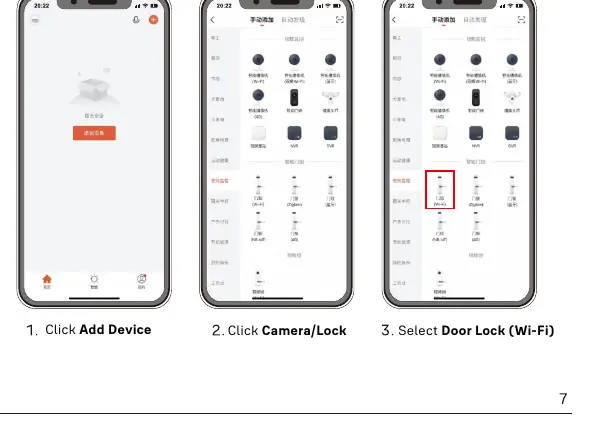
- Open the app and click Add Device.
- Select Camera/Lock and then Door Lock (Wi-Fi).
- Select your 2.4G Wi-Fi hotspot and enter the password.
- Follow the on-screen prompts to complete the connection.
Temporary Password Usage
To use temporary passwords via WeChat:
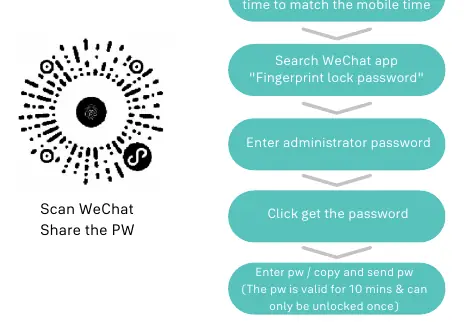
- Adjust the smart lock time to match the mobile time.
- Search for the "Fingerprint lock password" WeChat app.
- Enter the administrator password.
- Generate and share the password. Note that the password is valid for 10 minutes and can only be used once.
Maintenance and Troubleshooting
Regularly wipe the surface with a soft, clean, dry cloth. Avoid water, alcohol, or acidic cleaners. If the door becomes deformed, adjust the strike plate position to reduce friction. If the battery is low, use the Type-C emergency charging port.
Practical help
Common problems
Alarm triggered for 15 seconds
Password entered incorrectly 5 times in a row. Wait 180 seconds or perform a correct verification to cancel.
Low battery warning
System prompts when voltage is below 7.0V. Replace the battery or charge using the Type-C emergency port.
Door latch friction
If the door is deformed, adjust the position of the strike plate to ensure smooth engagement.
Before use
- Change the default administrator password (123456).
- Keep the mechanical key in a safe place outdoors.
- Ensure your router network frequency is 2.4G for Wi-Fi setup.
- Synchronize the smart lock time with your mobile device for temporary passwords.
- Ensure the battery is fully charged or replaced if the low battery prompt appears.
Specs in practice
- Working power supply
- 7.4V Lithium battery.
- Operating Temperature
- -25°C to 70°C.
- User Capacity
- Total 200 users (9 admin, 191 normal).
- Static power supply
- < 80 ~ 100µA.
Images and diagrams
- Outdoor panel: Includes face recognition, visual door viewer, fingerprint sensor, keypad, and emergency power port.
- Indoor panel: Includes battery cover, indoor handle, lock knob, and un/lock button.
Model compatibility
- Requires 2.4G Wi-Fi network for app connectivity.
- Compatible with Tuya APP.

Manual page author
David Miller
Documentation analyst
Organizes user manual content into clear summaries, with attention to model details, product context, and everyday usability.