Electronics / Video Transmission
User Manual for Accsoon CineView HE Wireless Video Transmission System
Comprehensive user guide for the Accsoon CineView HE wireless video transmission system. Learn how to set up, pair, configure channels, use the Accsoon Go app, and troubleshoot common issues.
Table of contents
Manual images
Click an image to enlargeQuick guide from the manual
The Accsoon CineView HE is a wireless video transmission system designed for professional monitoring. Key operational requirements include:
- Pairing: Both transmitter and receiver must be set to the same group number using the group setting knob.
- Power: Supports NP-F batteries, DC input (7.4-16.8V), or USB-C power.
- Monitoring: Use the Accsoon Go app on mobile devices connected to the CineView WiFi signal.
- Livestreaming: The receiver supports UVC output for direct connection to computers for streaming.
Device Overview
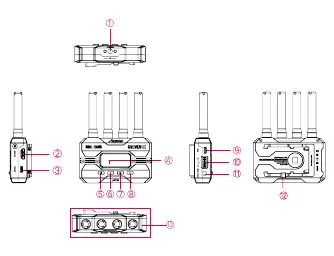
The transmitter and receiver feature a 1.3-inch OLED display, group setting knobs, and various ports. The transmitter includes HDMI In and Loop-out, while the receiver includes HDMI Out and UVC Out. Both units feature antenna connectors (RP-SMA Male), power buttons, and menu navigation buttons.


Installation

- Install all antennas onto the transmitter and receiver.
- Use the provided cold shoe mount adapter to attach the unit to your camera or camera cage.
- Connect the power source (NP-F battery, DC, or USB-C).
- Connect the camera HDMI output to the transmitter HDMI In port.
Operation
Power On/Off: Click the power button to turn on. Hold the power button for 2 seconds to turn off.
Group Setting: To pair devices, set the transmitter and receiver to the same group number. If you are using multiple receivers (up to 4), set all of them to the same group as the transmitter. If you change the group setting while powered on, a reboot is required.
Advanced Settings
Data Rate Setting: Access via the menu to choose between High Quality Mode, Normal Mode (default), and Speed Mode.
Channel Setting: The transmitter allows manual channel selection. The default is Auto (A), which is recommended. If manual selection is required, enter the Channel Setting menu, select the channel, and confirm.
Network Reset: Use this menu on the transmitter to reset the WiFi SSID and password to factory defaults.
App Monitoring and Livestreaming
App Monitoring: Download the Accsoon Go app. Connect your mobile device to the CineView WiFi (Accsoon_****) using the default password 12345678. Open the app and select Monitor.
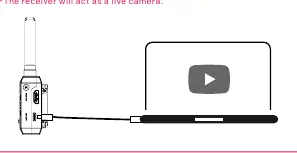
Livestreaming: There are two methods:
- UVC Out: Connect the receiver's UVC port to a computer via USB-C. The receiver acts as a live camera for platforms like OBS or YouTube.
- Accsoon Go: Set the transmitter to Speed Mode, then use the Live feature in the Accsoon Go app to enter your RTMP URL and stream key.
Firmware Update
- Ensure your mobile device has internet access.
- Open the Accsoon Go app, select CineView, and tap Firmware Update.
- Download the latest firmware.
- Connect your mobile device to the CineView HE and tap Next in the app to begin the update.
- Ensure the battery level is above 50% during the process. The device will reboot automatically upon completion.
Troubleshooting
If the receiver cannot connect, verify that both units are set to the same group and antennas are secure. If there is no video, check the HDMI cable connection and ensure the camera's video format is compatible. For choppy video, ensure no metal objects are blocking the antennas and try switching to a different channel.
Practical help
Common problems
Receiver cannot connect to transmitter
Ensure both units are set to the same group number and antennas are securely mounted.
No video displayed
Check HDMI cable connection, verify the camera has video output, and ensure the video format is compatible with the system.
Choppy video
Check for signal blocking (metals/cables) around antennas and manually switch to a different channel.
Mobile device cannot connect to CineView
Confirm the mobile device is connected to the specific 'Accsoon_****' WiFi signal, not another network.
App fails to find firmware
Ensure the mobile device has internet access and is connected to the CineView WiFi signal.
Before use
- Install all antennas on both transmitter and receiver.
- Mount the units using the cold shoe adapter.
- Connect power source (NP-F battery, DC, or USB-C).
- Connect HDMI source to the transmitter.
- Set transmitter and receiver to the same group.
Specs in practice
- Transmission Range
- Up to 1200ft (350m) in an environment with no obstacles or interference.
- Operating Temperature
- -10 to 40 degrees Celsius.
Images and diagrams
- Transmitter: Features HDMI In, HDMI Loop-out, and Group Setting knob.
- Receiver: Features HDMI Out, UVC Out, and Group Setting knob.
- OLED Display: Shows group, audio/video info, battery level, connection status, and channel.
Model compatibility
- Supports up to 4 receivers/devices simultaneously.
- Requires Accsoon Go app for monitoring and firmware updates.
- UVC output requires streaming platform support (e.g., OBS, YouTube).

Manual page author
Emily Carter
User documentation editor
Prepares concise manual descriptions and highlights the most useful setup, operation, and maintenance information for readers.