Electronics / Video Transmission
User Manual for SIIG 04-1309B Audio Extractor and HDR to SDR Converter
Quick guide for the SIIG 04-1309B Audio Extractor and HDR to SDR Converter. Learn how to manage EDID, configure HDR to SDR conversion, and set up audio extraction.
Table of contents
Manual images
Click an image to enlargeQuick Guide
This device is an HDMI 2.0 audio extractor with HDR to SDR conversion capabilities. It allows you to extract audio from an HDMI source and send it to external audio equipment via Toslink or 3.5mm output, while simultaneously managing video resolution and HDR compatibility.
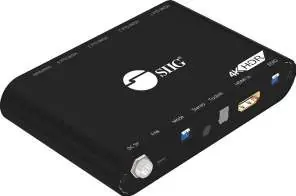
Device Layout
The device features several ports and switches for configuration:
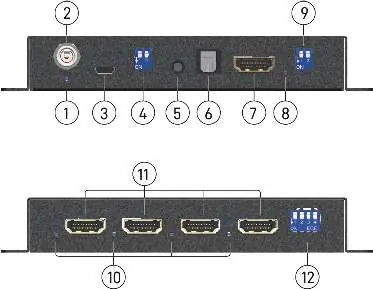
- Power Jack: Connect to the included 5V/2A power adapter.
- Micro-USB Port: Used for firmware updates.
- Dip Switches: Used to configure HDR to SDR conversion, firmware update mode, and EDID learning.
- HDMI Ports: Includes one HDMI input and four HDMI outputs.
- Audio Outputs: 3.5mm stereo output and Toslink optical output.
- LED Indicators: Power LED, Signal LED, and Output 1-4 signal LEDs.
EDID Management
To learn EDID from output 1:
- Set the dip switch to [pin3, pin4] = [down, down].
- Power on the device.
- The device will automatically learn EDID from the connected display on output 1.
- Power cycle the device after changing EDID dip switch settings for changes to take effect.
HDR to SDR Conversion
The HDR to SDR function on output 4 is enabled only when the source signal has HDR content and the connected display does not support HDR. Use the dip switches to configure the specific output behavior.
4K Downscaling
The device features auto video scaling that detects and configures the video resolution based on the capabilities of connected monitors. Note that if the input source is 4K@60Hz, it will only output at 1080p@60Hz for 4K@30Hz monitors. 720p and 480p monitors are not supported.
AVR Mode
AVR mode supports additional audio formats, including Dolby Atmos, Dolby Digital, Dolby Digital Plus, Dolby TrueHD, DTS, DTS-HD Master, One Bit Audio, DVD-Audio, and LPCM. Note that only EDID learning mode can support Dolby Vision and Atmos simultaneously.
Technical Specifications
- HDMI Version: HDMI 2.0, HDCP 2.2 & 1.4.
- Video Bandwidth: 18Gbps.
- Resolution: Supports 4K@60Hz 4:4:4.
- Power: DC 5V/2A.
Manufacturer information
SIIG, Inc.
Practical help
Common problems
HDR to SDR conversion not working
Ensure the source signal is HDR and the connected display does not support HDR. The function only activates under these specific conditions.
Output resolution issues with 4K@60Hz source
If the input is 4K@60Hz, the device will output at 1080p@60Hz for 4K@30Hz monitors. 720p and 480p monitors are not supported.
EDID settings not applying
You must power cycle the device after changing the EDID dip switch settings for the changes to take effect.
Before use
- Connect the provided 5V/2A power adapter.
- Verify HDMI cables are securely connected to the source and display.
- Check the dip switch settings to ensure the device is in 'Work mode' (Pin 1 OFF, Pin 2 OFF) rather than 'Firmware update mode'.
- Ensure the display connected to output 1 is the one you want to use for EDID learning if necessary.
Specs in practice
- EDID Learning
- Allows the device to copy the display's capabilities to the source, ensuring optimal resolution and audio format compatibility.
Images and diagrams
- Dip switches 1 & 2: Control HDR to SDR conversion and Firmware update mode.
- Dip switches 3 & 4: Used for EDID learning and management.
- Signal LED: Indicates when the device is connected to a source and display.
Model compatibility
- Does not support 720p and 480p monitors.
- Cannot process 4K HDR data content; it fits into 1080p.
- Only EDID learning mode supports Dolby Vision and Atmos simultaneously.

Manual page author
David Miller
Documentation analyst
Organizes user manual content into clear summaries, with attention to model details, product context, and everyday usability.