Computers / Laptops
Quick Guide for Acer Aspire 1810T/1410 Series Laptop
Quick guide for the Acer Aspire 1810T/1410 Series laptop. Learn about port layouts, keyboard hotkey combinations, battery status indicators, and technical specifications.
Table of contents
Manual images
Click an image to enlargeQuick guide from the manual
This document provides a basic overview of the Acer Aspire 1810T/1410 Series notebook. For detailed information regarding system utilities, data recovery, expansion options, and troubleshooting, please refer to the AcerSystem User Guide, which is preloaded on your computer and available in PDF format. You can access it by clicking Start, then All Programs, and selecting AcerSystem User Guide.
Notebook tour
The notebook features various ports and indicators to help you interact with the device:
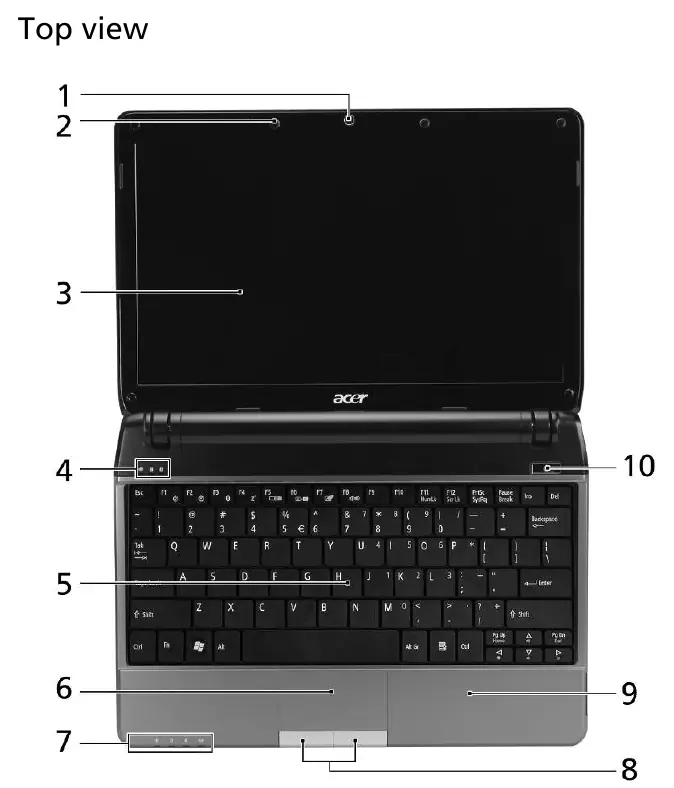
- Top view: Includes the Acer Crystal Eye webcam, internal microphone, display screen, keyboard, touchpad, and status indicators for power, battery, Bluetooth, and communication.
- Closed front view: Features the Bluetooth communication switch, communication key (WLAN/3G), and stereo speakers.
- Rear view: Contains the battery bay.
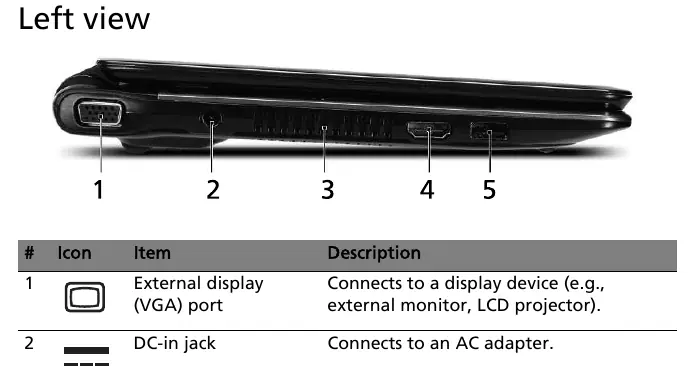
- Left view: Includes the VGA port, DC-in jack, ventilation slots, HDMI port, and a USB 2.0 port.
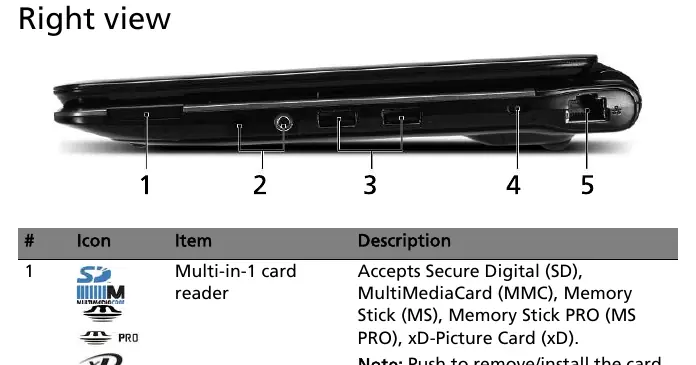
- Right view: Features a multi-in-1 card reader, headphones/speaker/line-out jack with S/PDIF support, microphone-in jack, USB 2.0 port, Kensington lock slot, and Ethernet (RJ-45) port.
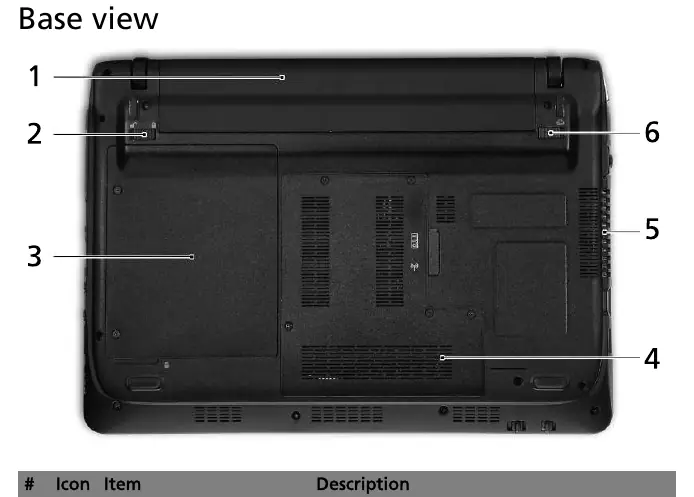
- Base view: Provides access to the battery bay, battery lock, hard disk bay, memory compartment, and ventilation slots with the cooling fan.
Keyboard hotkeys
The computer uses key combinations to control various functions. To activate these, press and hold the Fn key before pressing the corresponding function key:
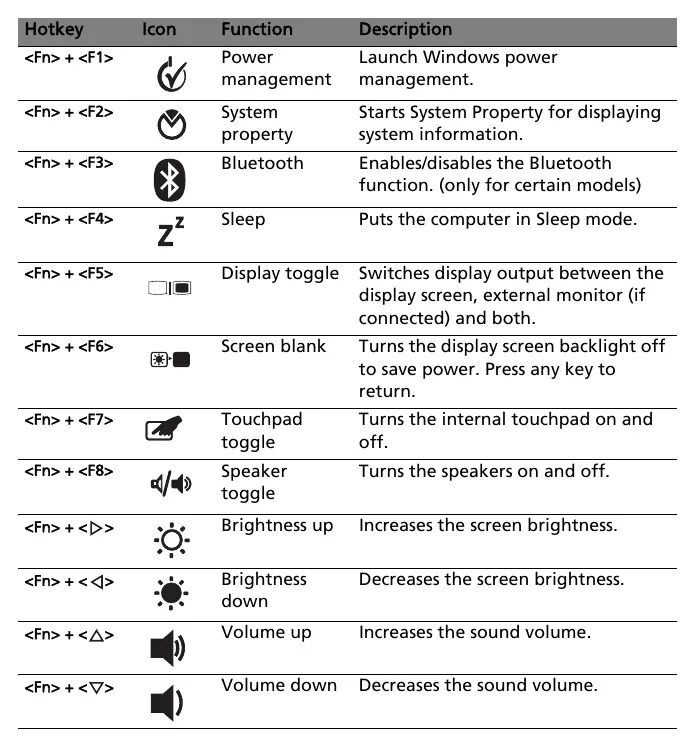
- Fn + F1: Power management.
- Fn + F2: System property.
- Fn + F3: Bluetooth (on supported models).
- Fn + F4: Sleep mode.
- Fn + F5: Display toggle.
- Fn + F6: Screen blank.
- Fn + F7: Touchpad toggle.
- Fn + F8: Speaker toggle.
- Arrow keys: Adjust screen brightness and volume.
Specifications
Key technical specifications for the series include:
- Processor: Intel Core 2 Solo or Intel Celeron mobile processor.
- Memory: Up to 4 GB DDR2 667 MHz (using two soDIMM modules).
- Display: 11.6-inch screen with 16:9 aspect ratio (SD or HD resolution depending on model).
- Storage: 2.5-inch hard disk drive and multi-in-1 card reader.
- Connectivity: Gigabit Ethernet, WLAN (Intel Wireless WiFi Link 5100 or Acer InviLink), and Bluetooth 2.1+EDR.
- Operating Environment: Temperature 5°C to 35°C (operating); Humidity 20% to 80% (operating).
Manufacturer information
Acer Inc.
Practical help
Common problems
Battery status indicator color
The light shows amber when the battery is charging and blue when fully charged (in AC mode).
Card reader usage
Only one card can operate in the multi-in-1 card reader at any given time.
Hotkeys not responding
Ensure you are pressing and holding the Fn key before pressing the function key.
Overheating
Do not cover or obstruct the ventilation slots and cooling fan located on the base and side of the unit.
Before use
- Check the 'Just for Starters' poster for initial setup instructions.
- Ensure the battery is properly inserted and secured with the battery lock.
- Verify the AC adapter is connected to the DC-in jack.
- Ensure the computer is placed on a flat surface to allow proper ventilation.
Specs in practice
- Operating Temperature
- 5°C to 35°C; avoid using the device outside this range.
Images and diagrams
- The top view diagram identifies the webcam, microphone, touchpad, and status indicators.
- The left view diagram shows the VGA, DC-in, HDMI, and USB ports.
- The right view diagram shows the card reader, audio jacks, USB, and Ethernet ports.
- The base view diagram highlights the battery bay, hard disk bay, and memory compartment.
Model compatibility
- Some features, such as Bluetooth and WWAN, are only available on certain models.
- Specifications listed are for reference only and depend on the specific configuration purchased.

Manual page author
Emily Carter
User documentation editor
Prepares concise manual descriptions and highlights the most useful setup, operation, and maintenance information for readers.