Computers / Laptops
User Manual for Acer Nitro V 16S
Quick guide for the Acer Nitro V 16S laptop. Learn about system setup, NitroSense settings, battery care, connectivity, and troubleshooting.
Table of contents
Manual images
Click an image to enlargeQuick guide from the manual
This manual provides essential information for operating your Acer Nitro V 16S laptop. It covers initial setup, system maintenance, and troubleshooting. Always use the provided AC adapter or an Acer-approved replacement to power your device. Avoid exposing the computer to extreme temperatures (below 0°C or above 50°C), magnetic fields, or moisture.
NitroSense software
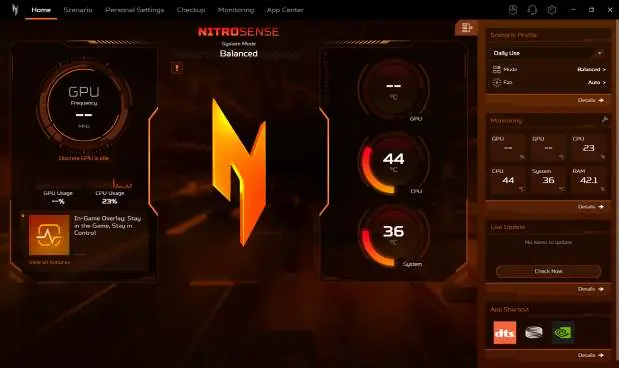
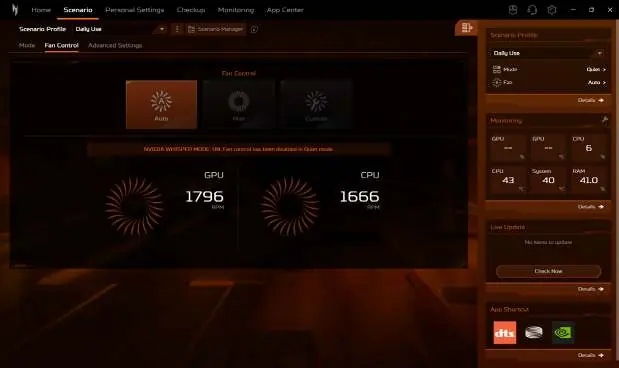
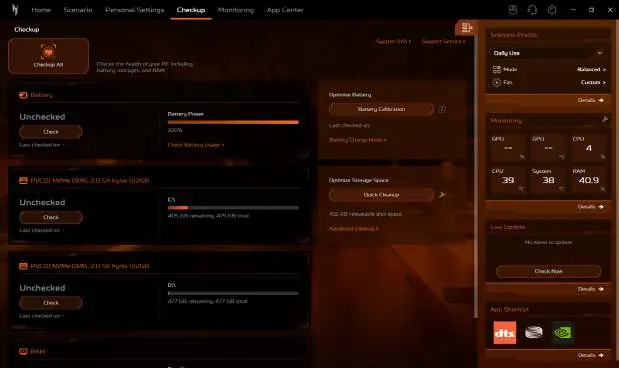
NitroSense allows you to manage system performance, fan behavior, and sound effects. The Home screen provides an overview of system performance and temperatures. You can use the Scenario tab to switch between modes like Quiet, Balanced, Performance, Turbo, and Eco. The Fan Control section allows you to set cooling levels to Auto, Max, or Custom. The Checkup tab helps evaluate the health of your battery, storage, and RAM.
Keyboard and touchpad
The keyboard features full-sized keys, a numeric keypad, and various hotkeys. Use the Fn key in combination with F1-F12 to control volume, brightness, and other functions. The Precision Touchpad supports multi-finger gestures, such as two-finger scrolling and pinching for zoom. You can adjust touchpad sensitivity and settings in the Windows settings menu.
Connectivity and ports
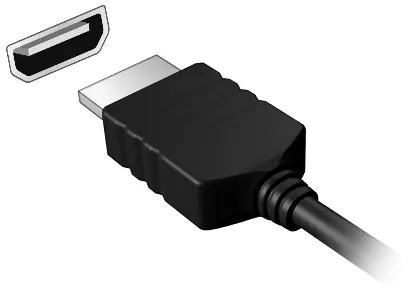
The laptop includes several ports for connectivity, including USB 3.2 Gen 1 and Gen 2 ports, a Thunderbolt 4 port, an HDMI 2.1 port, and a MicroSD card reader. The Thunderbolt 4 port supports high-speed data transfer, external displays, and charging. When connecting to a wireless network, ensure your router is configured correctly and use the Windows network settings to connect.
Battery and power management
The laptop uses an embedded Lithium battery. To optimize battery life, use AC power whenever possible. The NitroSense software offers battery charging modes, such as Optimized Battery Charging, which limits charging to 80% to reduce battery aging. If the battery-low warning appears, connect the AC adapter immediately to prevent data loss.
Security and BIOS
You can secure your computer using a physical security lock, as well as software-based passwords, including Supervisor and User passwords. The BIOS utility allows for hardware configuration; access it by pressing F2 during startup. Remember to save changes with F10 before exiting.
Troubleshooting
If you encounter issues, check the following: ensure the AC adapter is connected if the computer does not start; check volume settings if there is no audio; and try an external keyboard if the internal one is unresponsive. For error messages, follow the corrective actions listed in the manual or contact an authorized service center.
Manufacturer information
Acer Inc.
Practical help
Common problems
Computer does not start or boot up
Check if the AC adapter is properly connected and the battery is charged. If a USB device is plugged in, unplug it and restart.
No audio heard
Check if the volume is muted in the taskbar or if headphones are connected, which disables internal speakers.
Keyboard does not respond
Try connecting an external USB keyboard. If it works, the internal keyboard cable may be loose; contact service.
Screen is blank
Press any key to wake the system, adjust brightness, or toggle the display output using the display toggle hotkey.
Before use
- Ensure the AC adapter is connected to a power outlet.
- Check that the battery is charged.
- Verify that all external devices are properly connected.
- Ensure the computer is placed on a flat, stable surface.
- Check for any error messages on the screen.
Specs in practice
- Thunderbolt 4
- High-speed port supporting data, displays, and charging via USB Type-C.
Images and diagrams
- Screen view: Identifies microphones, webcam, and screen.
- Keyboard view: Shows mode key, power button, and touchpad.
- Left/Right/Rear views: Locates all ports and cooling vents.
Model compatibility
- Thunderbolt 4 supports up to two 4K displays or one 8K display.
- USB 3.2 Gen 1/2 ports are color-coded blue.
- SDXC memory cards require an SDXC-compatible reader.

Manual page author
David Miller
Documentation analyst
Organizes user manual content into clear summaries, with attention to model details, product context, and everyday usability.