Computers / Laptops
User Manual for Acer Nitro 16S AI
Quick guide for the Acer Nitro 16S AI laptop. Learn about system setup, NitroSense settings, port layout, recovery options, and troubleshooting.
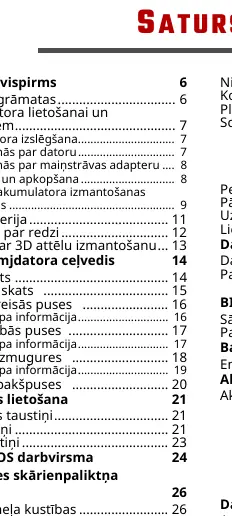
Table of contents
Manual images
Click an image to enlargeQuick guide from the manual
This guide provides essential information for setting up and maintaining your Acer Nitro 16S AI laptop. For detailed technical specifications and advanced configurations, please refer to the full user manual.
Getting Started
To ensure the longevity of your device, follow these guidelines:
- Shutdown: Use the Windows Start menu to shut down or put the computer to sleep. If the system is unresponsive, press and hold the power button for up to ten seconds.
- Care: Keep the laptop away from direct sunlight, heat sources, and extreme temperatures (below 0°C or above 50°C).
- Battery Safety: Only use the approved AC adapter. Avoid charging in extreme temperatures. If storing for a long period, charge to approximately 50% capacity.
Device Overview
The laptop features various ports for connectivity:
- Left Side: Ethernet (RJ-45) port, USB port, MicroSD card slot, and audio jack.
- Right Side: Battery indicator, power indicator, and USB ports.
- Rear: DC-in jack, HDMI 2.1 port, and USB 4 ports.
- Bottom: Cooling vents and stereo speakers.
Windows OS
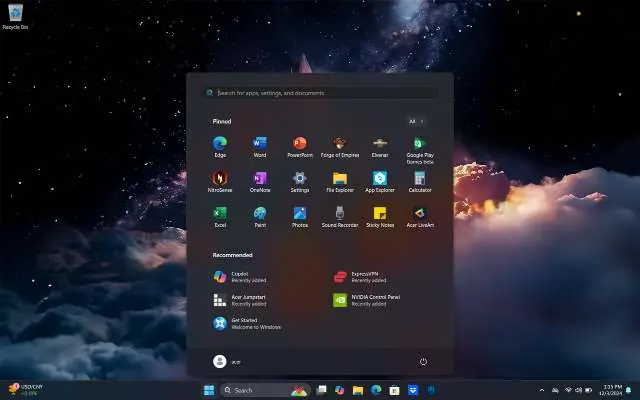
The laptop comes with Windows 11. Use the Start menu to access apps, settings, and search. The precision touchpad supports multi-finger gestures for navigation, such as swiping to switch tasks or pinching to zoom.
NitroSense
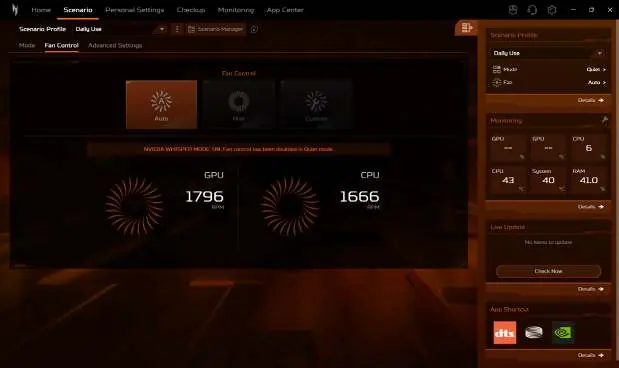
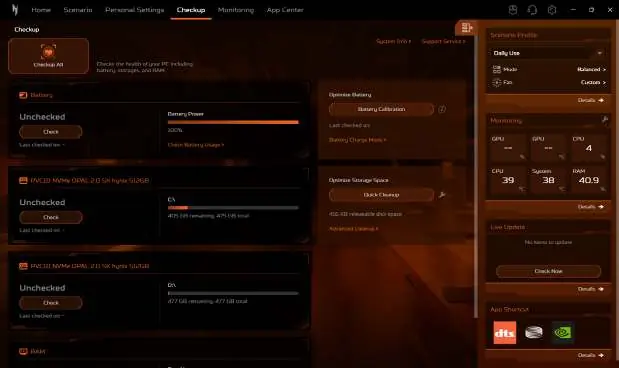
NitroSense allows you to control system performance and cooling:
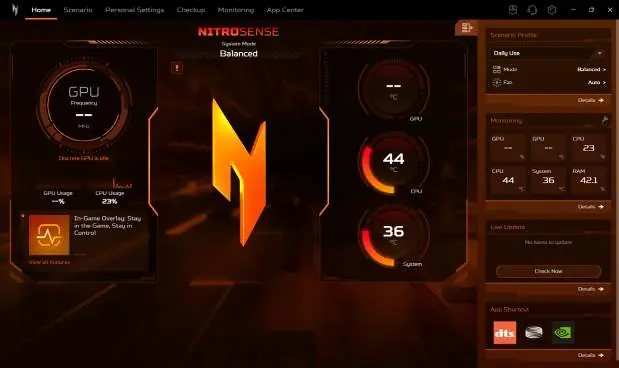
- Scenario Profiles: Switch between different performance modes (e.g., Balanced, Performance, Turbo, Eco).
- Fan Control: Adjust fan speeds (Auto, Max, or Custom) to manage thermal performance.
- Monitoring: View real-time CPU and GPU temperatures and system load.
- Settings: Customize boot logos, keyboard backlight behavior, and audio profiles via Acer TrueHarmony.
Recovery
If you encounter system issues, you can use the built-in recovery tools:
- Windows Backup: Use OneDrive to back up your files.
- Reset PC: Navigate to Settings > System > Recovery > Reset PC. You can choose to keep your personal files or remove everything and reinstall Windows.
Troubleshooting
If you face issues, check the following:
- Power Issues: Ensure the AC adapter is properly connected. If the battery is low, wait a few minutes after plugging in before attempting to turn it on.
- No Audio: Check volume settings in the taskbar.
- Keyboard/Printer: Ensure external devices are properly connected to the USB ports.
- Error Messages: If you see errors like "CMOS battery bad" or "Disk boot failure," contact an authorized service center.
Manufacturer information
Acer Inc.
Practical help
Common problems
Laptop does not start or boot
Check if the AC adapter is connected. If running on battery, it may be too low; charge for a few minutes before retrying.
No audio output
Check the volume settings in the taskbar. Ensure no external audio devices are muted or incorrectly connected.
Keyboard not responding
Try connecting an external USB keyboard. If it works, the internal keyboard cable may be loose; contact service.
Printer not working
Verify the printer is powered on and the USB cable is securely connected to the correct port.
Before use
- Ensure the battery is fully charged before first use.
- Check for any physical damage to the device.
- Ensure the area is well-ventilated for proper cooling.
- Verify all necessary peripherals are connected.
Images and diagrams
- The laptop features ports on the left, right, and rear sides.
- The DC-in jack is located on the rear; ensure the plug is fully inserted until you hear a click.
Model compatibility
- Supports Windows 11.
- USB 3.2 Gen 2 ports are blue; use these for optimal performance.
- MicroSD card slot supports one card at a time.

Manual page author
David Miller
Documentation analyst
Organizes user manual content into clear summaries, with attention to model details, product context, and everyday usability.