Computers / Laptops
User Manual for Acer Nitro 16S AI Laptop
Quick guide and user manual for the Acer Nitro 16S AI laptop. Learn about system setup, NitroSense performance modes, keyboard shortcuts, recovery options, and troubleshooting.
Table of contents
Manual images
Click an image to enlargeQuick guide from the manual
This manual provides essential information for operating your Acer Nitro 16S AI laptop. Key features include the NitroSense system for performance management, Windows recovery options, and connectivity guidelines. Always ensure the device is used in a well-ventilated area and follow the battery safety guidelines provided in the manual.
Getting started
Before using your computer for the first time, perform a battery conditioning cycle by fully charging and discharging the battery three times. Ensure the AC adapter is connected properly. To power off the device, use the Windows shutdown function or press the power button. If the system becomes unresponsive, hold the power button for 10 seconds to force a shutdown.
Device tour
The laptop features various ports and interfaces:
- Front: Includes microphones and an IR camera for Windows Hello.
- Keyboard: Features dedicated hotkeys for volume, brightness, and display switching.
- Left/Right Sides: Equipped with USB Type-A ports, Ethernet, and audio jacks.
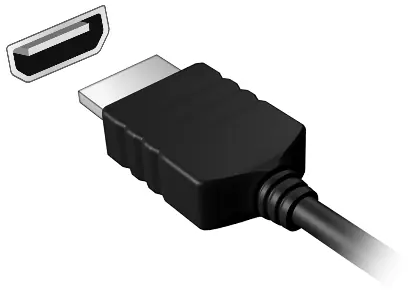
- Rear: Features DC input, HDMI 2.1, and USB 4 ports.
NitroSense
NitroSense allows you to monitor and control system performance:
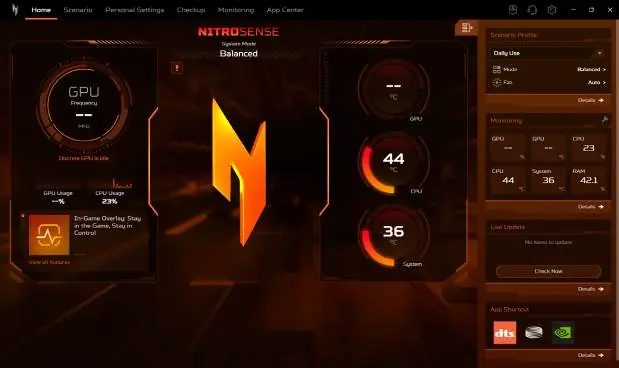
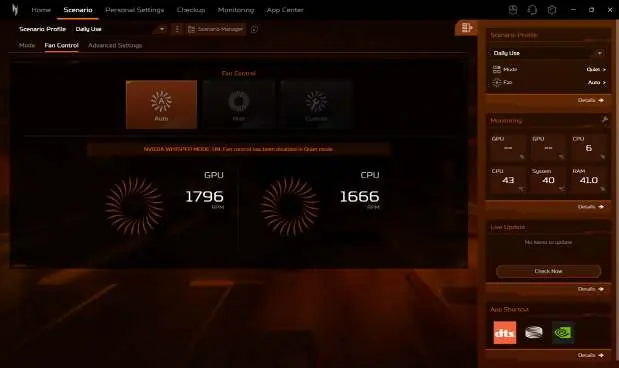
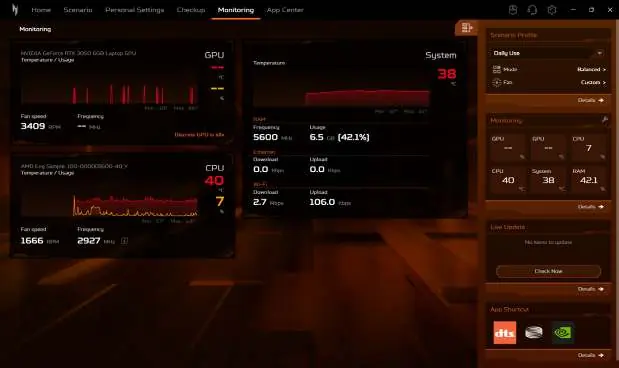
- Home: Provides an overview of system performance and temperatures.
- Scenario: Manage performance modes (Quiet, Balanced, Performance, Turbo, Eco) and fan control.
- Monitoring: Track CPU, GPU, and system status.
- Checkup: Check the health of battery, storage, and RAM.
- App Center: Quickly launch and manage installed applications.
Recovery and reset
If you encounter system issues, you can use the built-in recovery tools:
- Windows Backup: Use Windows backup to protect your files and data.
- Reset PC: You can reset the computer while keeping your personal files or remove everything to restore factory defaults.
Connectivity
The laptop supports various connection methods:
- Wi-Fi: Connect to wireless networks via the Windows network settings.
- Bluetooth: Pair devices through the Bluetooth & devices settings.
- Wired: Use the Ethernet port for stable network connections.
Security and power management
Protect your data using BIOS passwords and hardware security locks. Power management settings, such as fast startup, can be adjusted in the Control Panel to optimize battery life and system performance.
Troubleshooting
If you experience issues, check the following:
- Power: Ensure the AC adapter is connected and the battery is charged.
- Display: Toggle display output using the display switch hotkey (Fn+F7).
- Audio: Check volume levels and ensure headphones are not blocking internal speakers.
- Error Messages: Note any error messages and contact Acer support if the issue persists.
Manufacturer information
Acer Inc.
Practical help
Common problems
Computer won't boot
Check power supply, ensure battery is charged, and remove any connected USB devices.
No display output
Adjust screen brightness, toggle display output using Fn+F7, or check if the device is in sleep mode.
No audio
Check if the system is muted, adjust volume levels, and ensure no headphones are connected.
Keyboard not responding
Try connecting an external USB keyboard to verify if the issue is with the internal keyboard.
Before use
- Ensure the AC adapter is connected properly.
- Perform battery conditioning (full charge/discharge 3 times) before first use.
- Keep the device in a well-ventilated area.
- Check for BIOS updates if necessary.
Specs in practice
- USB 3.2 Gen 2
- Blue port, supports high-speed data transfer.
Images and diagrams
- Front view shows microphone and IR camera locations.
- Keyboard layout includes hotkeys for volume, brightness, and display switching.
- NitroSense interface allows monitoring of CPU/GPU temperatures and fan speeds.
Model compatibility
- NitroSense features vary by configuration.
- Mode switching requires AC adapter and >40% battery.

Manual page author
Michael Turner
Technical manual editor
Reviews PDF manuals for structure, safety notes, and practical product details so readers can find the right information quickly.