Computers / Laptops
User Manual for Acer Predator Helios Neo 16S AI Laptop
Comprehensive user manual for the Acer Predator Helios Neo 16S AI laptop. Learn about system setup, PredatorSense software, battery care, port connectivity, and troubleshooting.
Table of contents
Manual images
Click an image to enlargeQuick guide from the manual
This manual provides essential information for operating your Acer Predator Helios Neo 16S AI. Key features include the PredatorSense software for system performance tuning, advanced battery management, and various connectivity options. Always ensure your system is updated and follow the safety guidelines provided, especially regarding battery handling and charging.
Getting Started
To turn off your computer, use the Windows shutdown command or press the power button. For short breaks, use the Sleep mode. If the system becomes unresponsive, press and hold the power button for ten seconds to force a shutdown. Ensure you use only the provided AC adapter to prevent damage.
Laptop Tour
The laptop features a variety of ports and interfaces:
- Screen: Includes an IR camera for facial recognition and Windows Hello support.
- Keyboard: Features dedicated hotkeys for volume, brightness, and PredatorSense launch.
- Left View: Includes Ethernet (RJ-45), USB ports, MicroSD card reader, and a headset/speaker jack.
- Right View: Includes USB ports with power-off charging and ventilation.
- Rear View: Features DC-in jack, HDMI 2.1 port, and USB Type-C/Thunderbolt 4 ports.
PredatorSense
PredatorSense is the central hub for managing your laptop's performance:
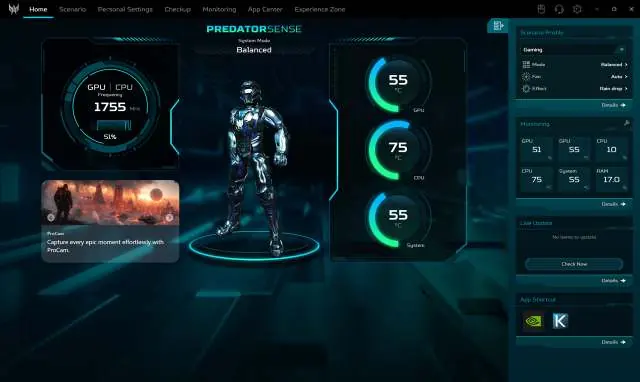
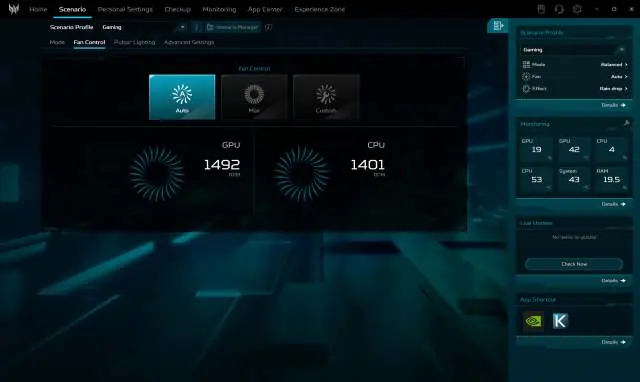
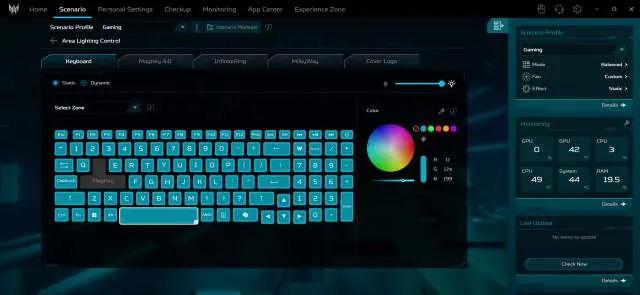
- System Mode: Switch between Quiet, Balanced, Performance, Turbo, and Eco modes.
- Fan Control: Adjust cooling performance with Auto, Max, or Custom settings.
- Pulsar Lighting: Customize keyboard and logo lighting effects, both static and dynamic.
- Checkup: Evaluate the health of your battery, storage, and RAM.
- App Center: Manage and launch installed applications.
Battery Management
The laptop uses an embedded Lithium battery. To optimize its lifespan:
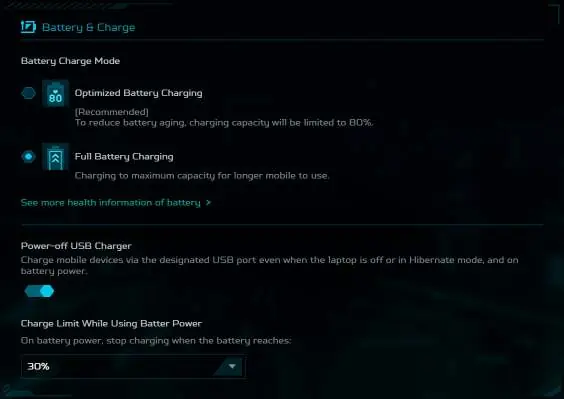
- Use the Optimized Battery Charging mode to limit capacity to 80%.
- Avoid exposing the battery to extreme temperatures (below 0°C or above 45°C).
- Perform battery conditioning for new batteries by fully charging and depleting them three times.
- Remove unused USB accessories to save power.
Recovery
If you encounter system issues, you can use the built-in recovery tools:
- Reset this PC: Choose to keep your files or remove everything to restore factory settings.
- Windows Backup: Use OneDrive to back up your files and folders.
Connectivity
The laptop supports various network connections:
- Wireless LAN: Connect via the Windows network icon in the taskbar.
- Wired: Use the Ethernet port for stable network connections.
- Bluetooth: Enable via Settings > Bluetooth & devices to pair peripherals.
Security
Protect your data using BIOS passwords:
- Supervisor Password: Prevents unauthorized access to the BIOS utility.
- User Password: Secures the computer against unauthorized use.
- Password on Boot: Adds an extra layer of security during startup.
Troubleshooting
If you experience issues, consult the troubleshooting section for common error messages like "CMOS battery bad" or "Disk boot failure." If problems persist, contact your dealer or an authorized Acer service center.
Manufacturer information
Acer Inc.
Practical help
Common problems
Computer does not start or boot up
Check if the AC adapter is properly connected. If using battery power, it may be low; connect the charger and wait a few minutes.
Nothing appears on the screen
Press any key to wake the display. Check if the brightness is too low or if the display is toggled to an external monitor.
No audio is heard
Check if the volume is muted in the taskbar. Ensure headphones are not connected if you intend to use internal speakers.
Before use
- Ensure the AC adapter is properly connected to the laptop and a power outlet.
- Charge the battery fully before the first use.
- Check for Windows updates via Settings.
- Activate internet security software.
- Familiarize yourself with the PredatorSense interface.
Specs in practice
- Thunderbolt 4
- A high-speed port supporting data, displays, and power delivery via USB Type-C.
- PredatorSense
- Acer's proprietary software for managing system modes, fan speeds, and lighting.
- USB 3.2 Gen 1/2
- High-speed USB ports; blue color indicates high-speed capability.
Images and diagrams
- Screen view: Identifies microphones, IR camera, and screen.
- Keyboard view: Shows mode key, power button, and ventilation.
- Left/Right/Rear views: Details all ports including Ethernet, USB, and DC-in.
Model compatibility
- USB Type-C 100W charging provides standard capability; avoid using docks or 4K monitors for extended power.
- SDXC cards require an SDXC-compatible reader.

Manual page author
Michael Turner
Technical manual editor
Reviews PDF manuals for structure, safety notes, and practical product details so readers can find the right information quickly.