Home / Weather Stations & Thermometers
AcuRite 06101M 5-in-1 Direct-To-Wi-Fi Display User Manual
Quick setup guide for the AcuRite 06101M 5-in-1 Direct-To-Wi-Fi Display. Learn how to install batteries, configure Wi-Fi, mount the sensor, and access historical weather data.
Table of contents
Quick Guide from the Manual
This guide covers the setup and configuration of the AcuRite 06101M 5-in-1 Direct-To-Wi-Fi Display. To get started, you will need the display, the power adapter, and the AcuRite Iris (5-in-1) sensor. Wi-Fi configuration is optional but recommended for online data access.
Sensor Setup
The outdoor sensor requires 4 AA alkaline or lithium batteries. Lithium batteries are recommended for temperatures below -4°F (-20°C).
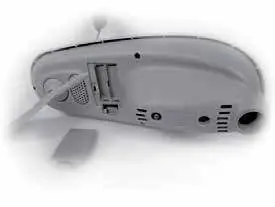
- Open the battery compartment on the outdoor sensor.
- Install 4 AA batteries.
- Ensure the small A-B-C switch inside the battery compartment matches the setting on your display (default is A).
- If you have the optional Lightning Detection Sensor, install 4 AA batteries in its compartment as well.
Display Setup
The display requires the power adapter and 3 AAA backup batteries (recommended to retain settings).
- Plug in the power adapter; the port is located in the battery compartment on the back of the display.
- Once powered on, configuration begins automatically.
- Use the Up and Down buttons to select options and the set button to confirm.
- You can configure the Clock, Date, and Units of Measurement (U.S. Standard/Metric).
Wi-Fi Configuration
To push weather data to the internet, follow these steps:
- Connect to Display's Network: Open Wi-Fi settings on your device and connect to the network named "AcuRite".
- Access Setup Page: Open a web browser and navigate to 192.168.4.1.
- Add Credentials: Select your personal Wi-Fi network, enter the password, and save. Note that only 2.4 GHz networks are supported.
- Complete Setup: Once connected, the Wi-Fi icon on the display will turn solid black. Reconnect your device to your normal Wi-Fi and download the My AcuRite app or visit myacurite.com to finish.
Using the Display
You can view historical records directly on the display:
- Outdoor Records: Press the Blue button to cycle through recent outdoor data.
- Indoor Records: Press the Yellow button to cycle through recent indoor data.
- Settings: Press the set button at any time to adjust configuration options.
My AcuRite Integration
My AcuRite is compatible with Amazon Alexa and Google Assistant. You can add the AcuRite skill to your smart home system. For more information on features like notifications and data sharing, visit support.acurite.com and navigate to the My AcuRite category.
Official resources from the manual
Manufacturer information
AcuRite
Practical help
Common problems
Wi-Fi setup page does not load
Ensure you are still connected to the 'AcuRite' Wi-Fi network. Try unplugging the display and plugging it back in, then retry.
Wi-Fi icon flashes with an X
Wi-Fi needs to be configured on the display. Repeat the Wi-Fi setup steps.
Flashing X appears above the Wi-Fi icon
Wi-Fi credentials may be incorrect. Re-enter your network password.
Before use
- Install 4 AA batteries in the outdoor sensor.
- Verify the A-B-C switch in the sensor matches the display setting (default is A).
- Install 3 AAA backup batteries in the display.
- Plug in the power adapter.
- Ensure your Wi-Fi network is 2.4 GHz (5 GHz is not supported).
Specs in practice
- Wi-Fi Frequency
- 2.4 GHz networks only; 5 GHz networks are not operable.
- Sensor Power
- 4 AA alkaline or lithium batteries.
- Display Power
- Power adapter with 3 AAA backup batteries recommended.
Images and diagrams
- A-B-C Switch: Located in the sensor battery compartment; must match the display setting.
- Wi-Fi Indicator: A solid black icon indicates a successful connection.
Model compatibility
- My AcuRite is compatible with Amazon Alexa and Google Assistant.
- Wi-Fi setup requires a device with Wi-Fi access (phone, tablet, or computer).

Manual page author
Michael Turner
Technical manual editor
Reviews PDF manuals for structure, safety notes, and practical product details so readers can find the right information quickly.