Home / Weather Stations & Thermometers
User Guide for AcuRite Iris 06102M Direct-To-Wi-Fi Display
Quick setup guide for the AcuRite Iris 06102M Direct-To-Wi-Fi Display. Learn how to install sensor batteries, configure display settings, connect to Wi-Fi, and mount your weather sensor.
Table of contents
Quick Guide from the Manual
This guide provides the essential steps to set up your AcuRite Iris 06102M Direct-To-Wi-Fi Display. Before beginning, ensure you have the display, power adapter, the AcuRite Iris sensor, and a 2.4 GHz Wi-Fi network available. Note that the Wi-Fi setup page is only available for 30 minutes after the display is powered on.
Sensor Setup
To prepare the outdoor sensor:
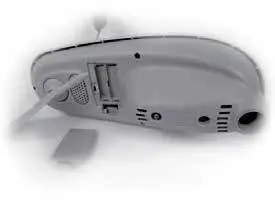
- Open the battery compartment on the outdoor sensor.
- Install four AA alkaline or lithium batteries. Lithium batteries are recommended for temperatures below -4°F (-20°C).
- Check the small A-B-C switch inside the battery compartment. It must match the selection on the display. By default, both are set to A.
- Remove and discard the rain gauge stabilizer.
Display Configuration
Plug in the power adapter to turn on the display. Configuration begins automatically:
- Use the Up and Down buttons to navigate options.
- Press the Checkmark button to confirm selections.
- Settings include Clock (Hour/Minute/DST), Date (Month/Day/Year), Units of Measurement (U.S. Standard/Metric), and Wi-Fi Configuration.
- You can adjust these settings later by pressing the Gear button and selecting General Setup.
Wi-Fi Connection
To push weather data to the internet:
- Connect to Display Network: Open Wi-Fi settings on your device and connect to the network with "AcuRite" in its name.
- Access Setup Page: Open a web browser and navigate to 192.168.4.1.
- Add Credentials: Select your personal Wi-Fi network, enter the password, and press Save.
- Complete Setup: Once connected, reconnect your device to your normal Wi-Fi network and download the My AcuRite app or visit myacurite.com to finish account setup.
If the setup page does not load, ensure you are connected to the AcuRite network, or unplug and replug the display to restart the process.
Sensor Mounting
For accurate readings, mount the AcuRite Iris sensor:
- At least 5 ft. (1.5 m) off the ground.
- With the front solar cell facing south.
- Away from heat and humidity sources.
- Level, using the bubble level on top of the sensor.
Historical Records and Settings
To view recent records on the display, press the Records Folder button and use the Up and Down buttons. For more detailed records, charts, and notifications, use the My AcuRite app or website. The system is compatible with Amazon Alexa and Google Assistant via the AcuRite skill.
Troubleshooting and Maintenance
If the Wi-Fi icon shows "NOT SETUP," repeat the Wi-Fi configuration steps. If it shows a red X, credentials may be incorrect and should be re-entered. To clear Wi-Fi credentials, records, and other settings, press the Gear button and select Factory Reset.
Official resources from the manual
Manufacturer information
AcuRite
Practical help
Common problems
Wi-Fi setup page does not load
Ensure you are connected to the 'AcuRite' Wi-Fi network, unplug and replug the display, and try again.
Wi-Fi icon shows 'NOT SETUP'
Wi-Fi is not configured; repeat the Wi-Fi setup steps.
Wi-Fi icon shows a red X
Credentials may be incorrect; re-enter Wi-Fi credentials.
Before use
- Ensure you have 4 AA batteries for the sensor.
- Verify the A-B-C switch on the sensor matches the display setting.
- Ensure your Wi-Fi network is 2.4 GHz (5 GHz is not supported).
- Have your Wi-Fi network name and password ready.
- Remove the rain gauge stabilizer from the sensor.
Specs in practice
- Wi-Fi Frequency
- 2.4 GHz networks only; 5 GHz is not supported.
- Sensor Mounting Height
- At least 5 ft. (1.5 m) off the ground.
Images and diagrams
- A-B-C Switch: Located in the sensor battery compartment; must match the setting on the display.
Model compatibility
- Compatible with Amazon Alexa and Google Assistant via the AcuRite skill.

Manual page author
David Miller
Documentation analyst
Organizes user manual content into clear summaries, with attention to model details, product context, and everyday usability.