Home / Weather Stations & Thermometers
User Manual for Acurite 06190M Optimus Weather Station
Quick guide for the Acurite 06190M Optimus Weather Station. Learn how to set up your device, configure weather alerts, manage backlight settings, and use the lightning detection and rainfall tracking features.
Table of contents
Quick Guide from the Manual
The Acurite 06190M Optimus Weather Station is designed to provide real-time weather data and forecasts. To begin, install the outdoor temperature sensor first. Once the sensor is installed, use the SET button on the display to initiate the guided setup process. Follow the on-screen prompts, using the UP and DOWN arrow buttons to adjust values and the SET button to confirm each selection.
Device Controls and Display
The main display provides a comprehensive view of current weather conditions, including temperature, humidity, rainfall, wind speed, and lightning activity. Control buttons are located at the bottom of the unit:
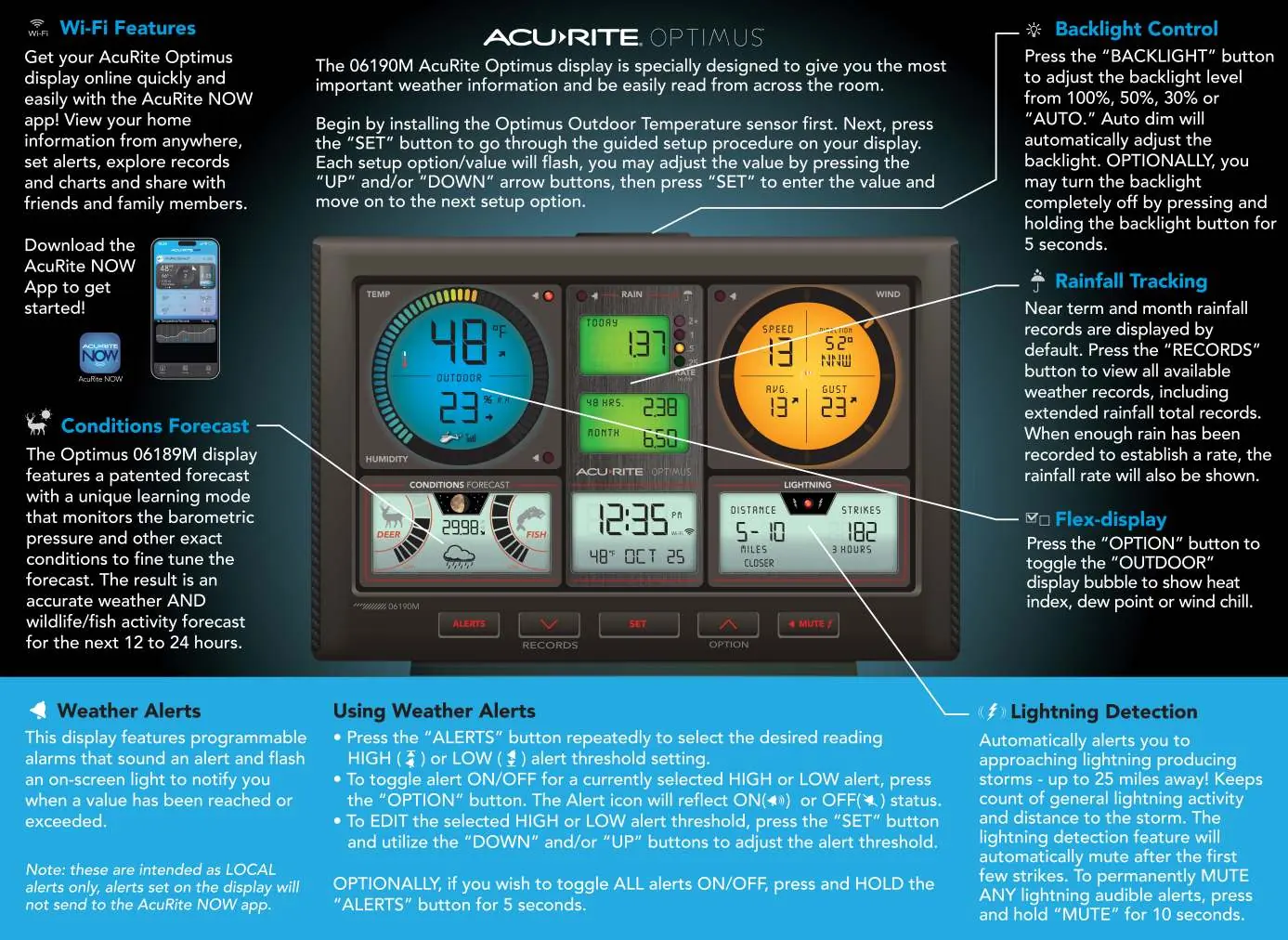
- ALERTS: Used to configure high and low threshold alarms.
- RECORDS: Accesses weather history and rainfall data.
- SET: Enters the setup menu and confirms selections.
- OPTION: Toggles display modes (heat index, dew point, wind chill) and alert status.
- MUTE: Silences audible lightning alerts.
Wi-Fi and App Connectivity
You can view your weather data online using the Acurite NOW app. Download the app to your smartphone to monitor your home information from anywhere, set alerts, explore records, and share data with friends and family.
Weather Features
Conditions Forecast
The device features a patented forecast mode that monitors barometric pressure to predict weather conditions and wildlife/fish activity for the next 12 to 24 hours.
Rainfall Tracking
Near-term and month rainfall records are displayed by default. Press the RECORDS button to view all available weather records, including extended rainfall totals.
Lightning Detection
The station automatically alerts you to approaching lightning-producing storms up to 25 miles away. It tracks the count of general lightning activity and the distance to the storm.
Settings and Adjustments
Backlight Control
Press the BACKLIGHT button to adjust the screen brightness. You can cycle through 100%, 50%, 30%, or AUTO settings. To turn the backlight off completely, press and hold the BACKLIGHT button for 5 seconds.
Weather Alerts
You can program alarms for specific readings. Press the ALERTS button repeatedly to select the desired reading (High or Low). Use the OPTION button to toggle the alert ON or OFF. Use the UP and DOWN buttons to adjust the threshold. To toggle all alerts on or off, press and hold the ALERTS button for 5 seconds.
Note: These alerts are local only and will not be sent to the Acurite NOW app.
Manufacturer information
AcuRite
Practical help
Common problems
Lightning detection audible alerts are too frequent.
Press and hold the MUTE button for 10 seconds to permanently mute audible lightning alerts.
Backlight is too bright or dim.
Press the BACKLIGHT button to cycle through 100%, 50%, 30%, or AUTO settings.
Before use
- Install the outdoor temperature sensor first.
- Download the Acurite NOW app.
- Use the SET button to enter guided setup.
Specs in practice
- Lightning Detection
- Monitors storms up to 25 miles away.
- Conditions Forecast
- Uses barometric pressure to predict weather and wildlife/fish activity for the next 12-24 hours.
Images and diagrams
- The main display shows temperature, humidity, rainfall, wind speed, and lightning strike distance.
- Control buttons are located at the bottom: ALERTS, RECORDS, SET, OPTION, MUTE.
Model compatibility
- Alerts are local only and will not be sent to the Acurite NOW app.

Manual page author
David Miller
Documentation analyst
Organizes user manual content into clear summaries, with attention to model details, product context, and everyday usability.